Merit
- Table of contents
- Merit
- 01 Description
- 02 Setup and preparation in Merit
- 03 Setup in Docura
- 04 2doc in Merit
- 05 4doc in Merit. Premium package only
- 06 Prisma 3DOC specifics (Merit Premium)
- 07 Purchase e-invoices into Merit
- 08 EDI accounting
- 09 QA - Questions and answers
01 Description
1. Merit Aktivat is easy to understand and to use, and it has enough capabilities both for a demanding professional and for an entrepreneur. Thanks to cloud technology you can very easily share the work between the accountant and the entrepreneur.
2. https://www.merit.ee/merit-aktiva/raamatupidamisprogramm/
3. Merit guide: https://www.merit.ee/juhend/muud/seadistused.pdf
02 Setup and preparation in Merit
1. Package
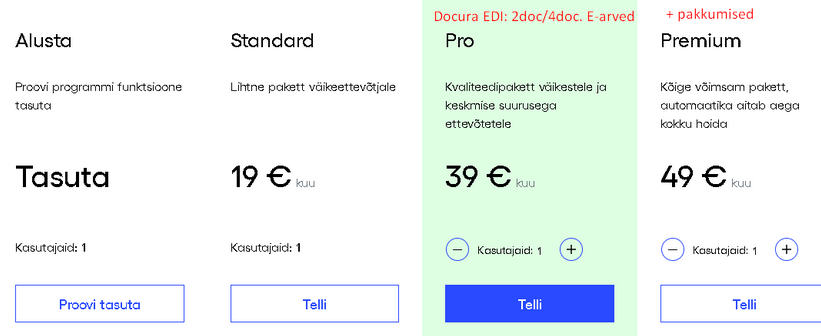
1.1. At least the Pro package is required. https://www.merit.ee/merit-aktiva/hinnad/
2. Items and batch accounting
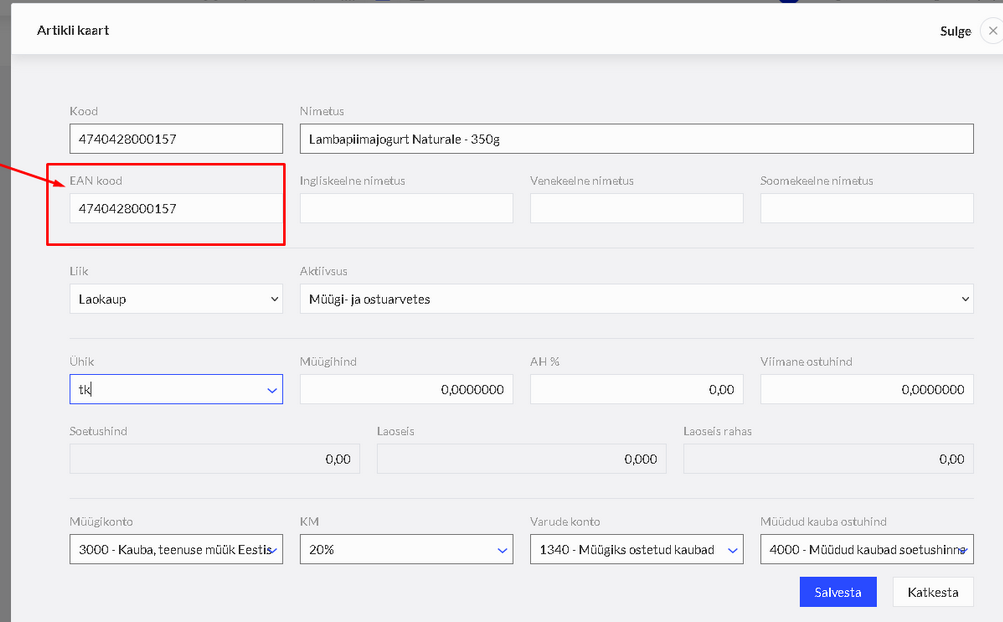
2.1. An EAN code must definitely be present on the item card. The EAN code must be unique! The same EAN code must not be used for any other product
2.2. Merit does not support batch accounting for one product. Usually several products are created, one for each batch.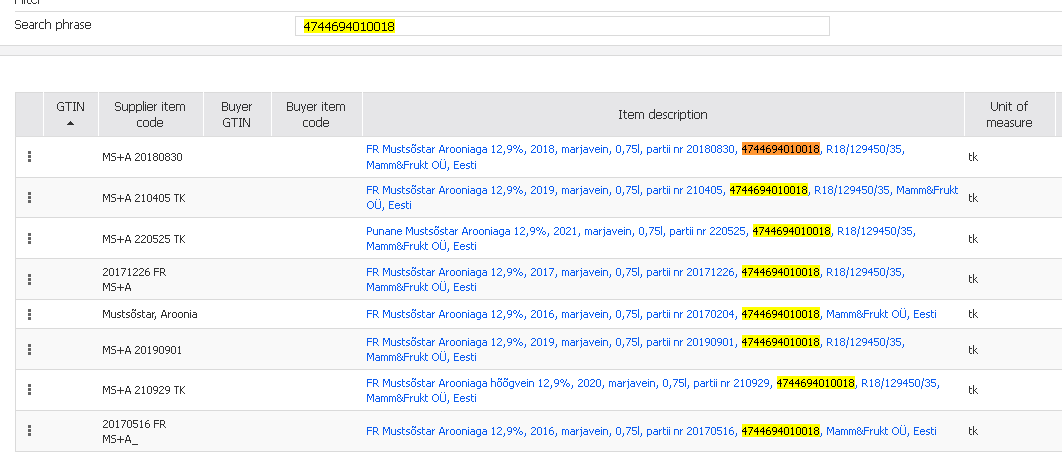
For EDI the EAN code must be configured on the correct/current batch item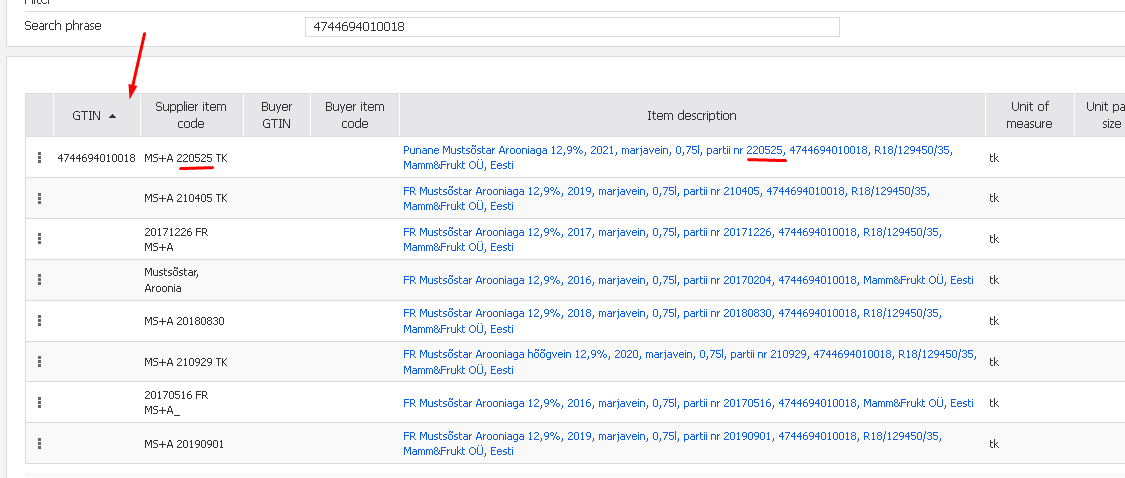
3. Customers and stores must be set up correctly.
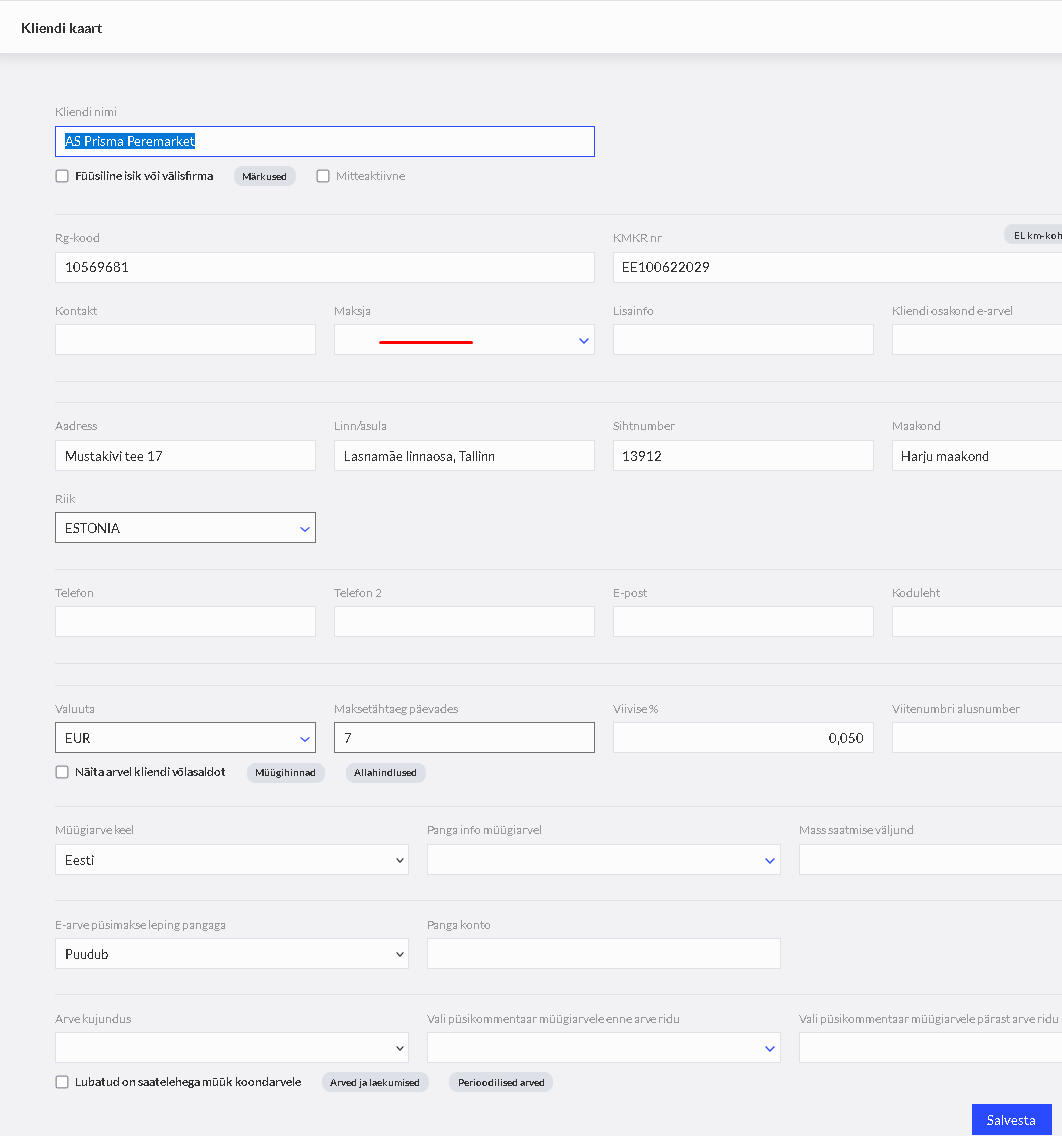
3.1. A separate customer card is created for each legal entity.
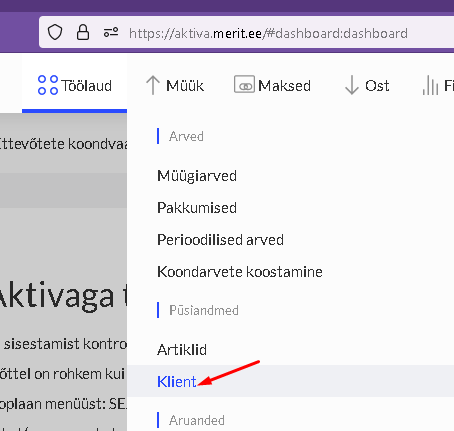
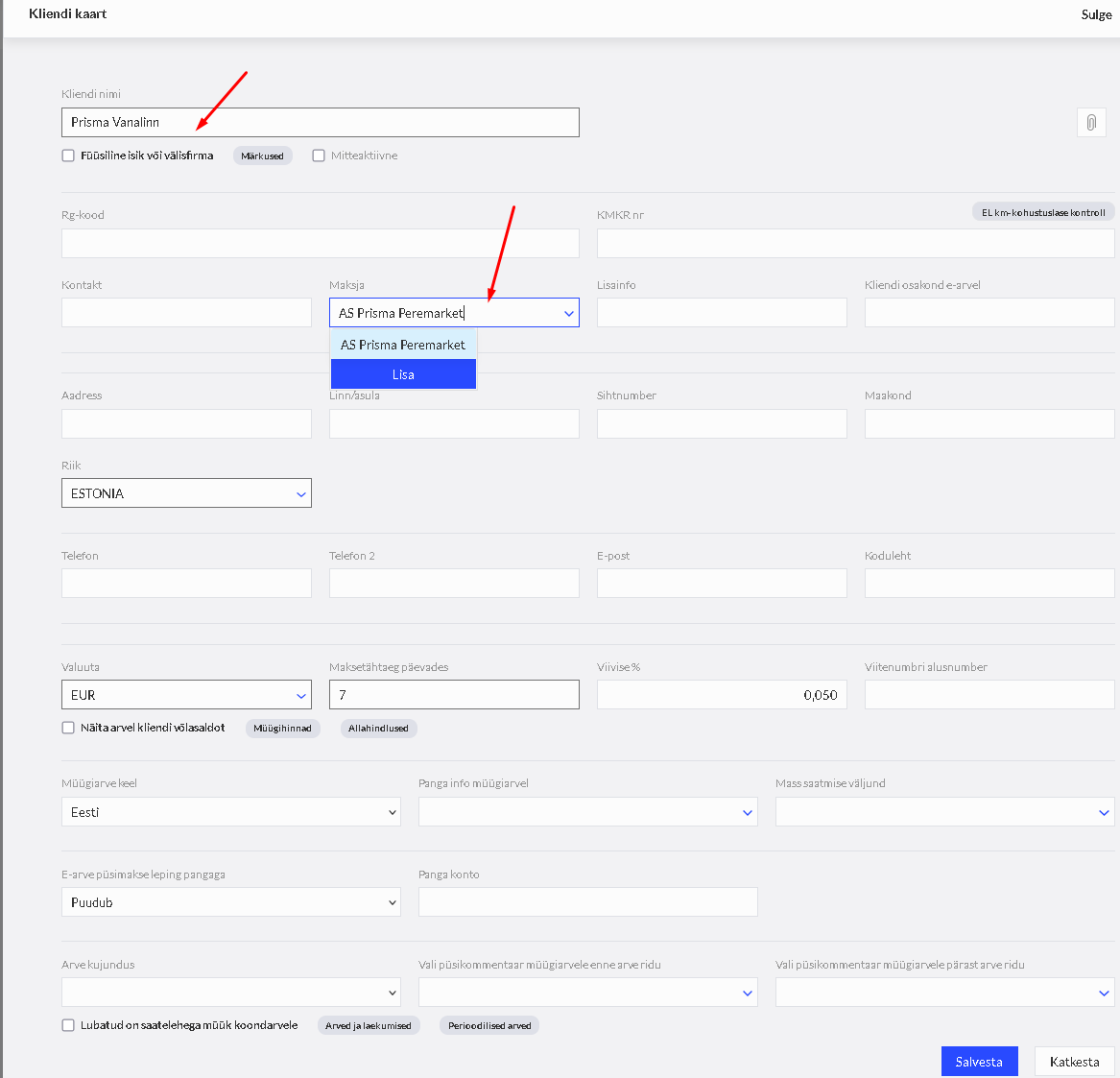
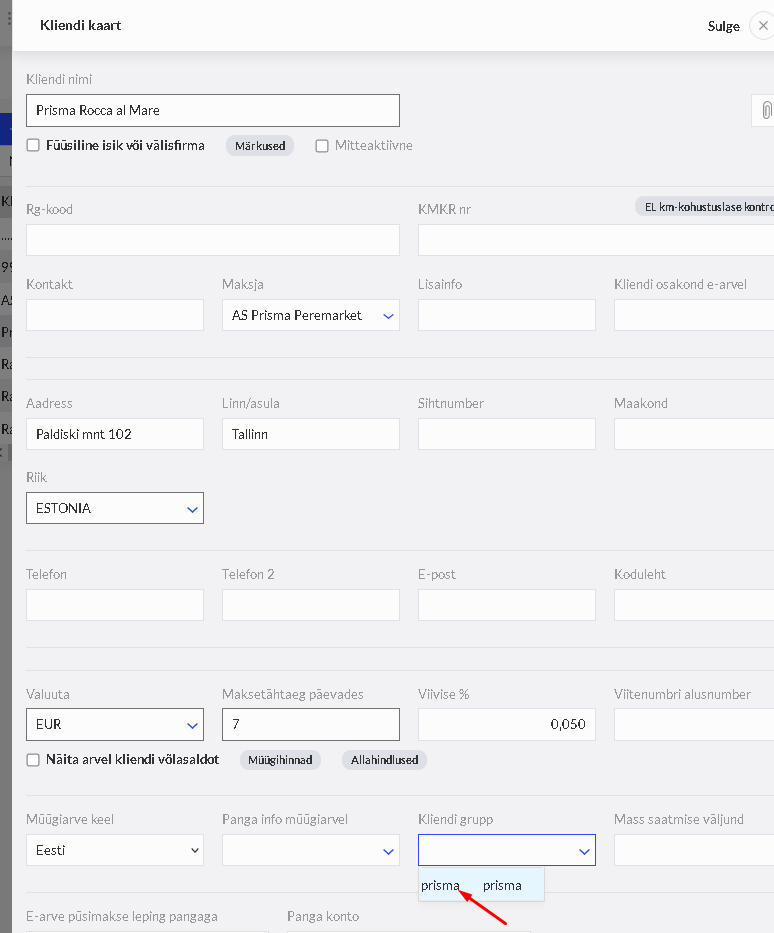
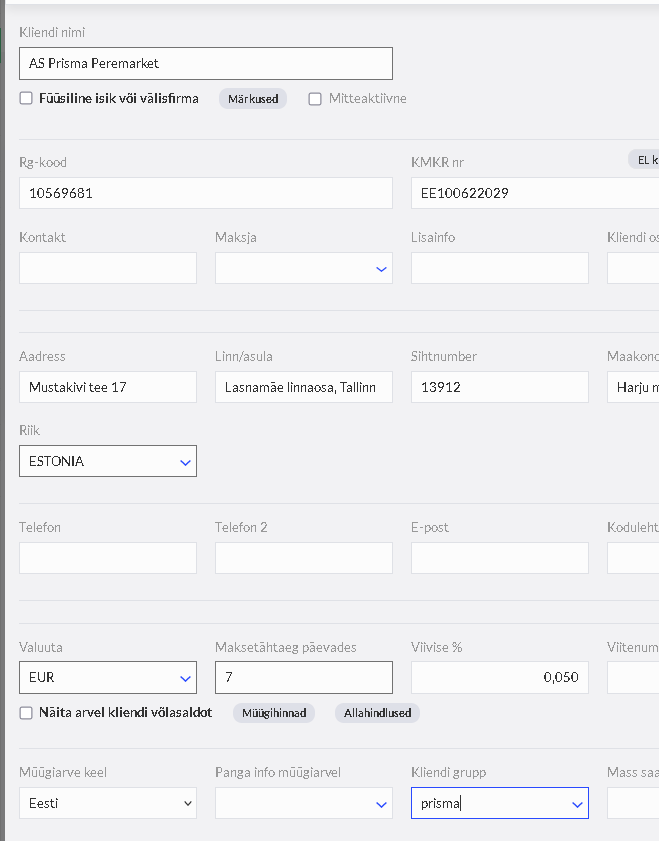
3.2. If a customer has more than 1 delivery point, a separate customer card is created for each delivery point. On the store's customer card the payer must be selected as the legal entity.
Payer and stores

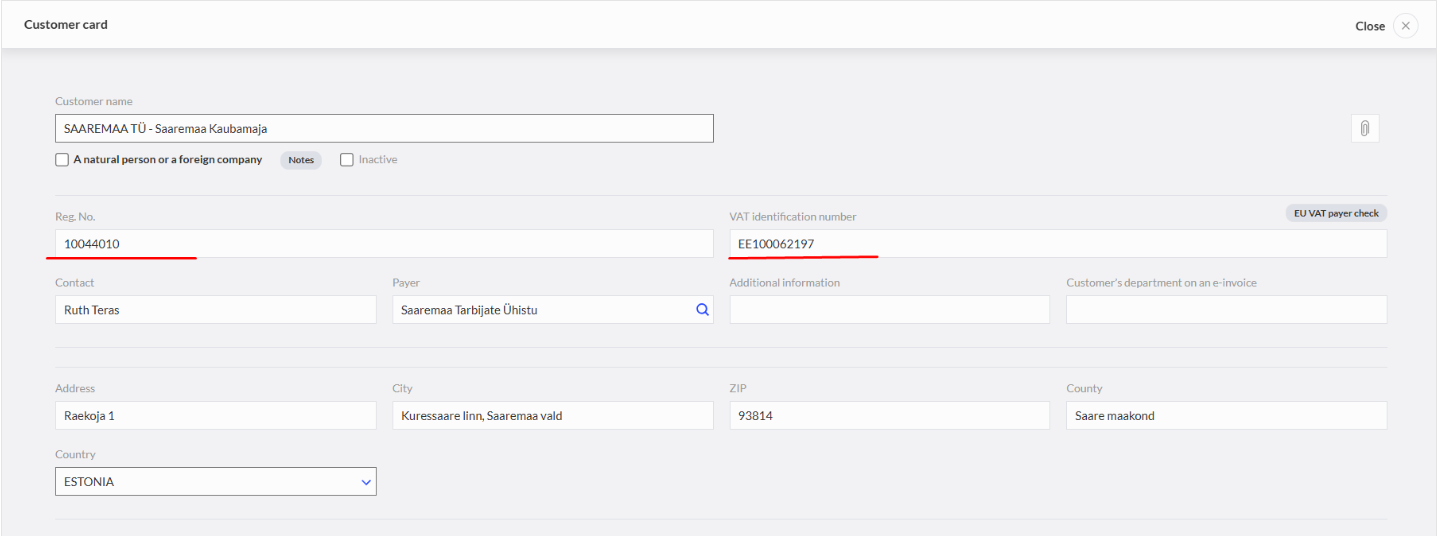
Payer customer card:
Store customer card:
4. Prices
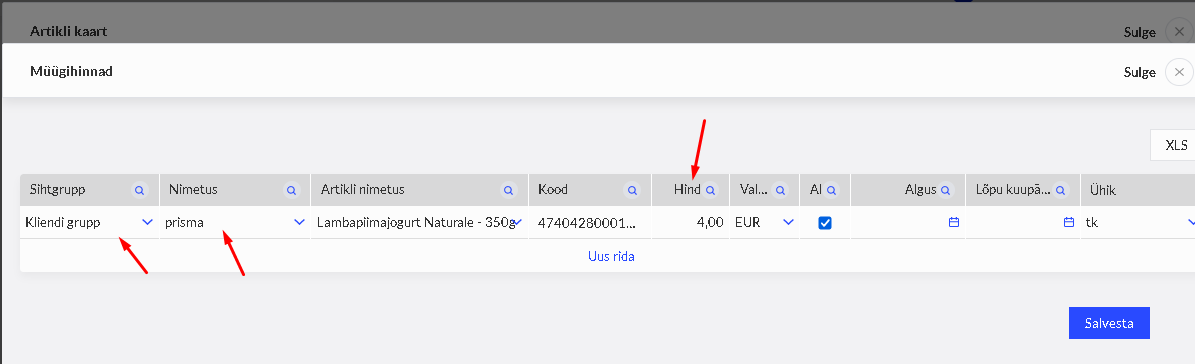
4.1 If customers have different prices, do not create a separate item card for each customer! Instead, customer groups and customer prices or discounts must be used (not both at the same time).
4.2. In the settings Customer groups are selected.
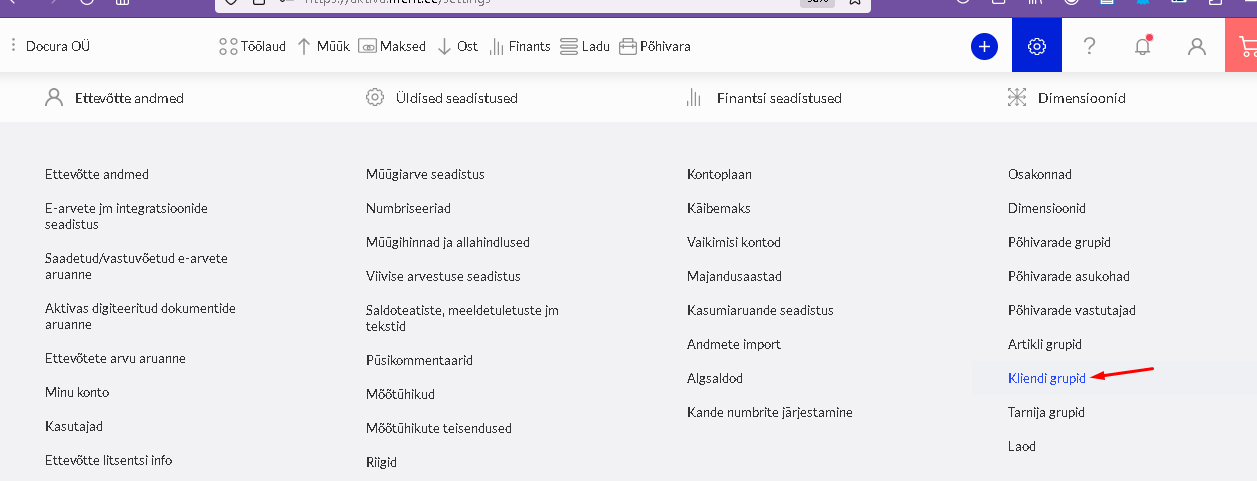
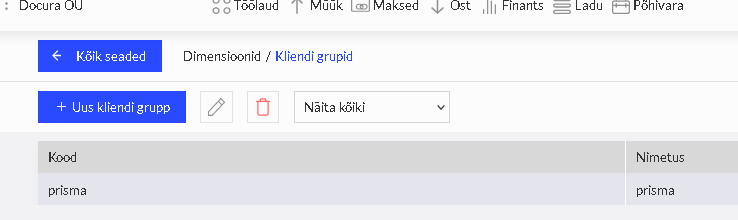
4.2. On the customer card a customer group is set for every customer (incl. stores).
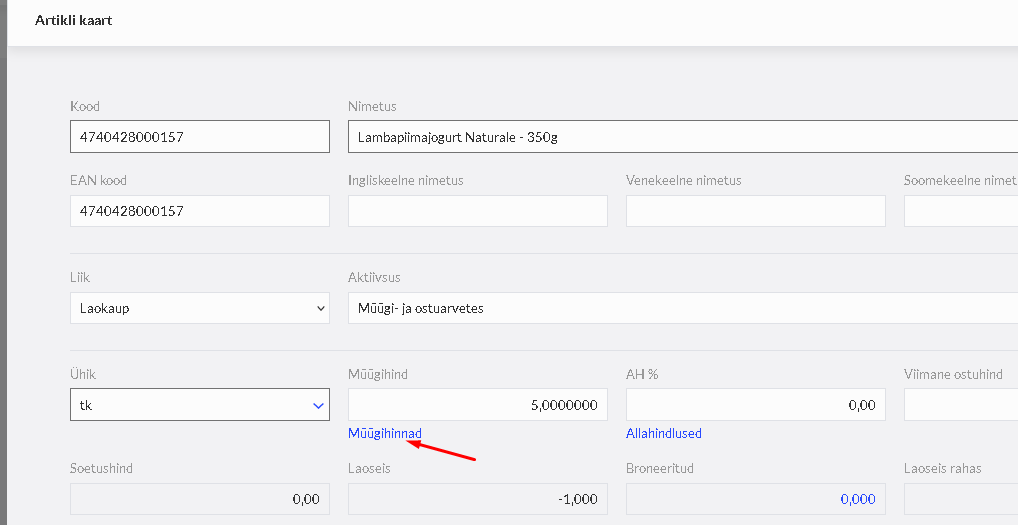
4.3. On the item card the sales price corresponding to the customer group is entered.
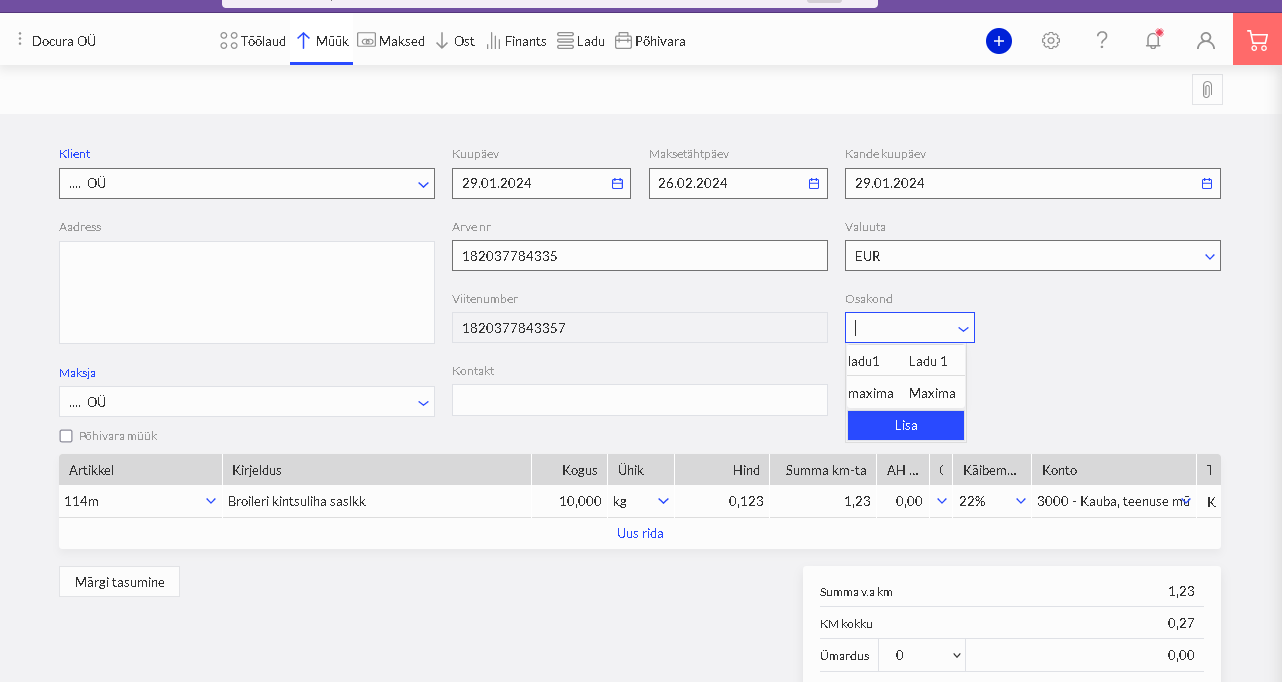
5. Department for sales invoice numbering
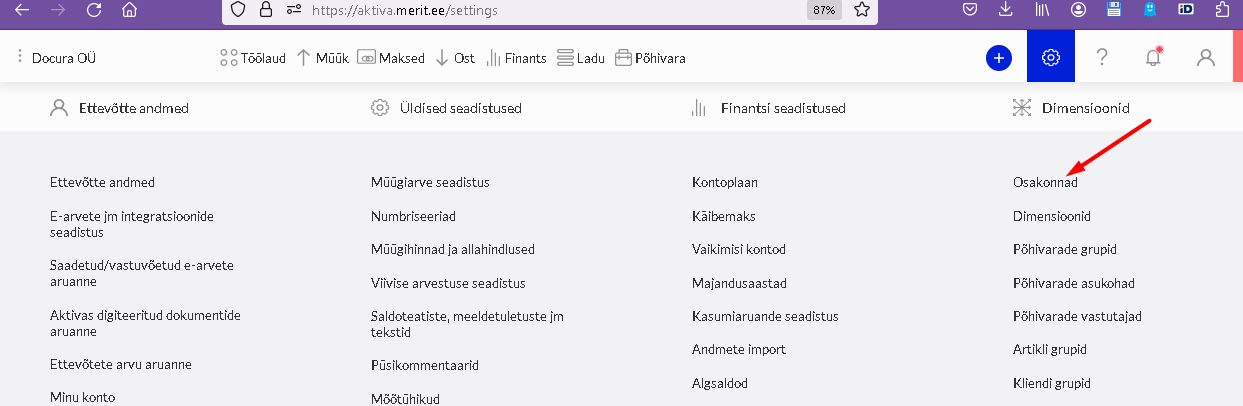
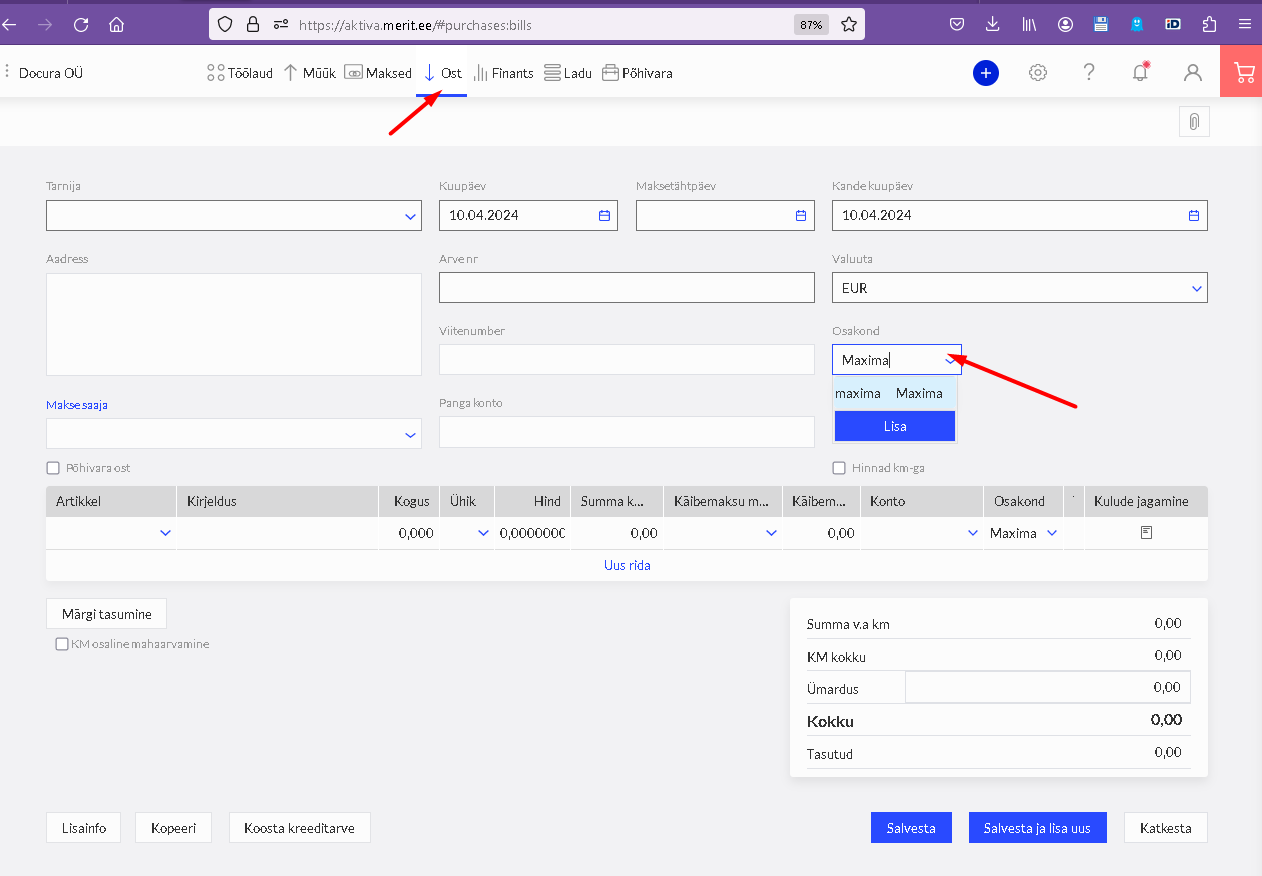
If the company's sales invoices are divided between different departments, add the departments in the menu Settings -> Dimensions -> Departments -> New department.
You can assign different sales invoice numbering, the department-based bank account shown on the invoice and the invoice form design to different departments.
6. This completes the EDI preparations in Merit.
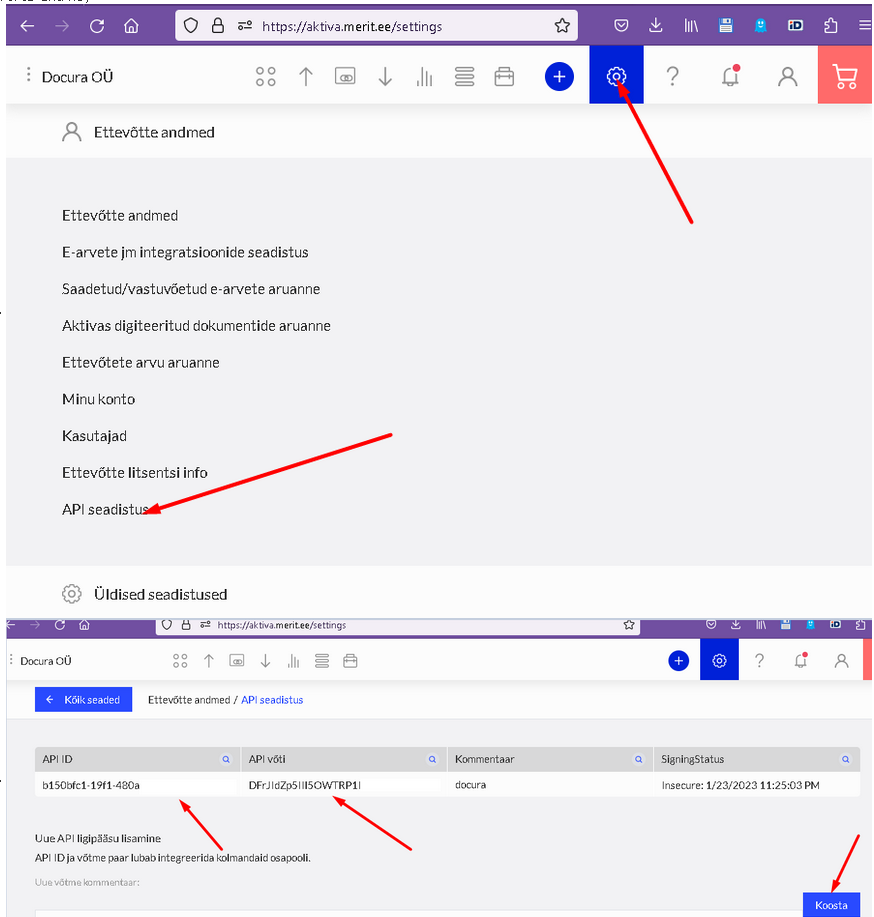
7. Now Merit and Docura have to be linked. Obtain the API key from Merit and configure the Docura integration.
03 Setup in Docura
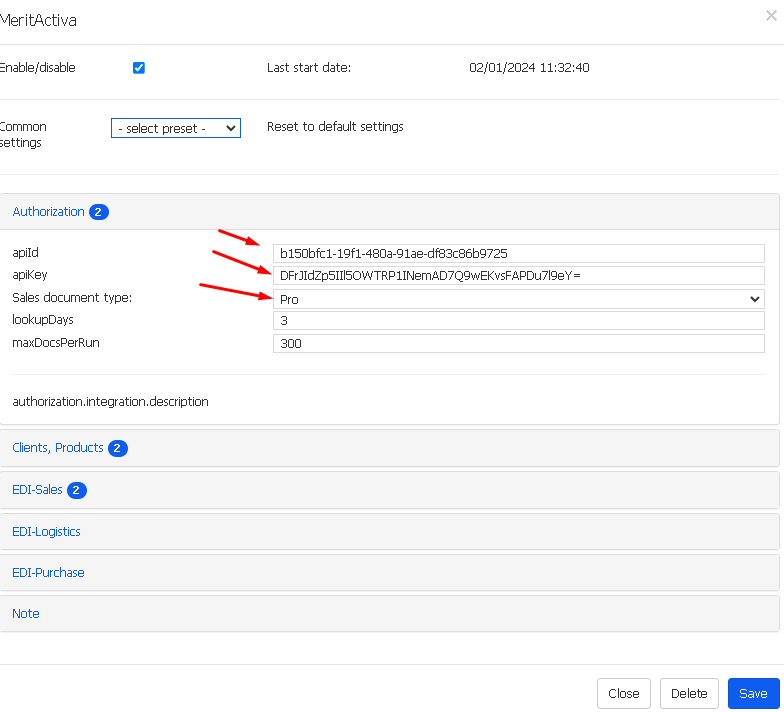
1. Configure Docura web. Integrations -> Merit Activa
1.1. ApiID
1.2. ApiKey
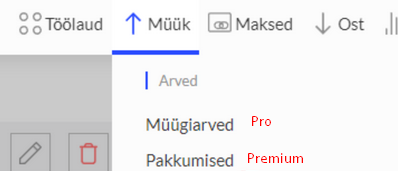
1.3. Sales document type: either Pro or Premium. With Pro an invoice is created from the order, with Premium a quotation.
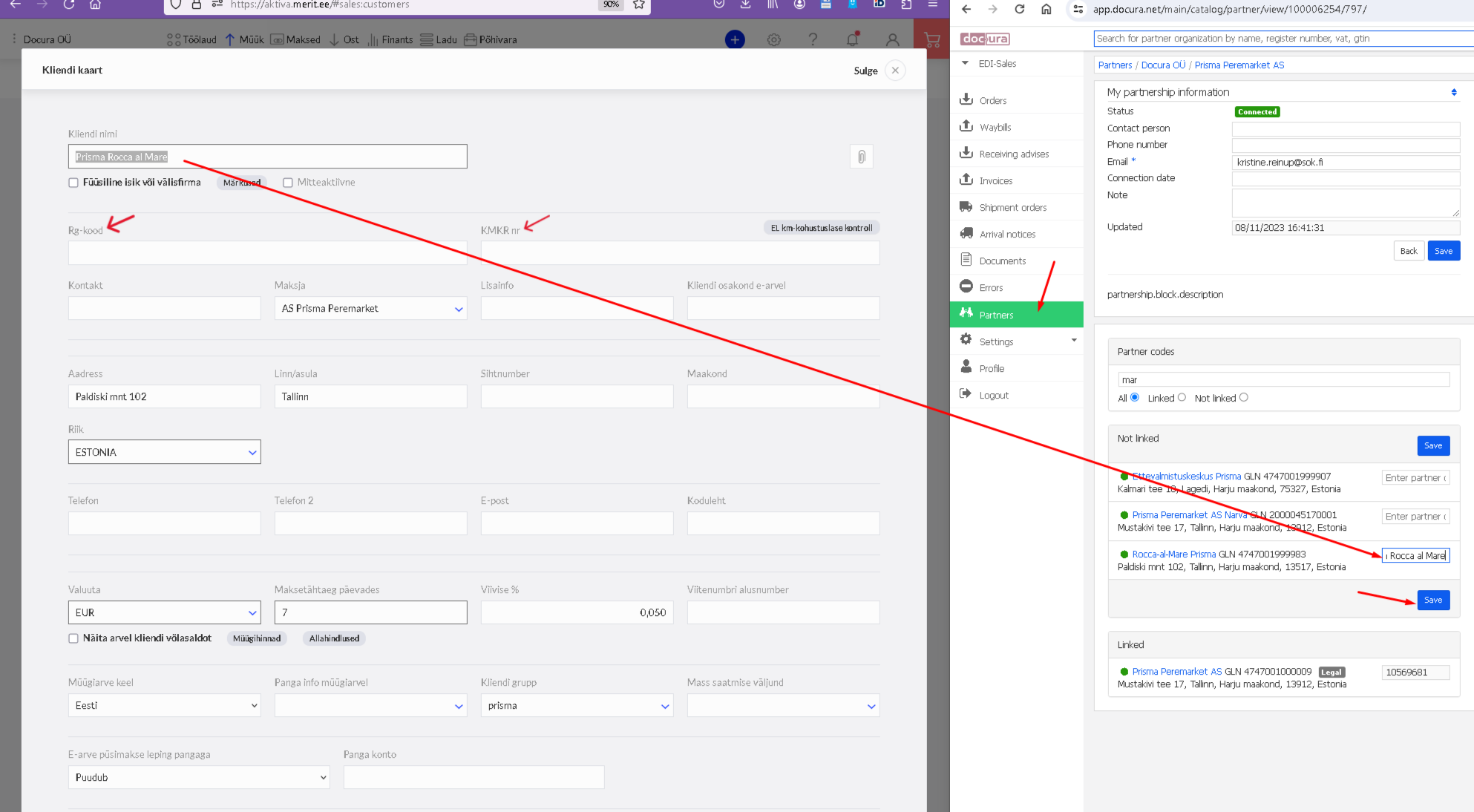
2. Partners must be linked in Docura web: https://redmine.docura.net/projects/docura-manual-en/wiki/01_EDI_quick_start#02-If-the-partner-and-their-address-already-exist-in-Docura
3. The code is the name of the customer/store.
The partner must have a registration code or a VAT number, without it the system does not work.
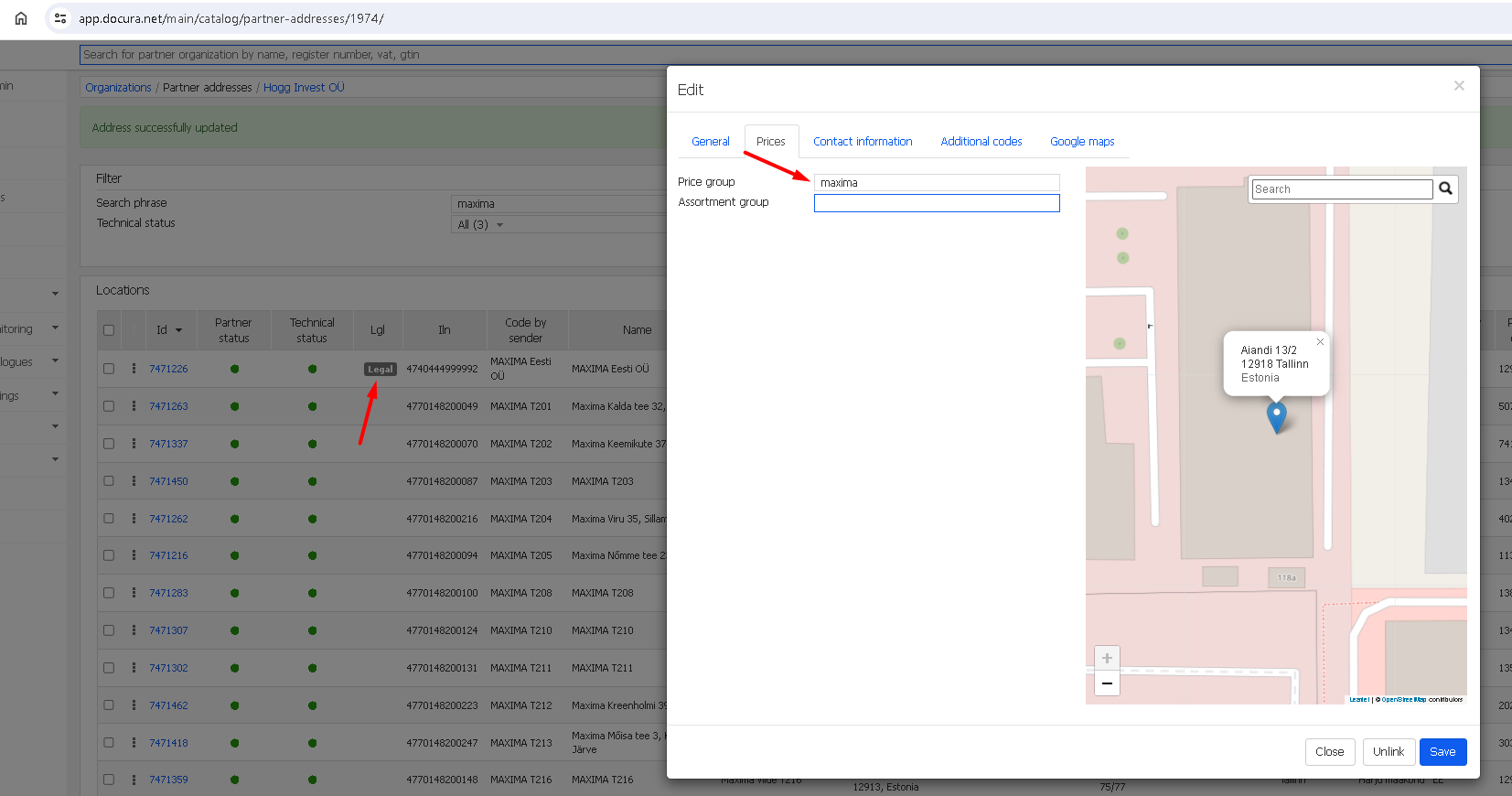
4. Departments are configured in the Docura Partner address in the Price group field
04 2doc in Merit
1. If everything has been set up correctly, orders from retail chains start arriving in Merit with the correct prices.
1.1. In the PRO package - under invoices.
1.2. In the Premium package - under quotations.
2. If you want to send an EDI document or an e-invoice to the customer, you have to
2.1. Open and edit the invoice
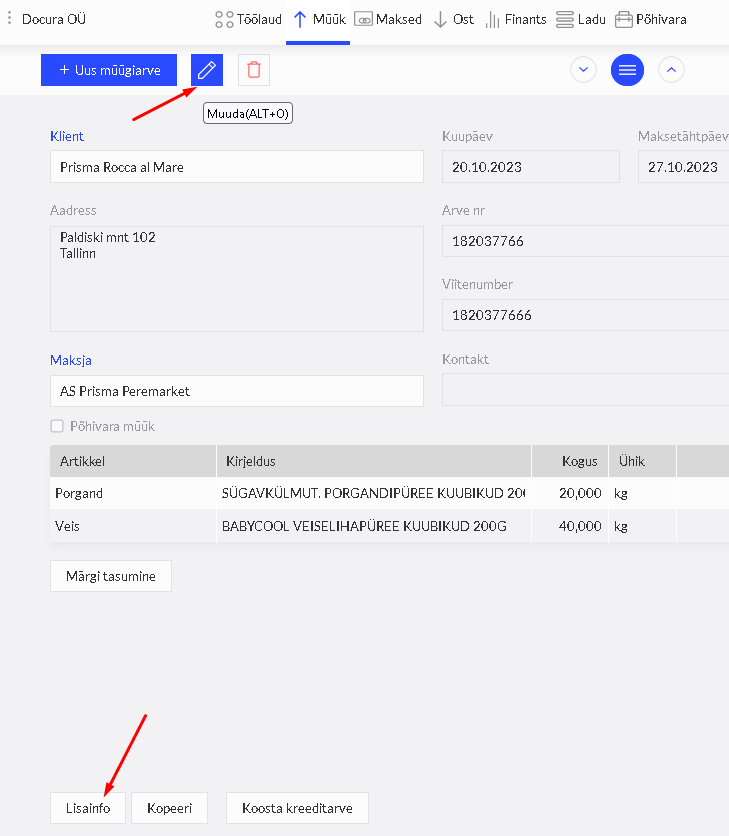
2.2. Press Additional info
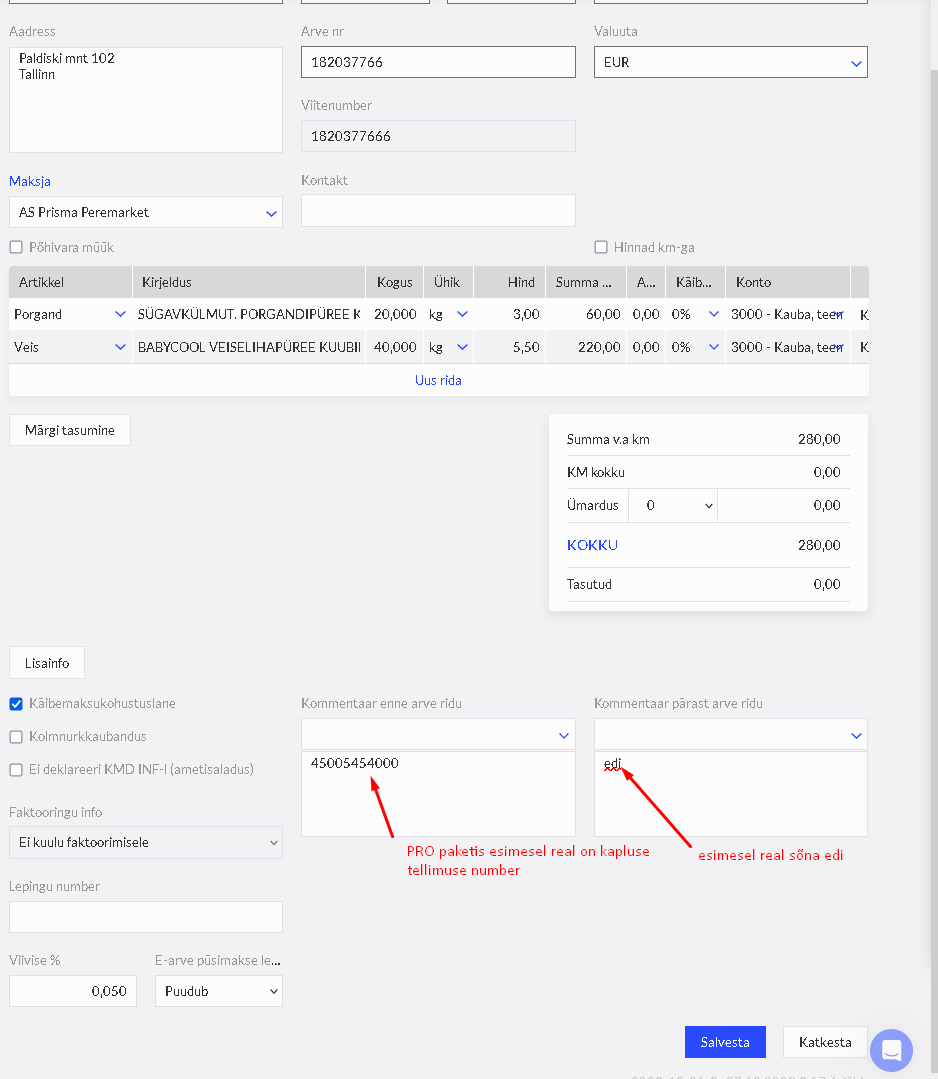
2.3. In the field "Comment before invoice rows" the number of the order is written.
2.4. In the field "Comment after invoice rows" the keyword edi has to be entered on the first row. With that you give Docura a signal to process and send the e-invoice.
3. In the invoice table it is possible to check, by this keyword, whether the e-invoice has been sent or not

05 4doc in Merit. Premium package only
In Estonia the e-document exchange in the 4doc format has been launched with Maxima, Prisma, Selver and Rimi. With other retail chains (e.g. COOP, Realiseerimiskeskus, A1M and others) document exchange works in the 2doc format.
Note: for Prisma Peremarket a separate 3DOC process applies (see chapter 06).
The four document types related to the solution are:
1. order (ORDER) - to receive sales orders from retail chains.
2. despatch advice (DESADV) - to send despatch advices when the goods are picked.
3. receiving advice (RECADV) - to receive confirmations about the receipt of the goods.
4. invoice (INVOICE) - to issue and send sales invoices for the delivered goods.
1. Normally 4doc in Merit works only in the Premium package; in the Pro package you can use Docura web for sending despatch advices.
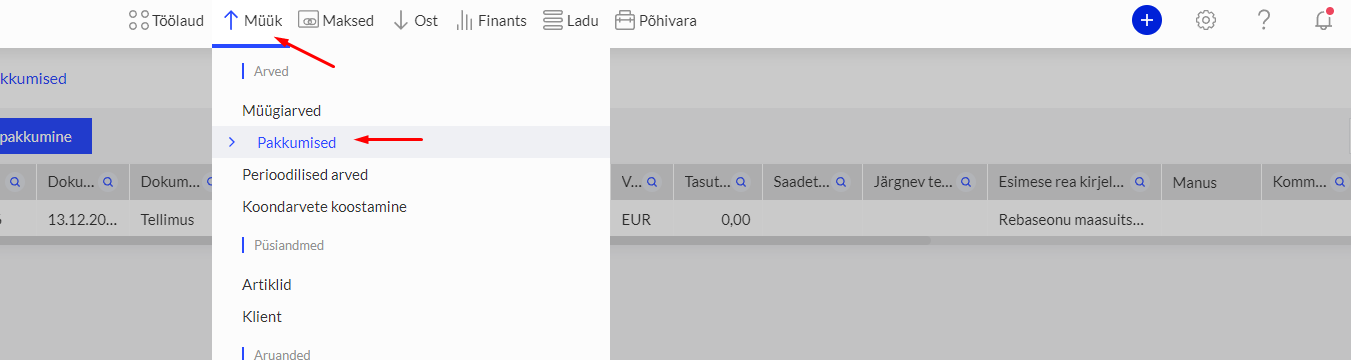
2. You will find the order document in Merit by pressing Sales – Quotations
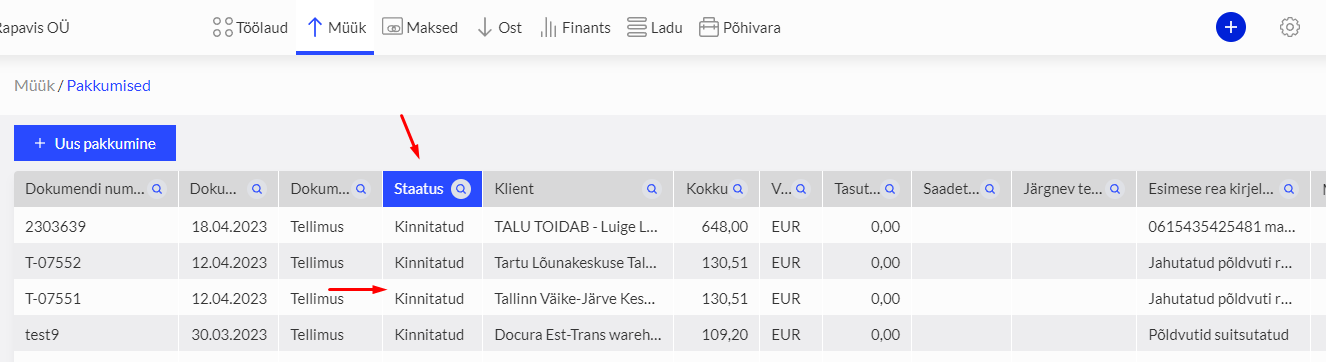
3. When a new order arrives in the Merit accounting software, it has the status - Drafted
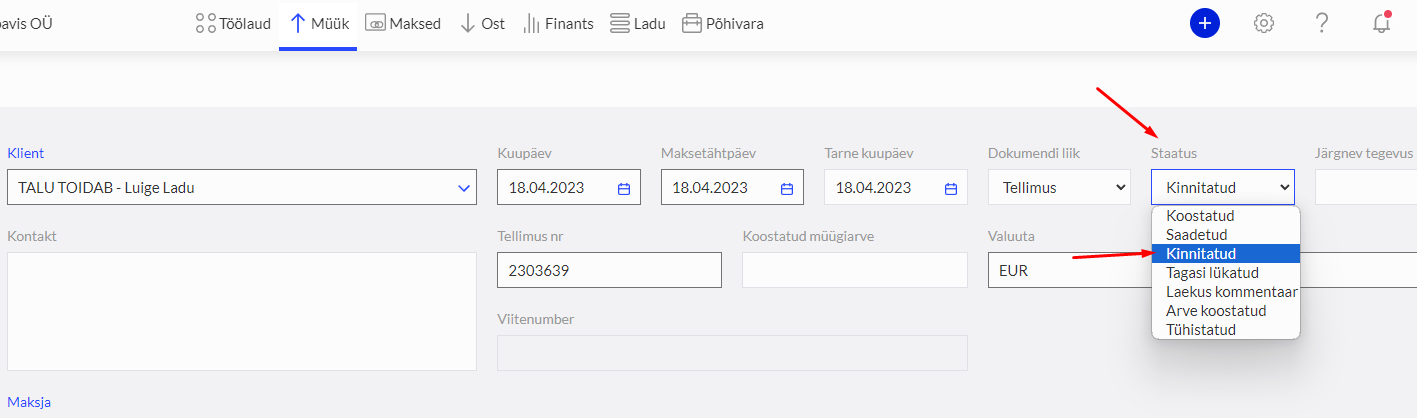
4. Open the order and check the data. When you are ready to send the goods, press Confirmed and Save.
5. Once you have done that, Docura automatically creates a despatch advice (DESADV) and forwards it to the partner.
6. The partner receives the goods and the despatch advice, and sends the receiving advice (RECADV) back.
7. If there is no difference, Docura automatically creates an invoice (INVOICE) on the basis of the receiving advice and forwards the invoice to Merit.
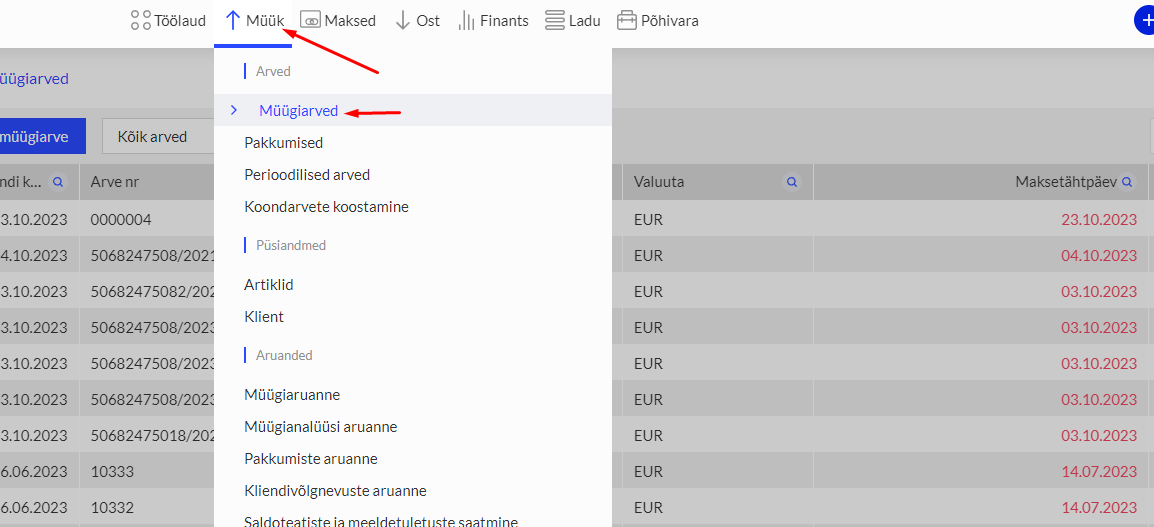
8. Every new invoice in Merit automatically gets a new number.
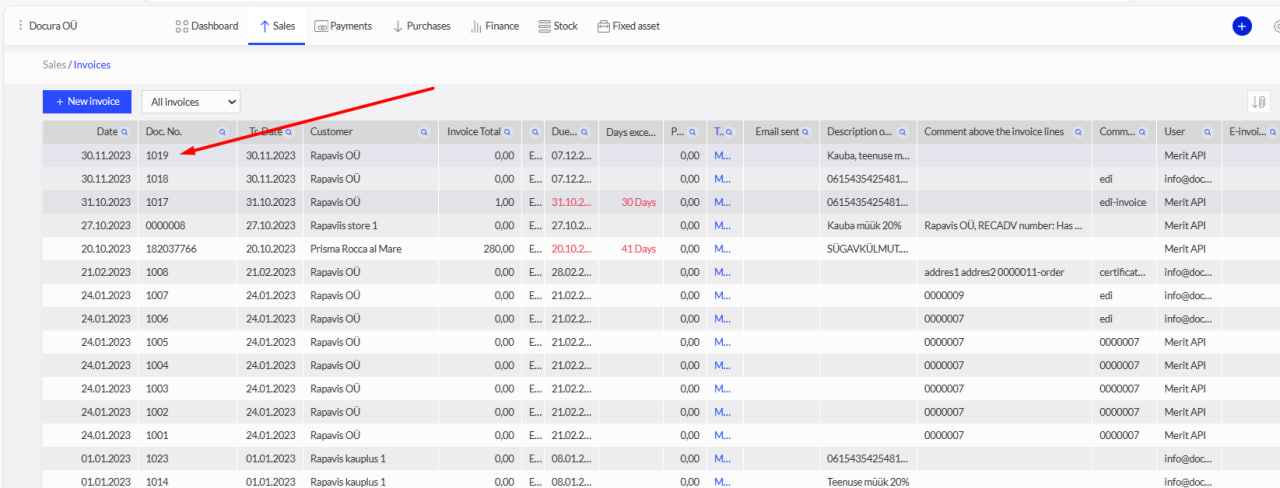
9. Open the invoice and check the data. When you are ready to send the e-invoice, write the keyword edi on the first row in the field "Comment after invoice rows"
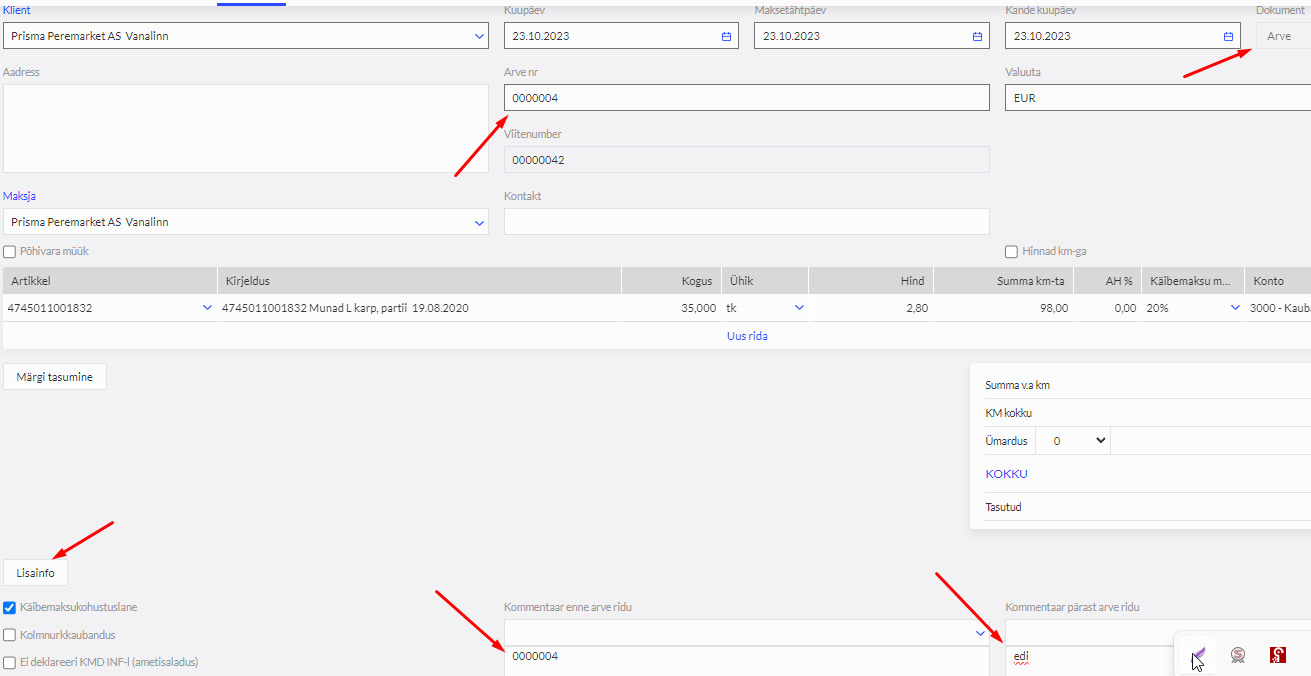
10. If a difference occurs between the despatch advice and the receiving advice, Docura sends a separate e-mail notification. In that case the quantity on the created invoice has to be changed and it has to be sent with the keyword edi.
06 Prisma 3DOC specifics (Merit Premium)
For Prisma Peremarket AS, with the Merit Premium package we use a special 3DOC solution, which is faster and more convenient (the receiving advice RECADV is skipped).
How the process works:
1. Orders (ORDER) arrive in Merit under the menu Sales – Quotations.
2. You open the order (Quotation), check the quantities and immediately issue an invoice (INVOICE) on its basis.
3. When creating the invoice you add the keyword edi to the comment field and save.
4. The Docura system takes the invoice, automatically creates a despatch advice (DESADV) for Prisma on its basis and also sends the invoice (INVOICE).
Difference from the usual 4DOC: You do not have to wait for or confirm a separate despatch advice or receiving advice. You issue the invoice right away, and our system does the necessary work in the background.
NB! This solution assumes that the goods are shipped exactly as stated on the invoice.
07 Purchase e-invoices into Merit
It is possible to receive e-invoices from Docura directly into Merit as purchase e-invoices
6.1. Docura (E-riik) is configured as the recipient of the e-invoice
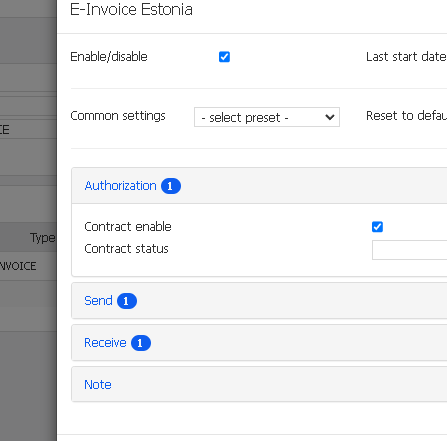
6.2. The Merit integration is configured in Docura
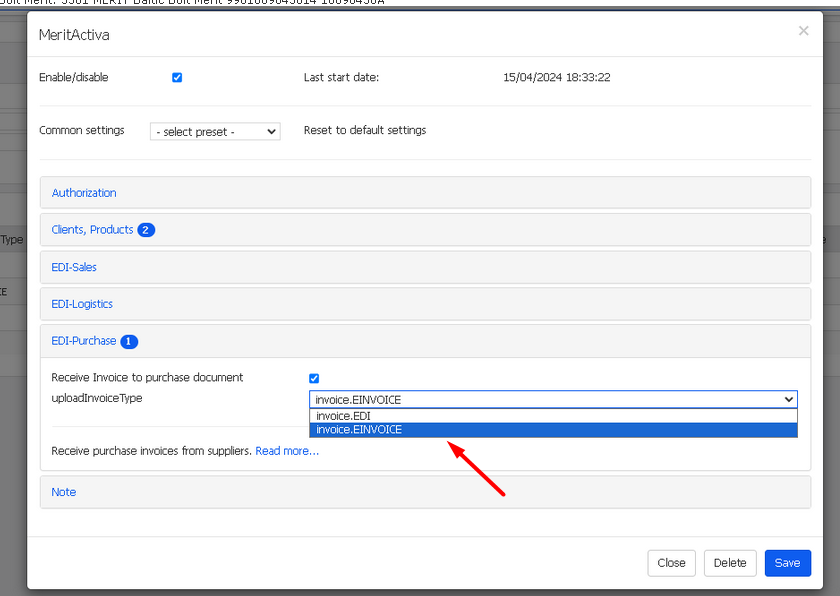
08 EDI accounting
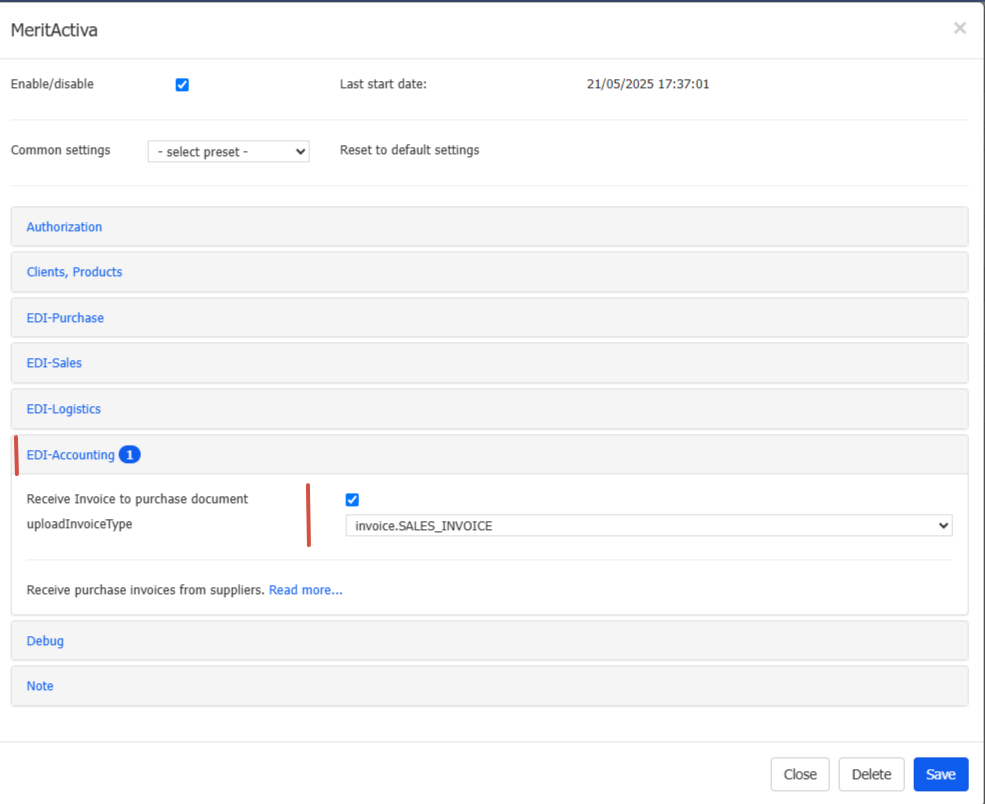
If you issue invoices through the Docura web interface and want to receive copies of them in your ERP system Merit as well, we can set up an integration. In that case the invoices move automatically into Merit as Sales Invoice.
To establish the connection
Contact us if you want to activate the integration.
Configuration
- Configure Merit authorisation in the Docura portal according to the guide:
https://redmine.docura.net/projects/docura-manual-en/wiki/Merit#03-Setup-in-Docura
- In the Docura portal open the EDI Accounting section and configure the integration using the Merit plugin.
09 QA - Questions and answers
01 The document date is not within the active financial year or the allowed saving range
Send invoice operation fail. The document date is not within the active financial year or the allowed saving range.
When orders are imported right at the beginning of a new year, the following error may occur: Send invoice operaion fail. Response code is '400', data is '{"Message":"Dokumendi kuupäev ei asu aktiivses majandusaastas või lubatud salvestamisvahemikus.\nKande kuupäev ei asu aktiivses majandusaastas või lubatud salvestamisvahemikus.\n"}'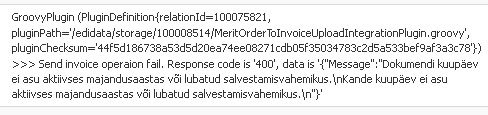
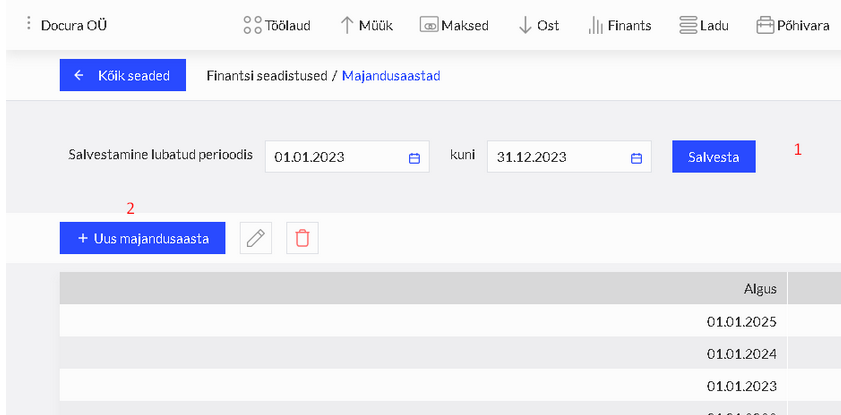
The reason is that the new year has not been activated/opened. To open it you have to:
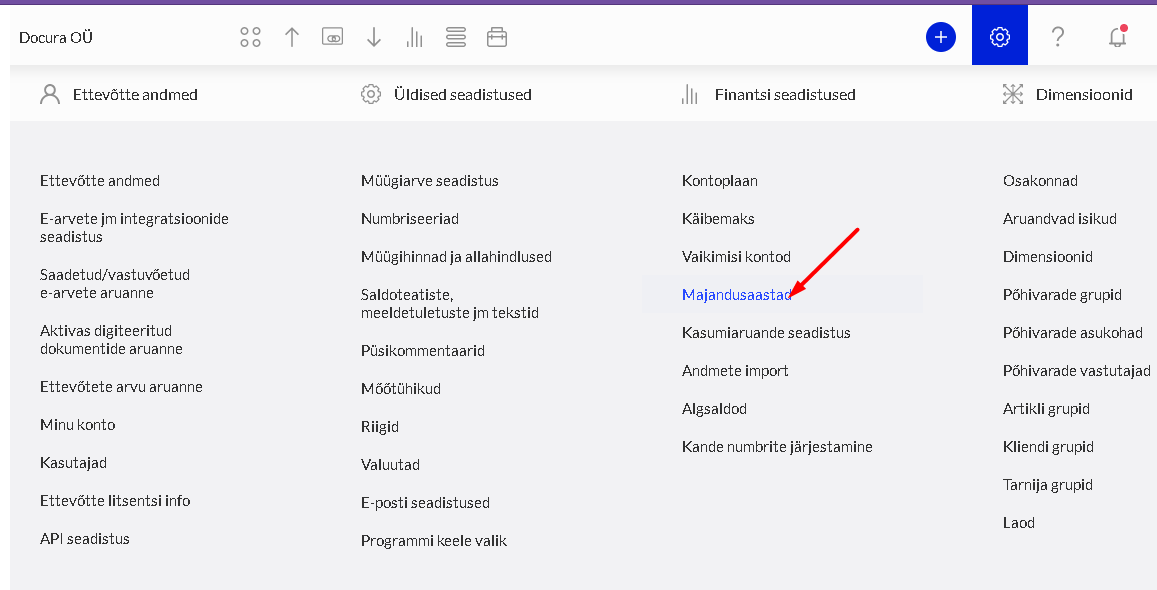
1. Settings - Financial years.
2. Add a new year.
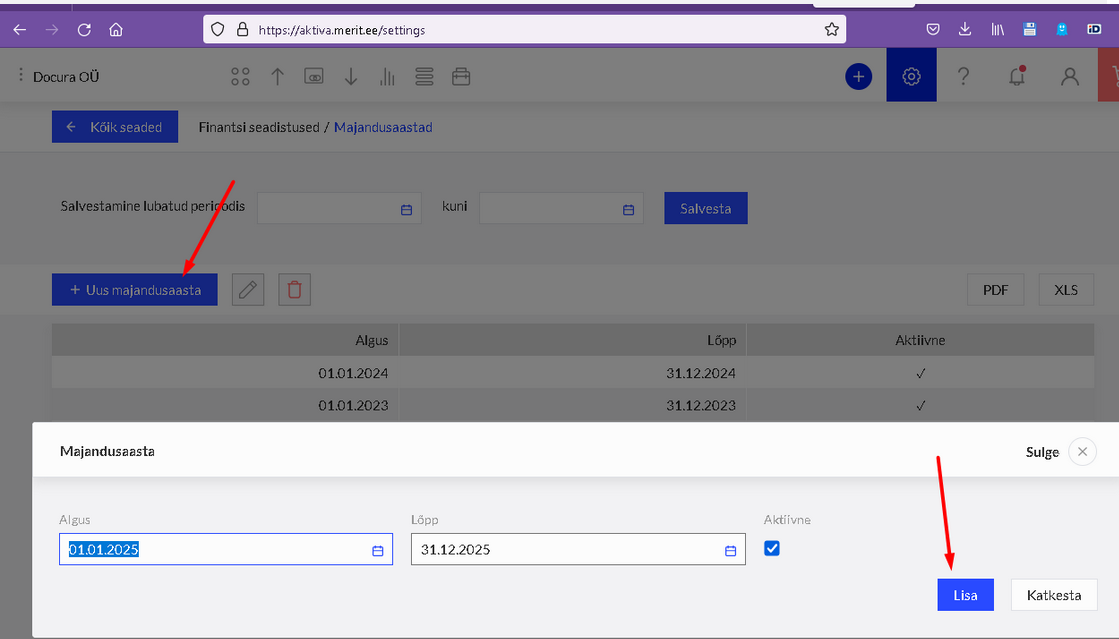
3. Allow saving.
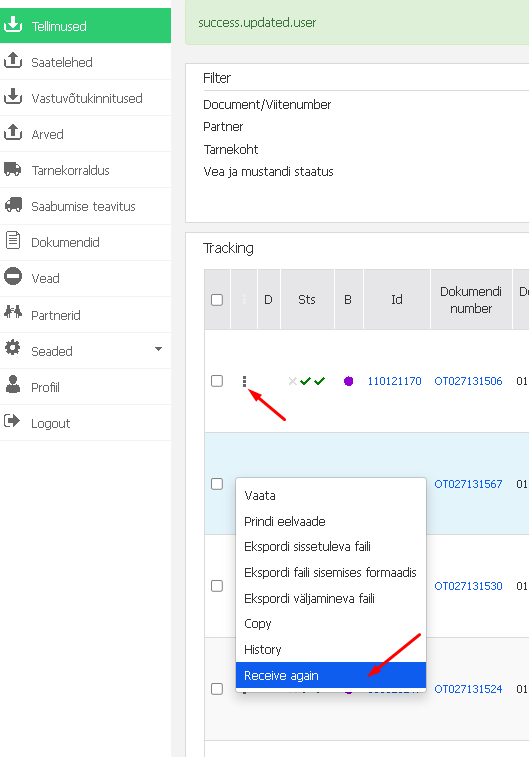
4. On the Docura page - Orders - Receive again.
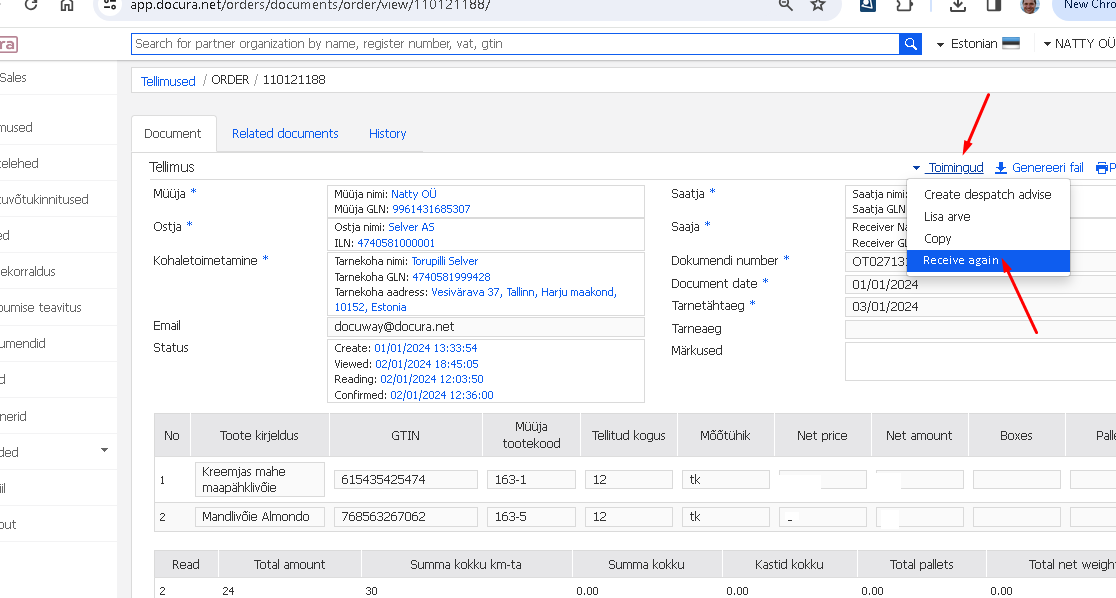
or on the order form
02 ERROR Read time out
Sometimes error messages appear because the Merit database is overloaded
Error message is: GroovyPlugin (PluginDefinition{relationId=100153260, pluginPath='/edidata/storage/100008514/MeritSalesInvoice2DocDownloadIntegrationPlugin.groovy', pluginChecksum='8931ef8c97ddded76729212ee97af4ba4b7c56b96f3e7e5dc9db9efb798b0cd7'}) >>> Get invoice details fail for id '16080c3a-1140-46fe-a402-7b08be68b893'. Response code is '502', data is '<!DOCTYPE html PUBLIC "-//W3C//DTD XHTML 1.0 Strict//EN"
DESADV Merit Activa integration TANG OÜ 04/11/2024 10:01:48 E
GroovyPlugin (PluginDefinition{relationId=100075829, pluginPath='/edidata/storage/100008514/MeritDesadvDownloadIntegrationPlugin.groovy', pluginChecksum='3fe10c13855bc82fad076f7942d9bb25b4e907d27a800f2ee74c198177e8840b'}) >>> Read timed out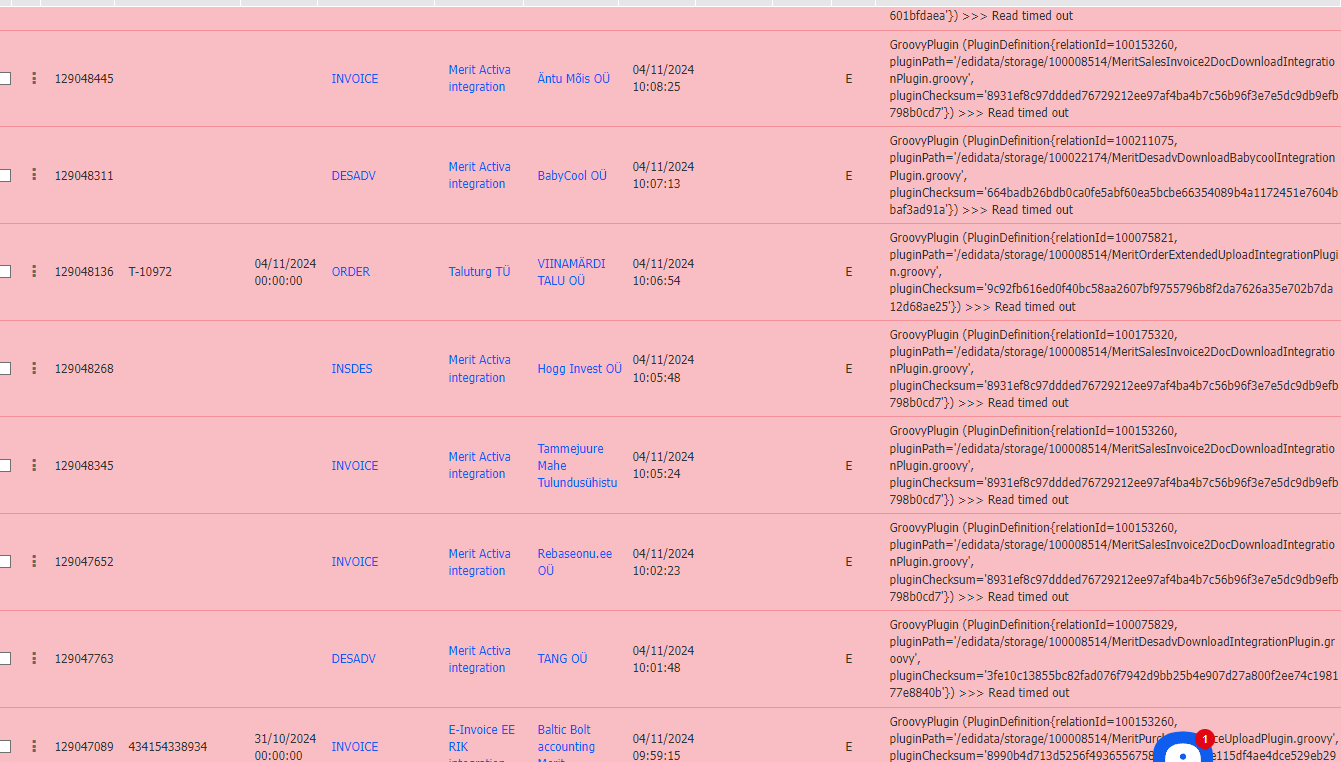
Solution:
There is no reason to worry. Docura support itself monitors and resends the documents to the recipient when such errors appear.
03 Store location missing in Merit
Sometimes the customer adds a new store location in Merit, but it does not appear in the Docura system.
As a result it is not possible to send an ORDER or other documents, because the store location is not found in Docura. (Docura continuously synchronises data between the Merit and Docura databases.)
Reason
This problem usually occurs because the registration code and/or the VAT code (KMKR) has not been added to the store location.
Docura needs the registration code and/or the VAT code to import the store location from Merit correctly.
Solution
Add both the registration code and the VAT code (KMKR) to the store location data in Merit.
Recommendation
Always check that both the registration code and the VAT code are filled in for every store location.
This helps to avoid problems with the import of the partner (customer) card and with document exchange.