


- Table of contents
- StandardBooks
- 00 ToDo
- 01 Overview
- 02 Setup in the ERP
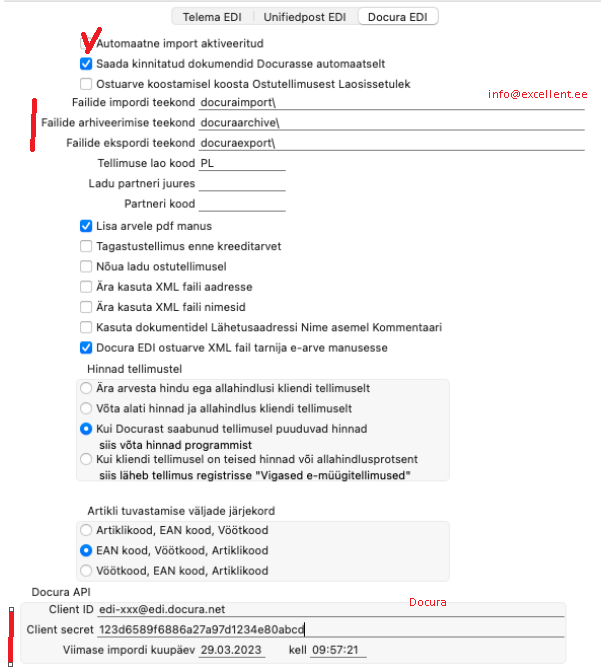
- 01 NB! File import/archive/export path
- 02 Please note:
- 03 General > Settings > EDI API settings, tab "Docura"
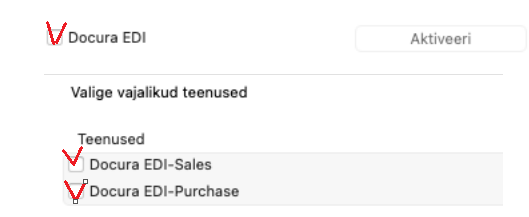
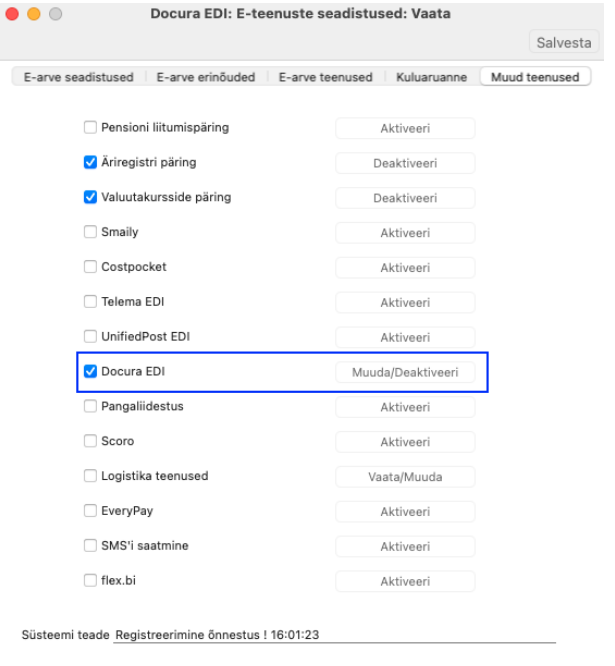
- 04 General > Settings > E-service settings
- 05 Sales invoices > Registers > Items
- 06 Contacts
- 07 Sales management > Settings > Delivery addresses
- 08 Linking contacts and delivery addresses in Docura
- 09 Number series (optional)
- 03 FAQ
StandardBooks
00 ToDo
- Add the manual for Logistics via API
01 Overview
- The business software with the widest range of features in Estonia. Accounting.
- https://www.excellent.ee/standard-books/
- Supports 2doc, 4doc and e-arve formats.
- The original Excellent guide is here: https://www.excellent.ee/pdf/Docura_seadistamine_myyk.pdf
02 Setup in the ERP
01 NB! File import/archive/export path
To activate the Docura module, send a request to info@excellent.ee:
"Please activate the "File import/archive/export path" module for our company."
The import and export of the document XML files will take place automatically through these folders. The locations and names of these directories can only be obtained from an Excellent consultant.
02 Please note:
a. Standard Books 8.5 or a newer version;
b. the Standard Books modules "Sales management" and "Logistics";
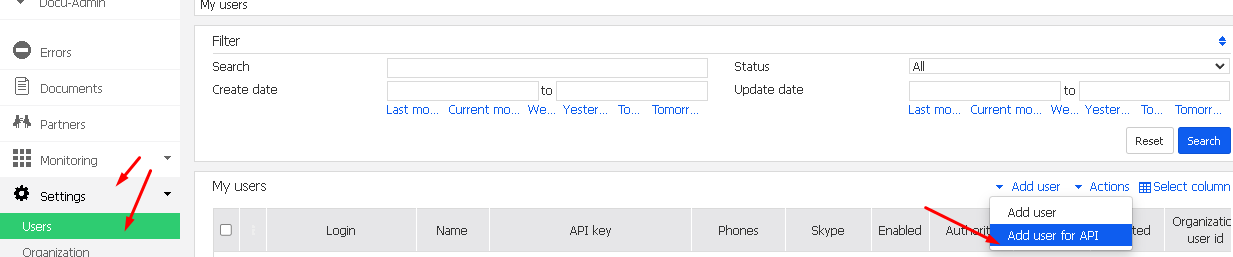
c. the API key from Docura: Settings - Users - Add user for API
NB! The new version of Standard Books includes the following addition: in the module General > Settings > EDI API settings > Docura tab a new checkbox "On order import take the customer from the delivery location" has been added. This means that instead of delivery addresses the stores must be saved as contacts. If you have an old version and do not want to make these entries manually, you can order this "one-click solution" from Excellent by contacting their consultant, taking into account 1-2 hours of Excellent's working time at their rate of 95 EUR per hour + VAT.
03 General > Settings > EDI API settings, tab "Docura"
04 General > Settings > E-service settings
To activate the integration, open the module General > Settings > E-service settings and select the tab "Other services". In the Docura EDI row press Activate.
05 Sales invoices > Registers > Items
- The information about the products/goods (item code, GTIN/EAN code, product name, unit, etc.) must be exchanged with the customer, i.e. the buyer of the goods.
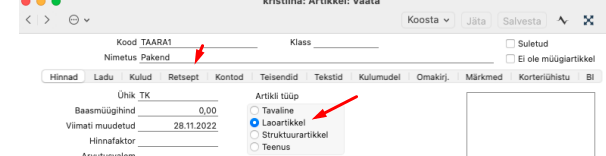
- On the cards of the items sold/shipped through Docura the option "Item type = Stock item" must be selected. This means that stock accounting has to be kept for these items and the stock level has to be monitored in Standard Books.
- On the item card, on the "Recipe" tab, the field "EAN code" or "Barcode" must be filled in. The GTIN code of the goods has to be entered here.
- If your company ships goods for which a "Best before" date must be set, it is important to mark "Serial number tracking = Serial no./Batch no." on the item cards. Note that if you use this feature, you will always have to fill in the serial number or the batch number and the "Best before" date on the stock receipt lines.
- For packaging, create separate item cards of the "packaging" type, see the PDF guide.
06 Contacts
- Contacts are legal entities (buyers/suppliers).
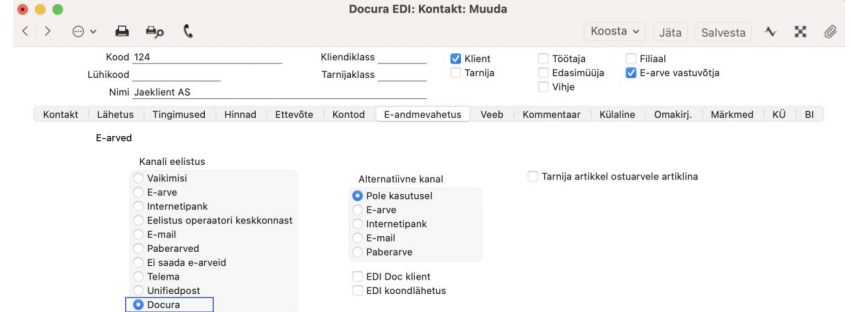
- For the customers to whom documents are sent through Docura, the Contact card (on the "E-data interchange" tab) must have Channel preference = "Docura".
- For the customers with whom electronic despatch advices are exchanged, the Contact card must have, on the "E-data interchange" tab, in addition to the Channel preference, the option "EDI Doc client" selected.
07 Sales management > Settings > Delivery addresses
- Standard Books should have one main contact, and all the so-called warehouses/stores should be separate delivery addresses. How to enter several delivery addresses for one customer, see the Excellent guide: https://www.excellent.ee/kasutajatugi/kuidas-saab-uhele-kliendile-sisestada-mitu-lahetusaadressi/
- The different delivery addresses, i.e. delivery locations, of the customers must be entered in the module Sales management > Settings > Delivery addresses.
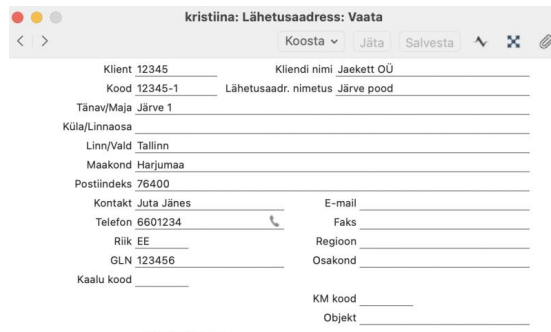
- Delivery addresses are identified by the GLN code in addition to the code.
- The same codes as in Standard Books must be entered in the Docura system: BuyerParty > PartyCode is the customer code that goes on the order, and DeliveryCode > PartyCode is the delivery address code that goes on the order, i.e. the so-called store code. On the order the store code is placed in the Delivery address code field.
- The XML fields Party are formed as follows:
- Customer: BuyerParty/PartyCode
- Delivery address code: DeliveryParty/PartyCode
- Ordering address code: OrderParty/PartyCode
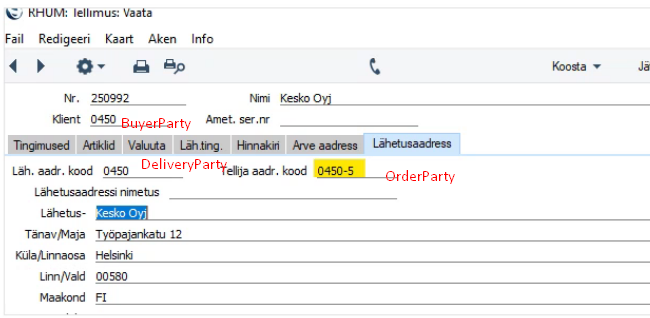
- NB! Make sure that the contact code ("Customer") and the "Code" of the delivery address do not coincide.
- If a customer has been entered twice (for example A1M OÜ), Standard Books looks for a match by the registration number when an order arrives. This way the program finds the first customer with the lowest contact code. To find the correct customer here, the wrong contact should be marked as closed in the database or its registration number should be removed.
- To activate the Docura EDI module in Standard Books, the partners have to enter separately all the stores that have delivery addresses.
- Using delivery addresses is one of the preconditions for transmitting correct data. The customer should proceed from the fact that this is a one-time setup.
- If the order contains wrong or missing information, the orders end up in the Erroneous e-orders register. Some Telema customers can still use the old 2-doc solution and for this reason they have each store added to the program as a separate contact, but the correct way would be to use delivery addresses.
Our consultant can help the customer enter and set up the delivery addresses correctly in the program. After that the customer can export the delivery addresses from Standard Books as a txt file; to import them into the Docura environment the file has to be adjusted to the appropriate format.
08 Linking contacts and delivery addresses in Docura
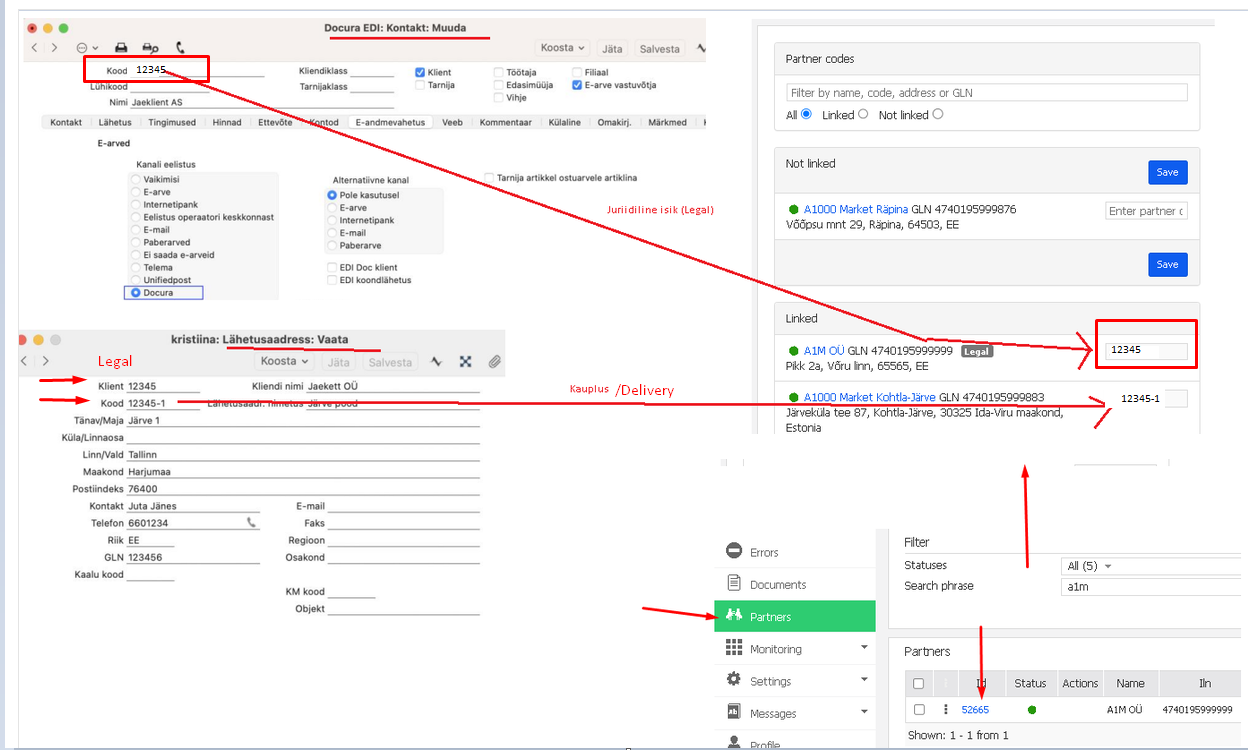
- Every contact must have a code, which has to be linked in Docura, on the partner card, to the "Legal" address (i.e. the parent company).
- Every delivery address must have a code, which has to be linked in Docura, on the partner card, to the store address.
- Legal code can be checked on Store/Delivery address
- 12345 : Legal code
- 12345-1 : Delivery code
09 Number series (optional)
If you use number series, check that they are filled in also for the documents you are going to exchange with Docura. See the PDF guide.
NB! A number series range can run out in the middle of the year as well, not only at the turn of the year. If the range (the "To" field) runs out, the new document will not get a number and the document received from Docura will not be imported into Standard Books. In that case a card without a number appears in the register, and it also blocks the movement of the following documents. What to do in such a situation, see point "05 Return order (RETANN) - the number series is full and using a return order" in the FAQ.
Check that the number series are filled in for every document type you exchange with Docura. The number series of the registers related to Docura are most often located at:
- Sales management > Settings > Number series - sales orders (ORDER);
- Logistics > Settings > Number series - return orders (RETANN) and other logistics registers.
03 FAQ
01 E-Invoice
An e-invoice is sent to Standard Books, where the customer can also manually link the supplier's e-invoice to the corresponding purchase order.
02 Discount
What has to be changed, so that the Selver orders do not still go to erroneous orders, because the prices are not correct?
Second question: how can a 10% discount be set for an order? This is where the % is in the order.
As our customers have different discounts, can I add a 10% discount to the Selver card as well? So that it is added to the product automatically when the product is selected?
Answer:
You are probably missing a sales payment term on the contact card. You can add it on the Selver contact card, on the "Terms" tab, in the field "Sales payment term".
If the discount of -10% should come from the XML received from Docura, then you should change General > Settings > EDI API settings, on the "Docura EDI" tab, the "Prices on orders" option. If you want the program to take into account the prices in the XML, i.e. in the received orders, then you should select the option "Always take the prices and the discount from the customer's order" or "If the order received from Docura has no prices, take the prices from the program".
The Standard Books program has price lists.
Price lists can be linked to a Customer, a Customer class, a Payment term and an Invoice. On a price list you can indicate which price formula the discount or markup follows. On a price list where no formula is shown, you can specify yourself how the prices should be changed. If a price list is assigned to a customer card, then when an invoice is made for that customer the item prices are offered based on the price list. The price list on the customer card has a higher priority than, for example, a price list specified on a payment term. On an invoice the price list can be changed as needed.
I will send the guide on how to set up price lists.
https://www.excellent.ee/kasutajatugi/kuidas-hinnakiri-koostada/
03 Waybill, DESADV, batch number (LotNum) and best before (BestBefore)
Question:
How can the following be added to a waybill (DESADV) in Standard Books: LotNum (batch number), production date (ProductionDate), BB (best before)?
Answer:
If "Serial number tracking = Serial number or Batch number" is assigned on the item card, then when taking goods into stock with a stock receipt you can also enter the "Serial no./Batch no." and, if necessary, fill in the "Best before" field. This way the goods are in stock together with the serial/batch number and the best before date.
https://www.excellent.ee/kasutajatugi/kuidas-maaratakse-toodetele-seerianumbrid/
If you now make a shipment, i.e. a waybill, for such goods, the program requires these fields to be filled in also on the B tab. From there the information reaches the desadv XML. I have also added one example as an attachment.
<ItemReserve>
  <LotNum>31102024-150</LotNum>
  <BestBefore>2024-11-25</BestBefore>
  <ItemReserveUnit>
    <ItemUnit>KG</ItemUnit>
    <AmountActual>2.00</AmountActual>
  </ItemReserveUnit>
</ItemReserve>
Standard Books has no field for tracking production date information. If a customer needs this, we can add it with a custom solution.
04 New year, but the orders do not reach the Standard Books system: what to do?
The Standard Books user has to check whether the new accounting year and the number series of the new year's orders have been added to the program: https://www.excellent.ee/kasutajatugi/majandusaasta-lopetamise-toimingud-programmis/
The same problem occurs also when a number series runs out in the middle of the year, not only at the turn of the year - see the next point "05 Return order (RETANN)".
05 Return order (RETANN) - the number series is full and using a return order
Symptom: a return order (RETANN) sent from Docura does not reach the program. On the Docura side the document went out successfully, but it does not appear in the Standard Books logistics register. In the return orders register 1 card without a number has appeared, because the number series of this register has run out.
Reason: the number series range of the return orders register is full (the number in the "To" field has run out), so the document does not get a number and the card is not created. The card without a number also blocks the movement of all the following documents. NB! A number series can run out in the middle of the year as well, not only at the turn of the year (see also point "04 New year, but the orders do not reach the Standard Books system").
Solution:
- Check the number series: Logistics > Settings > Number series > return orders - see that the range has not ended and, if necessary, increase the number in the "To" field.
- Delete the card without a number from the return orders register:
- Logistics > Registers > Return orders;
- the card must definitely be deleted, otherwise the data will not start moving and the following imports will also fail.
- If deleting the card without a number fails, let us know - in that case the card has to be deleted with the help of an Excellent consultant (info@excellent.ee, tel +372 669 1111). The card must be removed in any case, so that the data starts moving.
- Let Docura know when the next return order is sent from Docura, and check whether it reached the return orders register.
- Prevention: keep the number series ranges large enough and check them in the middle of the year as well, not only at the turn of the year.
Using a return order: when a return order arrives in the program, Create > Returned goods can be created from the return order and, on its basis, the goods can be taken back into stock (the stock level is updated).
The same error logic applies to the other document types you exchange with Docura (for example a sales order ORDER) - see point "04 New year, but the orders do not reach the Standard Books system: what to do?" and "02 Setup in the ERP > 09 Number series (optional)".
Guides used:
- Excellent's guide on using Docura (return order, p. 10): https://www.excellent.ee/pdf/Docura_kasutamine_myyk.pdf#page=10
- Actions for closing the financial year: https://www.excellent.ee/kasutajatugi/majandusaasta-lopetamise-toimingud-programmis/