- Table of contents
- SimplBooks
- 01 Activating the Docura integration in SimplBooks
- 02 Obtaining the required data
- 03 Automatic document processing
- 04 Additional information
- 05 Docura EDI user guide
- 06 FAQ
SimplBooks
01 Activating the Docura integration in SimplBooks
To activate the Docura integration in SimplBooks, follow these steps:
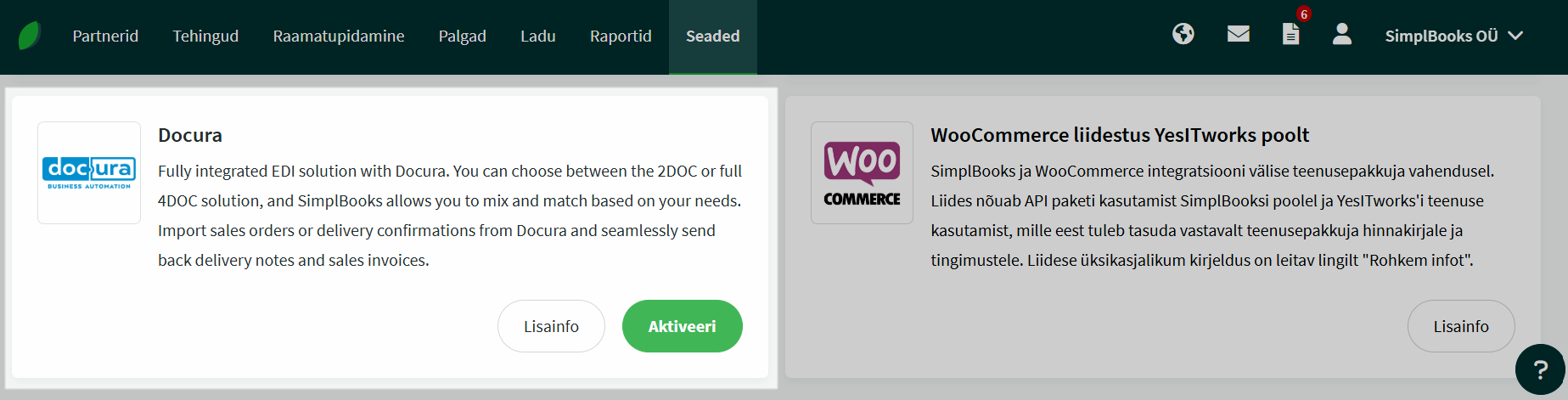
- Open "Settings → Integrations" in the main menu.
- In the list that appears select the Docura integration.
02 Obtaining the required data
01 Activating the data via docura.net
To activate the integration you need a login and an API key, which can be obtained from the Docura portal:
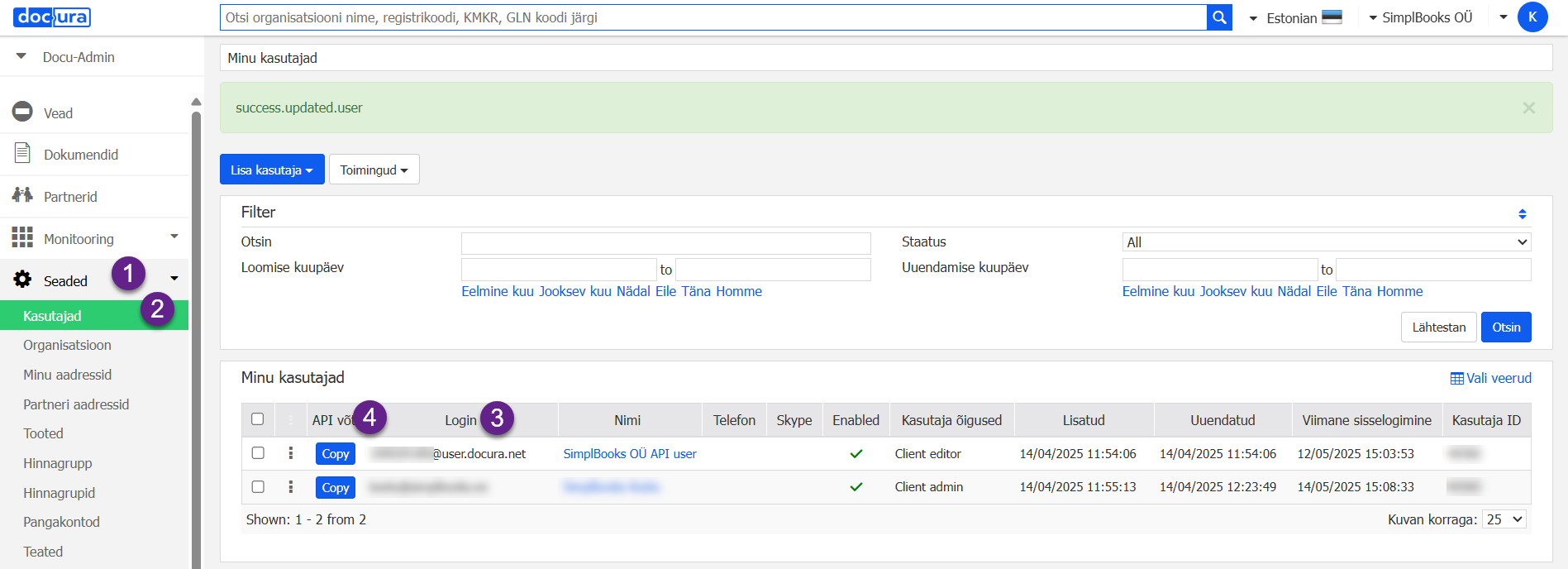
- Log in to the docura.net portal and go to the menu Settings → Users.
- If the user already exists:
- Press the Copy button in the API Key column to copy the API key.
- The Login value can be taken from the Login column.
- If the user has not been created yet:
- Press Add users.
- Select Add user for API to create a new API user.

02 Entering the data in SimplBooks
After obtaining the data from Docura:
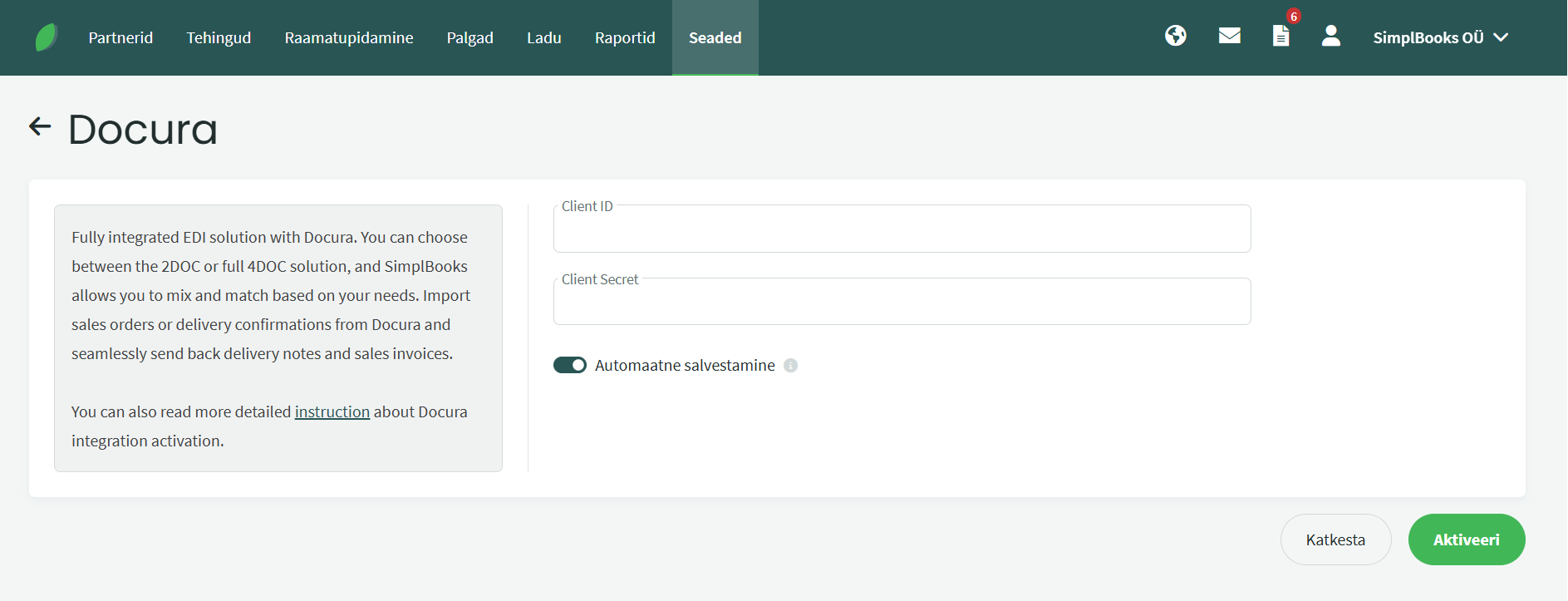
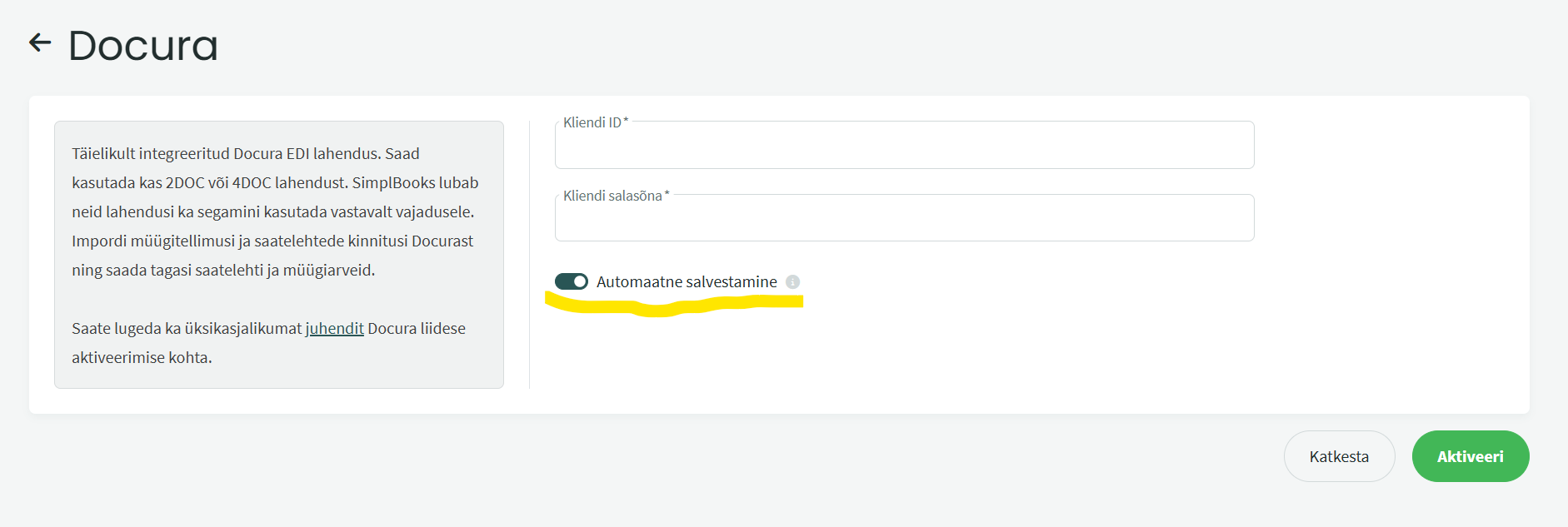
- Enter the Login value in the Client ID field of SimplBooks.
- Enter the API key in the Client secret field.
- Save the settings — and the integration is activated in your software.
03 Automatic document processing
After successful activation an automatic nightly import of documents from Docura starts. Check Transactions - Sales orders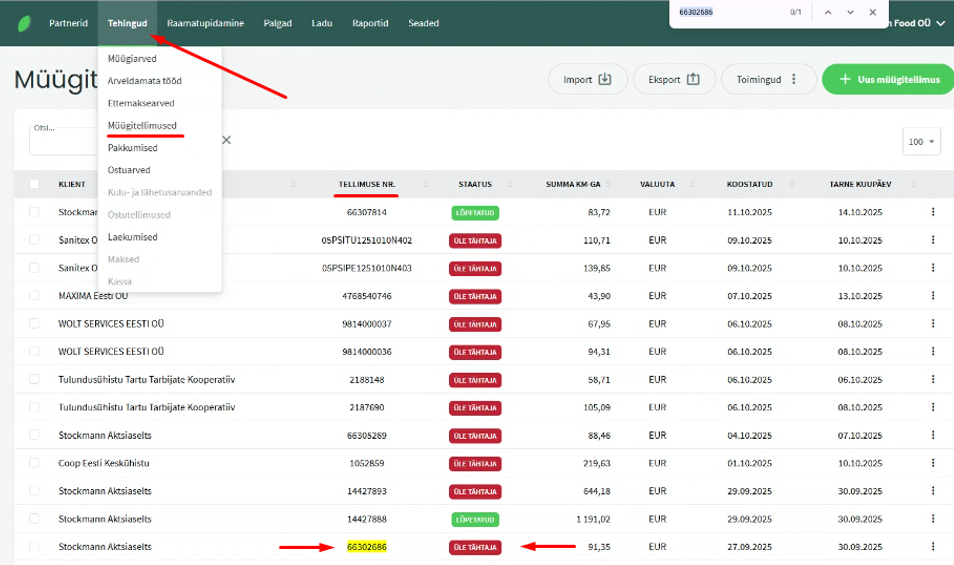
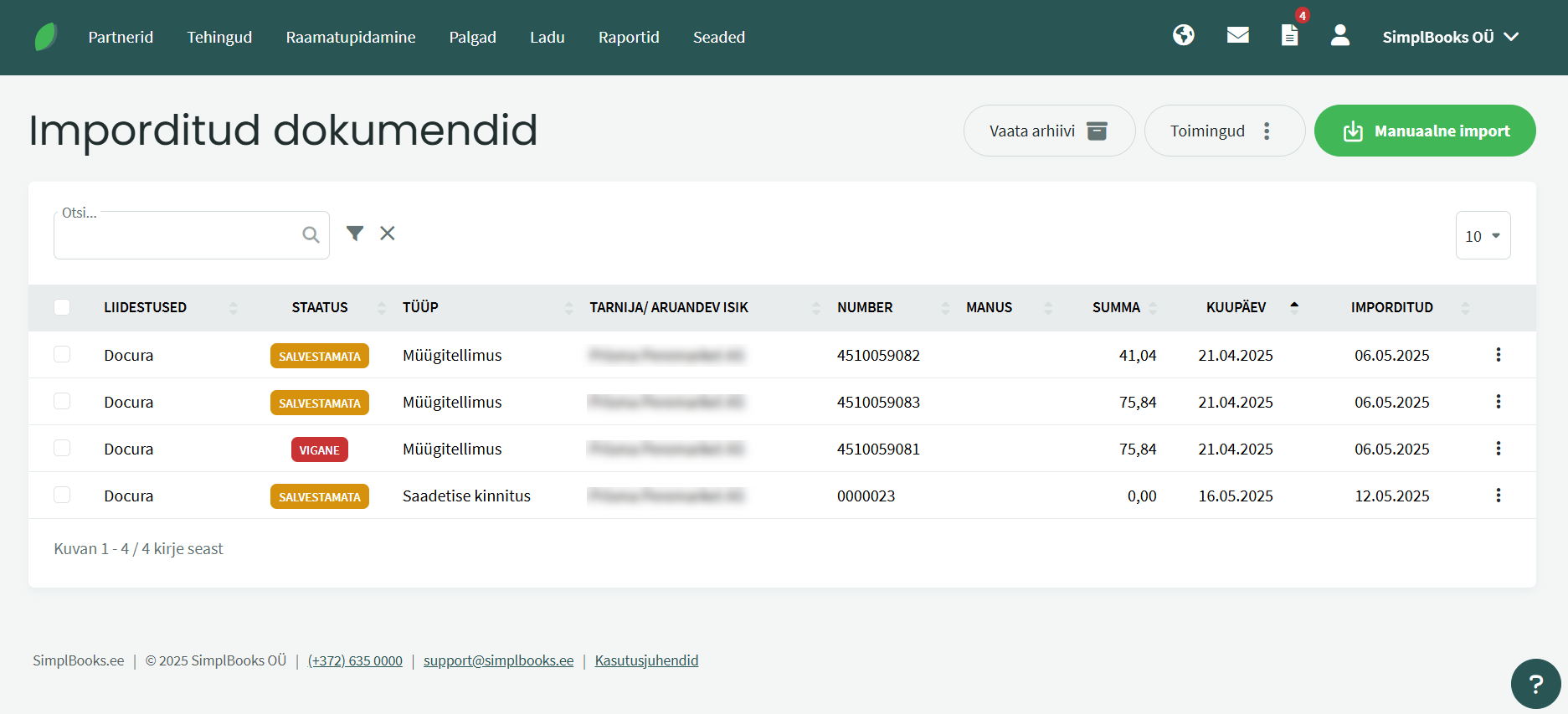
- New documents appear either in the list of imported documents,
- or are saved automatically by the system, if the option "Automatic saving" is enabled in the Docura interface settings:
- as a sales order,
- or as a delivery note confirmation.
- If automatic saving fails for some reason, the document remains visible in the list of imported documents with the status "faulty".
02 The usual document flow (2DOC and 4DOC)
- The typical document flow is as follows:
- 2DOC: Sales order → Sales invoice
- 4DOC: Sales order → Delivery note → Confirmation note → Sales invoice
- Document movement:
- The sales order is imported from Docura.
- The delivery note is sent to Docura.
- The confirmation note is imported from Docura.
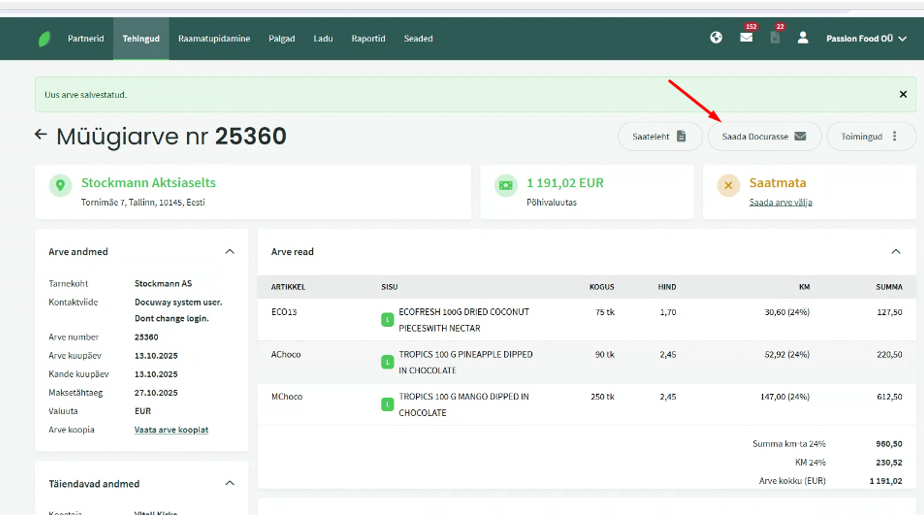
- The final sales invoice is sent to Docura.
03 Setting up products
For the successful use of the EDI-Sale integration SimplBooks must have:
- An entered or imported item list.
- For every item the following must be specified:
- the manufacturer/supplier internal code (your own code, SellerItemCode),
- and/or the EAN code (GTIN).
- If there is no internal code, the EAN code must be entered in the general item code field, which is a mandatory field in SimplBooks.
- During the import the system identifies the item first by the supplier code and then by the EAN (GTIN).
04 Additional information
The Docura integration is already available in the START package, and no separate fee is charged for activating or using the integration.
05 Docura EDI user guide
How it works- If automatic saving is enabled in the integration settings:
- Valid orders go straight to the "Sales" section.
- They are not displayed in the "Imported documents" view.
- Faulty documents stay under the "Imported documents" section.
- Press the page icon (next to the person icon).
- Open the "Imported documents" section.
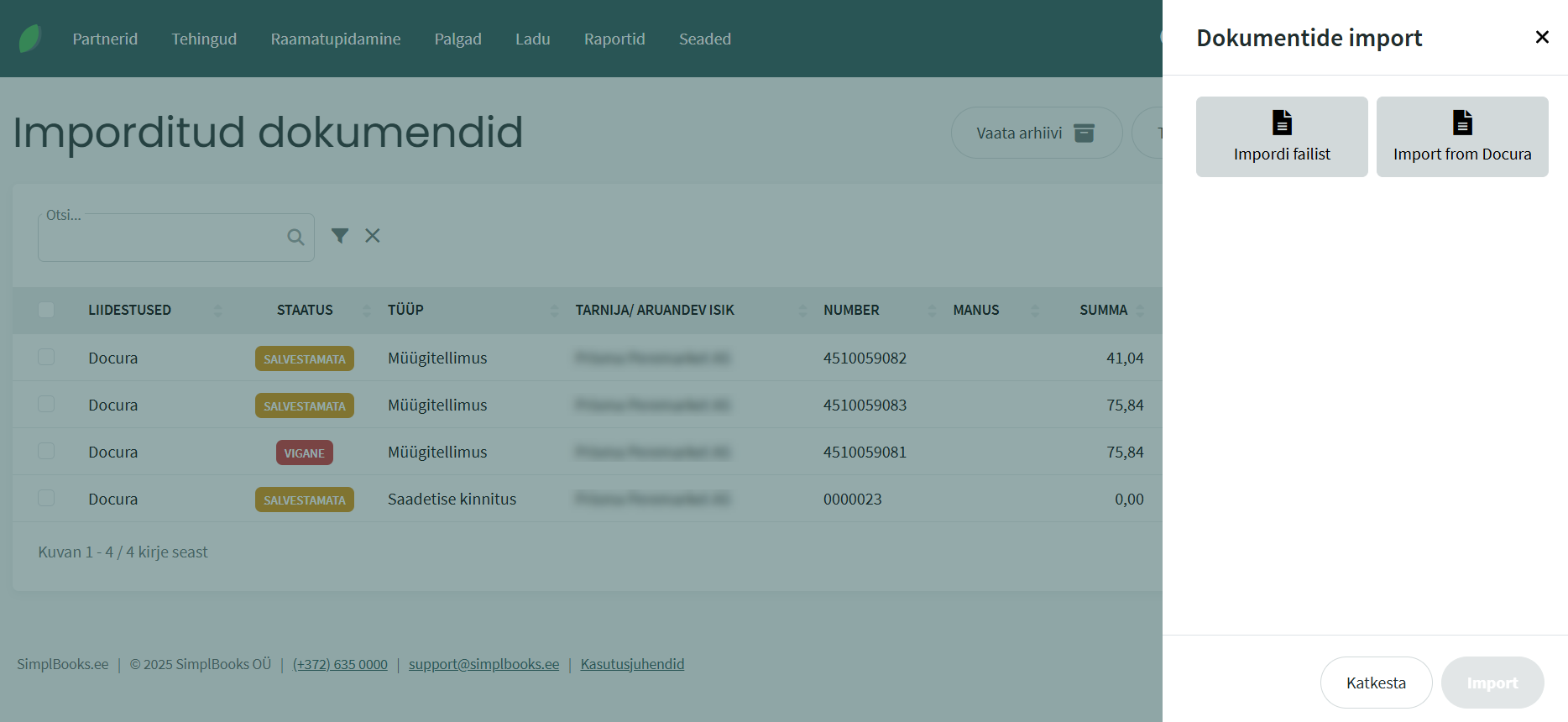
- Select the "Manual import" → "Import from Docura" section.
- Add an "Import from Docura" button next to the "Import from Telema" button — so that everything happens in one view, as before.
- Find it under the "Imported documents" section.
- Check it and save it manually.
06 FAQ
01 Problems with products and EAN codes

- The errors are caused by an incorrect setup in SimplBooks (products, EAN codes, parameters).
- In that case the problem recurs regularly with different partners.
- Most often the problem arises from an incorrect setup on the SimplBooks side.
Summary
- All documents, including faulty ones, are still imported into SimplBooks.
- The client has to set up the item data correctly in SimplBooks themselves.
- API development is not reasonable, because the goods have to be set up in SimplBooks.
02 The order could not be imported into SimplBooks automatically.
- The order could not be imported into the SimplBooks system automatically.
- Reason: the client data was incomplete or had changed after sending, so the system could not process the order.
- The import was done manually. After the client data had been updated, the order was saved correctly.
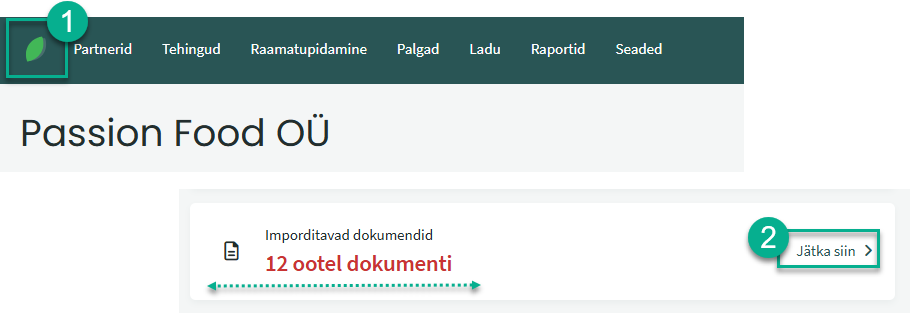
- Click on the SimplBooks logo (the page icon) and then on the "Continue here" button next to the documents to be imported.
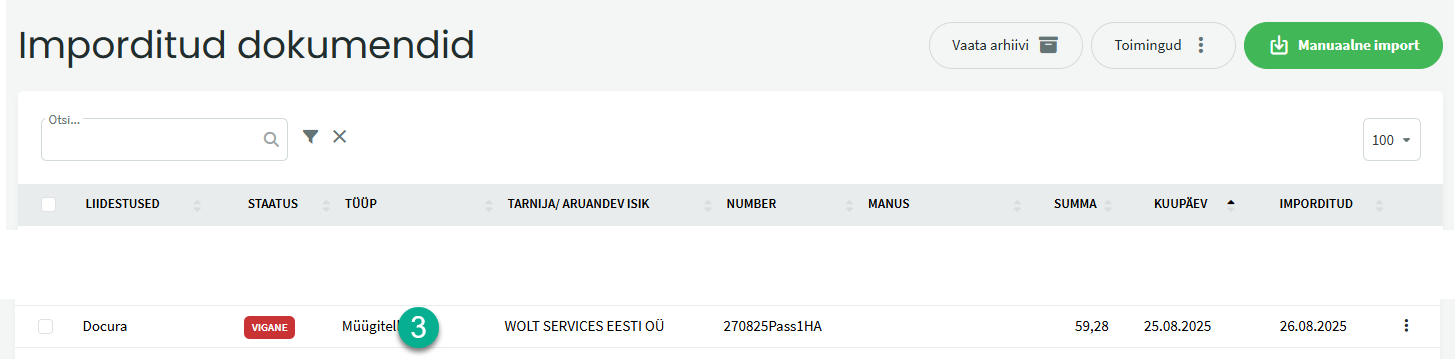
- If the order cannot be imported automatically, click on it in the documents list.
- In the opened order, to update the client data:
- Click the pencil icon next to the client name.
- Click the link "Click here to load new data".
- Click the "OK" button to confirm the update.
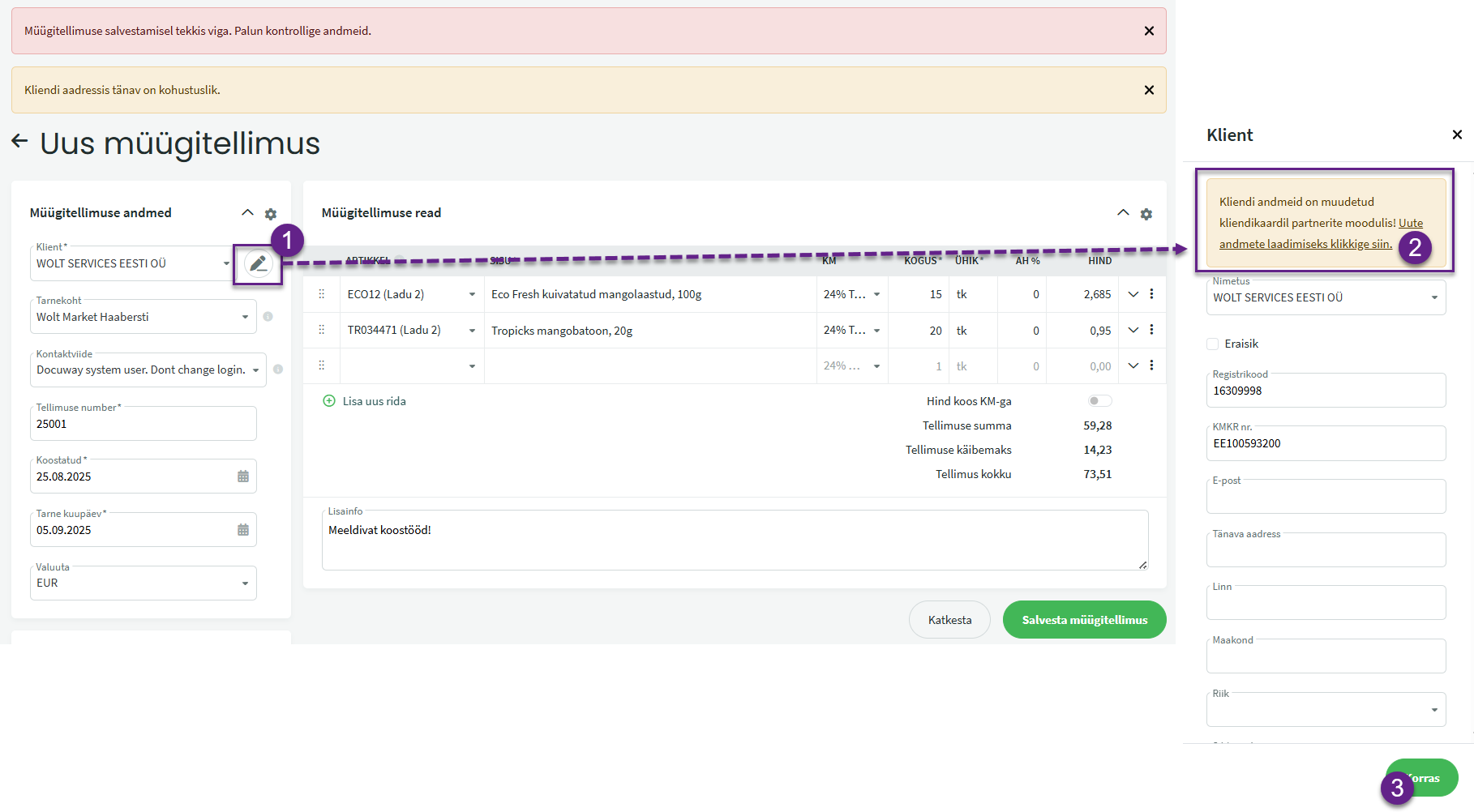
- After updating the client data save the order — the import is completed successfully.
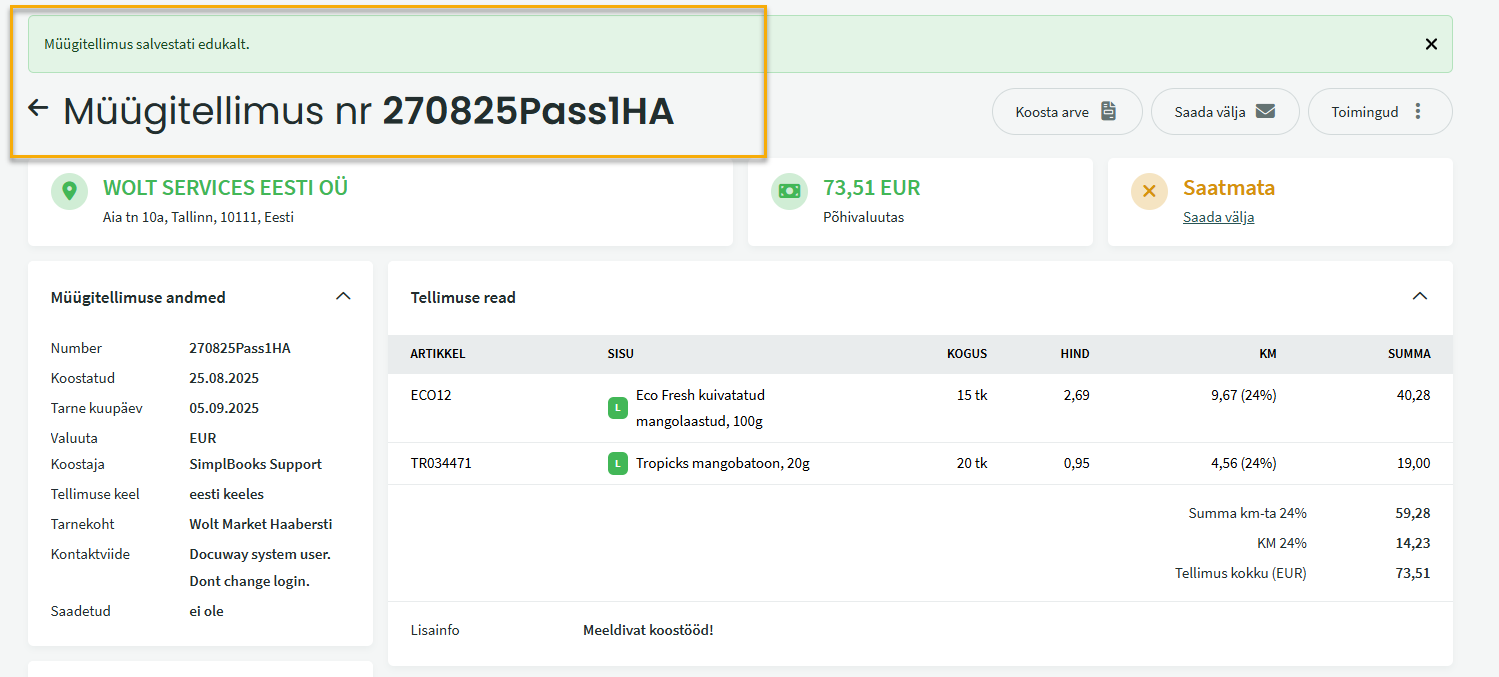
03 Registering client codes in the Docura portal
In SimplBooks clients and suppliers are represented as objects of the same type.
Every client (e.g. Prisma) may have several delivery points, which are sub-objects linked to that client.
Delivery points are identifiable by a unique system-generated ID that the user cannot change.
Clients can export all delivery points or only selected ones in CSV or Excel format, which also includes the delivery point IDs.
Alternatively the delivery point IDs can be checked manually by looking at the browser URL when opening a specific delivery address in SimplBooks.
These IDs are important for the integration and should be passed to Docura, where they are used as the PartyCode in the Docura system.
As a next step SimplBooks clients need a guide or screenshots on how to export the delivery points together with the IDs.
After the export these IDs can be uploaded to Docura, enabling smooth data integration.
04 Order import problems
- Clients wanted order import.
- During the import problems occurred: the reason was a missing API user or data not entered in SimplBooks.
- After creating the API user and adding the data to SimplBooks the order import should now work correctly.
05 The invoice is not forwarded to Docura
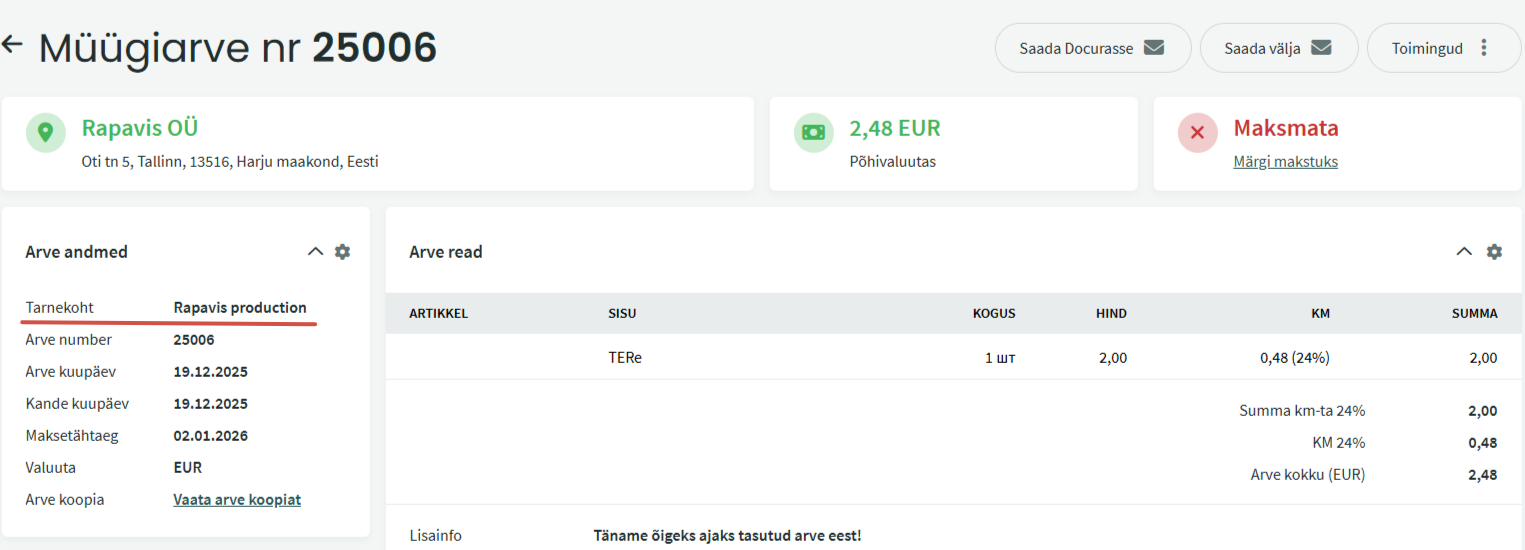
When creating an invoice a Delivery point must be specified, because if the Delivery point is not filled in, the invoice is not forwarded to Docura and is not displayed in the Docura portal.