- Table of contents
- Erply
- 01 Overview
- 02 EDI activation
- 03 E-invoice and Peppol
- 04 Waybill
- 05 Best before dates and batches
- 06 FAQ
Erply
01 Overview
Erply is cloud-based business software for retail and wholesale. It combines sales, inventory, customer management and e-commerce in one platform.
With the Docura integration, business documents are exchanged automatically directly from Erply:- purchase orders
- sales orders
- purchase invoices and waybills
- sales invoices and waybills
- stock levels
- e-invoices (e-arve, Peppol)
02 EDI activation
01 Create a Docura user in Erply
In Erply a user cannot be created without an employee, so first create the employee and then the user.
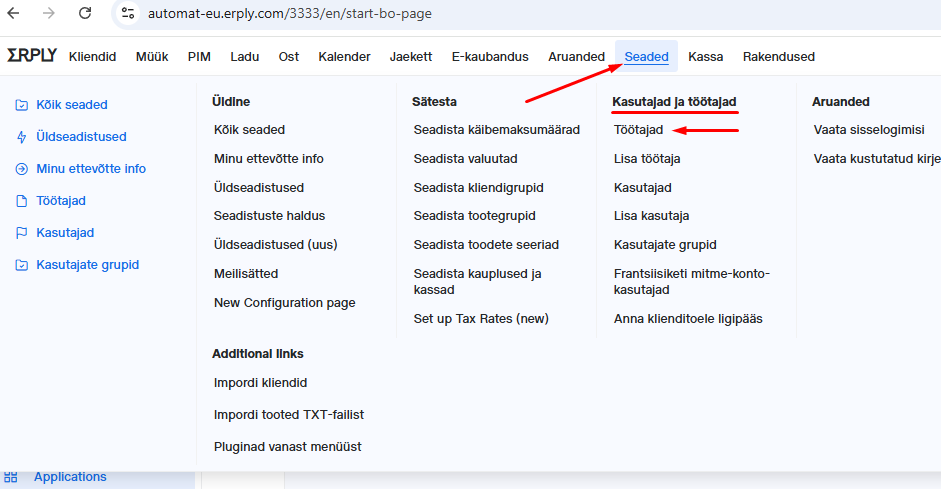
- In Erply Back Office open Settings → Employees and click New Employee and User Account in the top right corner.
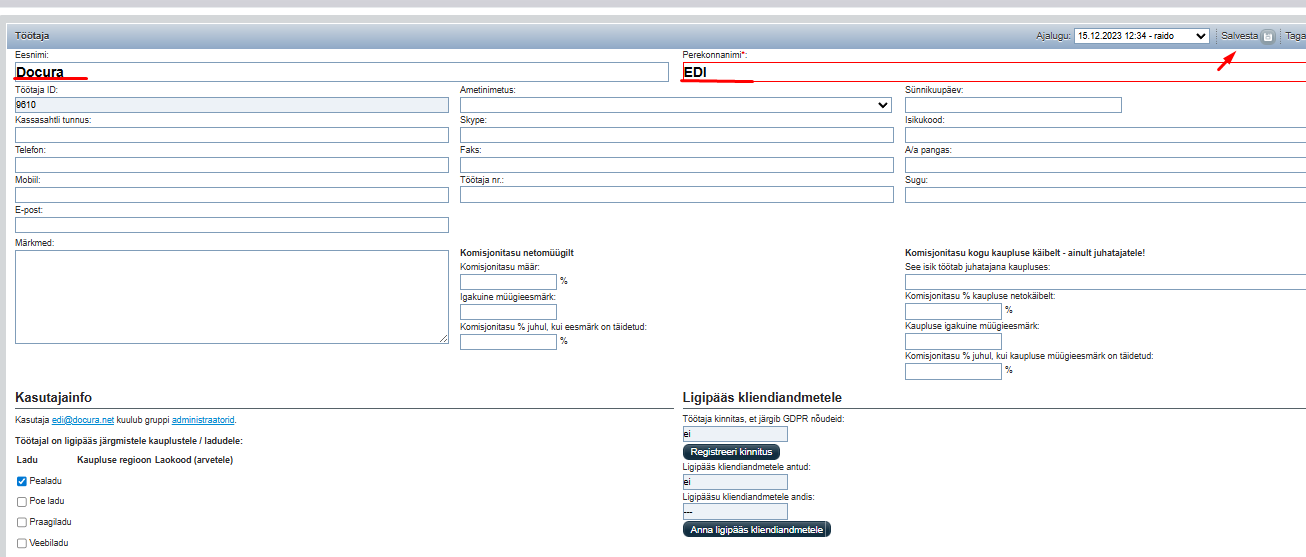
- Enter first name "Docura" and last name "EDI" and click Save.
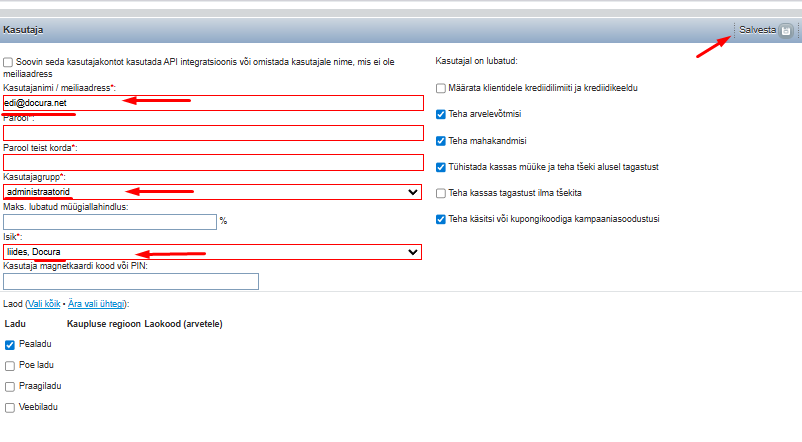
- Open Settings → Users and Employees → Add user. Username: edi@docura.net, set a password, user group: Administrators. Click Save.
02 Enable the Erply integration in Docura
Docura creates a portal user for you and sends the login link by email.
- Log in to the Docura EDI portal.
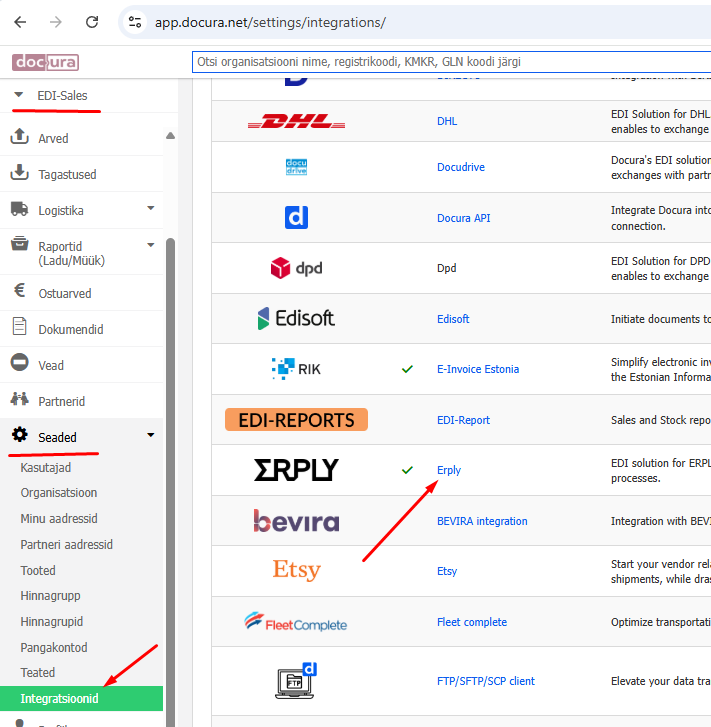
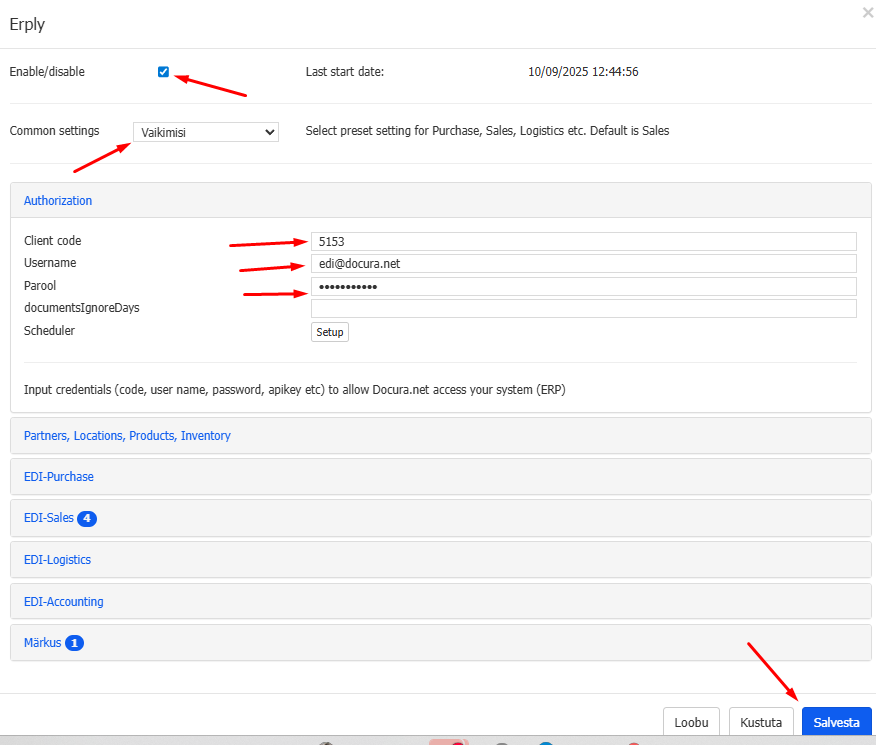
- Open Settings → Integrations, select ERPLY and tick Enable.
- Enter the Erply client code (clientCode), username edi@docura.net and the password created in step 01.
- Activate the functionality (usually Default).
03 Enable Docura EDI on the customer card
In Erply, tick Docura EDI on the card of every customer you exchange EDI documents with. For retail chains with several stores see section 04.02.
More information: Erply guide EDI 4DOC
03 E-invoice and Peppol
01 Sending e-invoices through Docura
Erply has its own e-invoice modules (Estonian e-invoice, Finnish e-invoice) that are separate from Docura. Use only one of them: if you send e-invoices through Docura, switch off Erply's own e-invoice module, otherwise sending errors occur. The content of an e-invoice from Erply's module cannot be changed; the content of a Docura e-invoice can be adjusted if needed.
01 Settings on the customer card
- Tick Docura EDI – invoices to this customer are sent through Docura.
- If the customer is registered as an e-invoice recipient, leave the field E-invoice email address empty. The invoice is delivered through the e-invoice network.
- If the customer is not an e-invoice recipient, enter an email address in E-invoice email address. Docura sends the e-invoice to this address. If the field is empty, the invoice goes to errors and is not sent.
The e-invoice is sent when the invoice is confirmed.
02 Example 1: the customer is an e-invoice recipient
Docura EDI is ticked, E-invoice email address is empty. The invoice was delivered through the e-invoice network.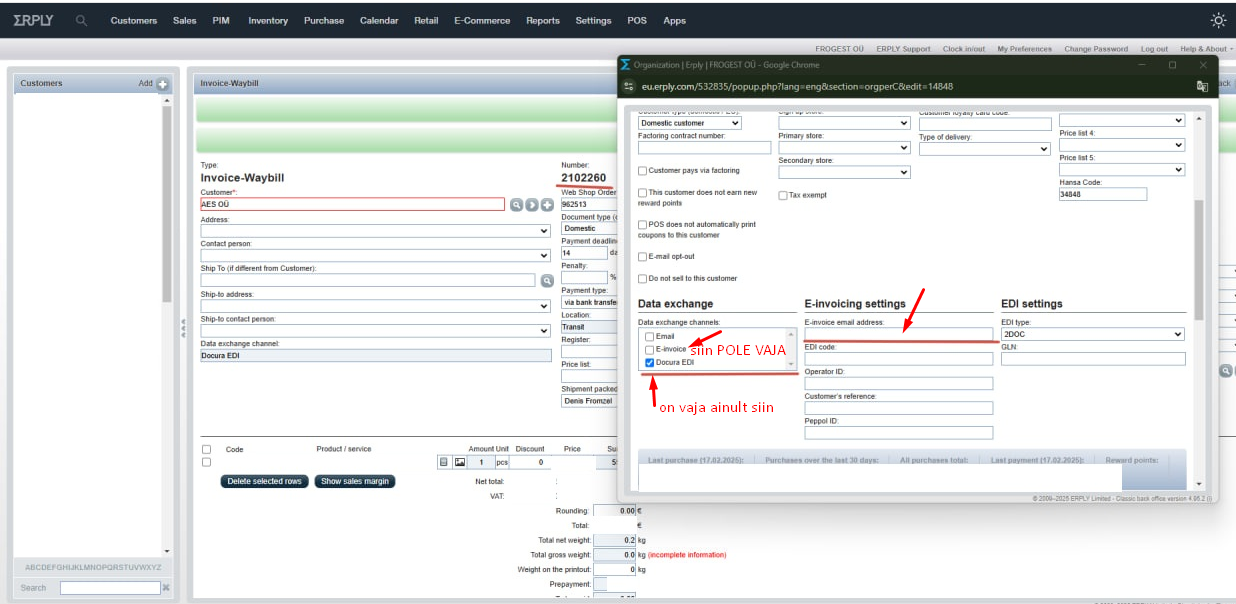

03 Example 2: the customer is not an e-invoice recipient
Docura EDI is ticked, the customer's email is entered in E-invoice email address. The invoice was sent by email.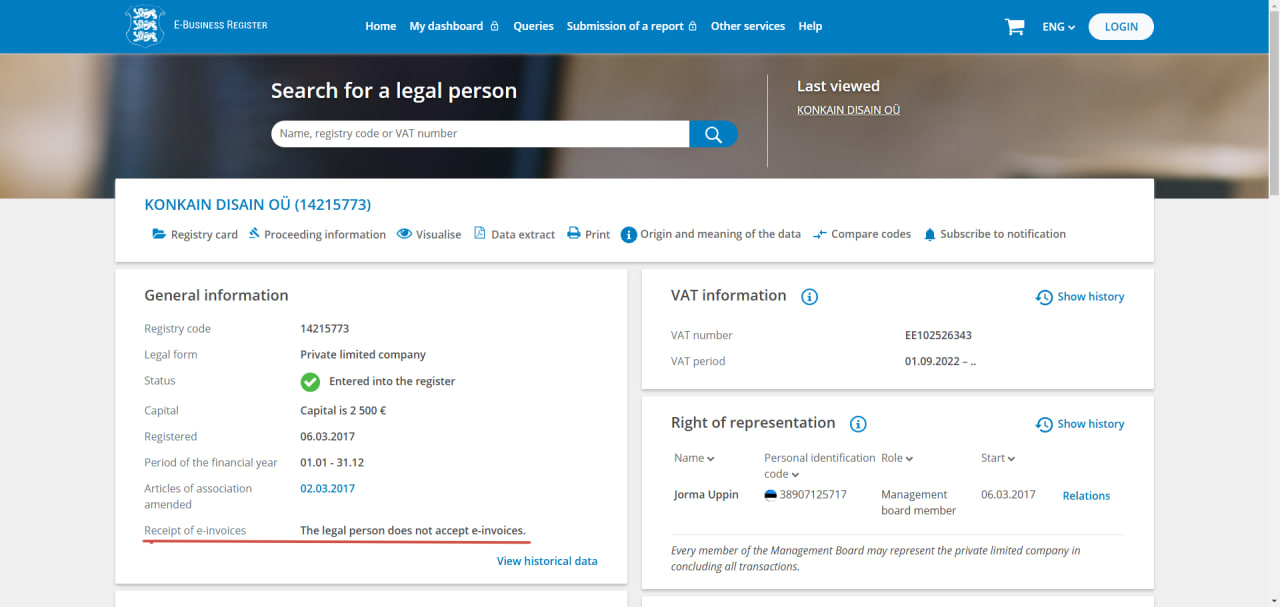

04 If the customer did not receive the invoice
- Check that Docura EDI is ticked.
- If the customer is not an e-invoice recipient, fill in E-invoice email address.
- Save the invoice again.
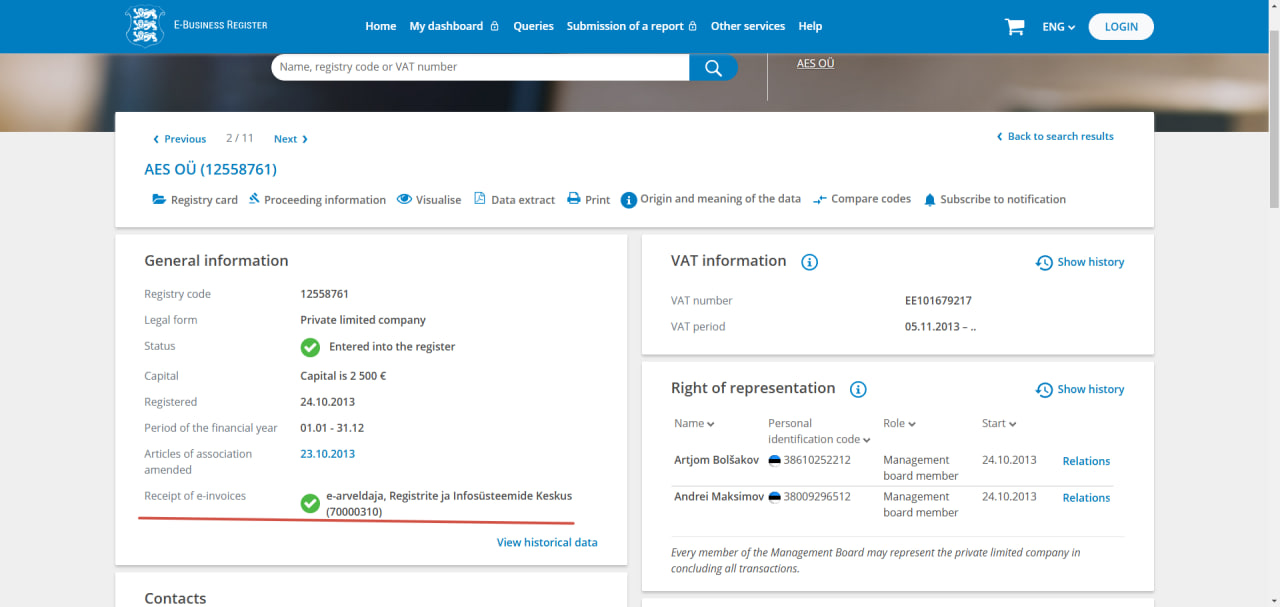
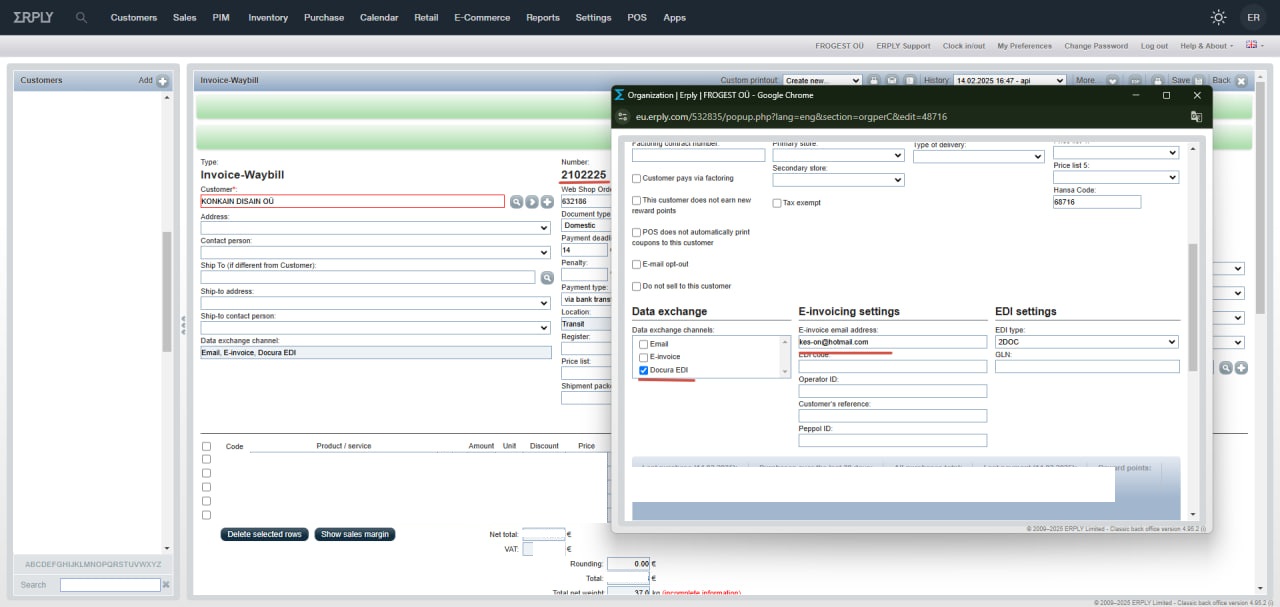
05 Checking whether the customer is an e-invoice recipient
Use the Estonian e-Business Register.
02 Peppol
- Enter the PeppolID on the customer card. If the field is filled, Docura sends the invoice through the Peppol network.
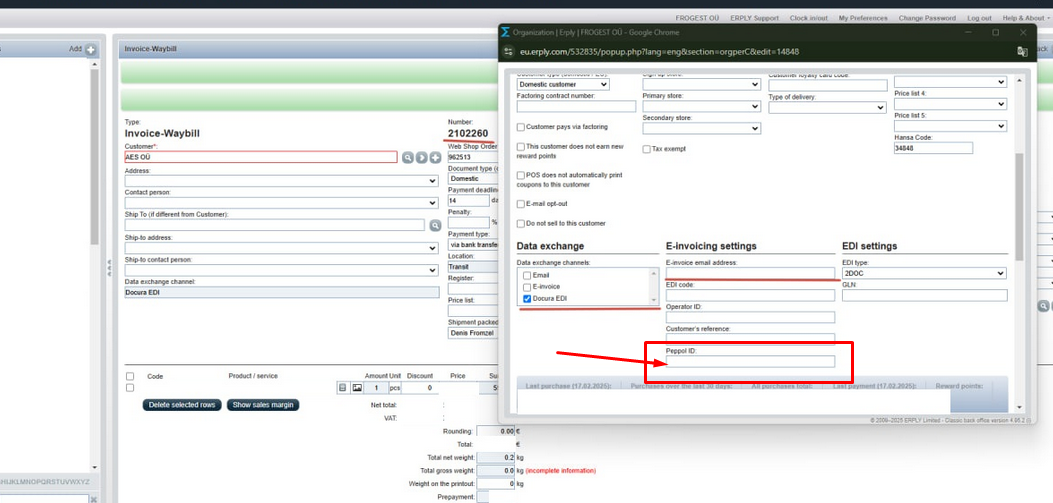
- On the Docura platform, Peppol integration must be set up for the customer with sending and/or receiving enabled.
04 Waybill
01 Several waybills for one order
- In Erply Back Office open the order you want to create a waybill for.
- Select More... → Create invoice.

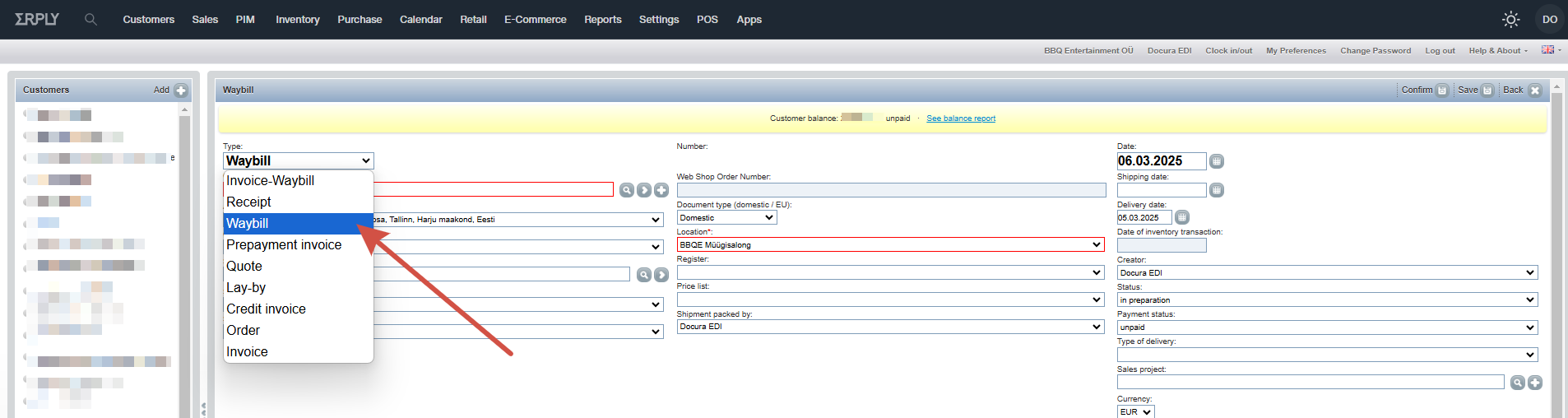
- In the new invoice view select Type → Waybill.
- Confirm and save the waybill.
- When creating the first waybill, remove or edit the products so that only this shipment's quantities remain.
- Save the document.
- Create a new waybill from the same order and repeat until all shipments are created.
For each waybill the store receives an electronic despatch advice with the corresponding products and quantities.
02 Retail chain stores (4DOC)
To send a waybill in the 4DOC process, the exact delivery location (store) must be identified. Erply links EDI settings (GLN) to the customer card, so one customer card cannot be used for a retail chain with several delivery addresses and different GLNs. Create a separate customer card for each store.
- Create a separate customer card for each store / delivery location.
- Name the cards clearly, e.g. "Prisma Peremarket AS (Kristiine)" and "Prisma Peremarket AS (Annelinna)".
- Enter the same registry code of the legal entity on all cards. This links them to the same company.
- On each store card:
- GLN: the unique GLN of this store
- Docura EDI: ticked
- EDI Type: 4DOC
When creating a waybill, select the specific store card as the recipient so that the correct GLN is used.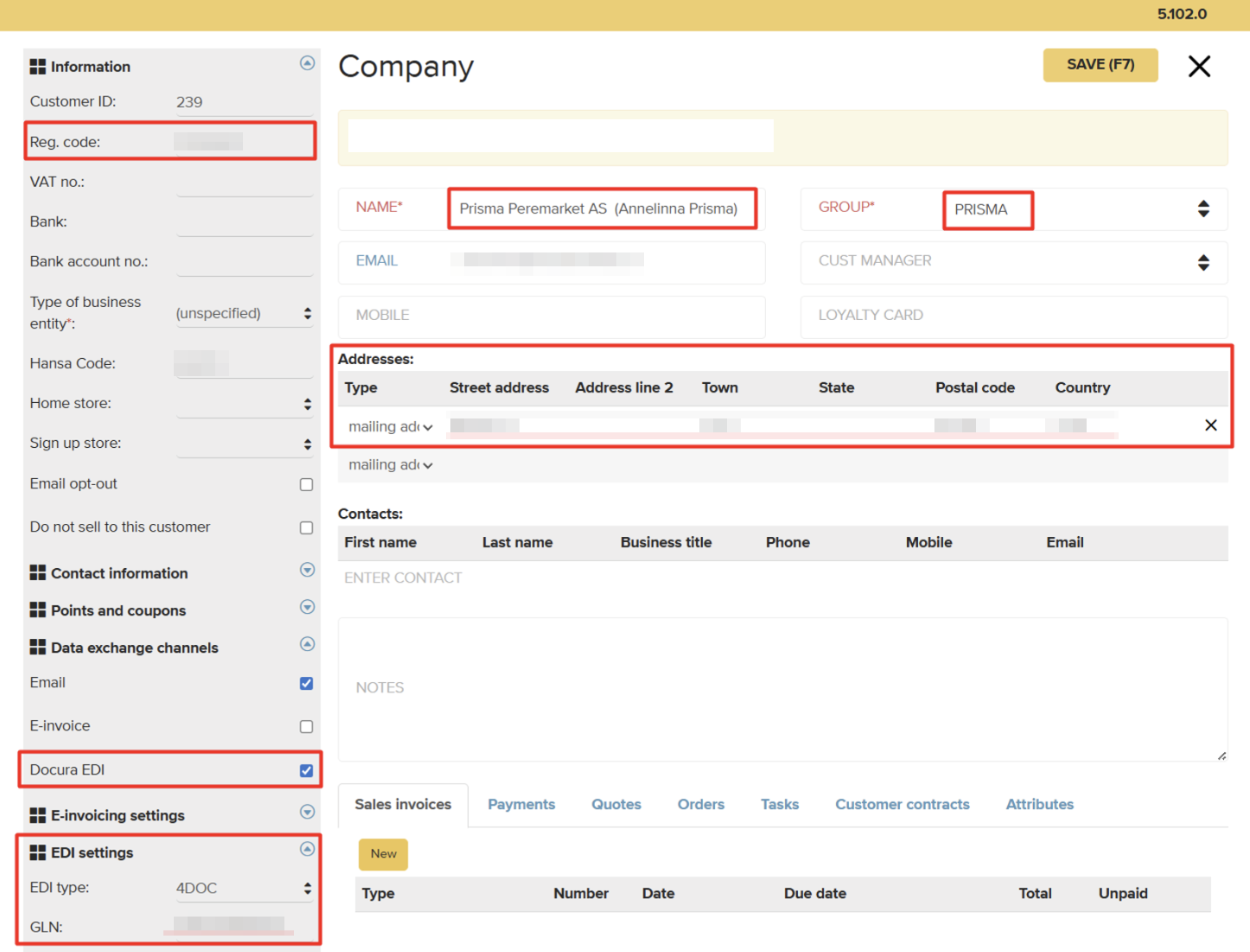
Erply guide: EDI 4DOC
05 Best before dates and batches
The batch number and the best before date reach the recipient in one of three ways, depending on which options are enabled on your Erply account.
01 Option 1. Batches field on the product card (paid)
This requires a special interface (so-called alcohol interface) on your Erply account. It is a paid Erply service, to enable it contact abi@erply.com.
The interface adds the field Batches to the product card. Enter the dates or batch numbers there, separate several values with a semicolon (;).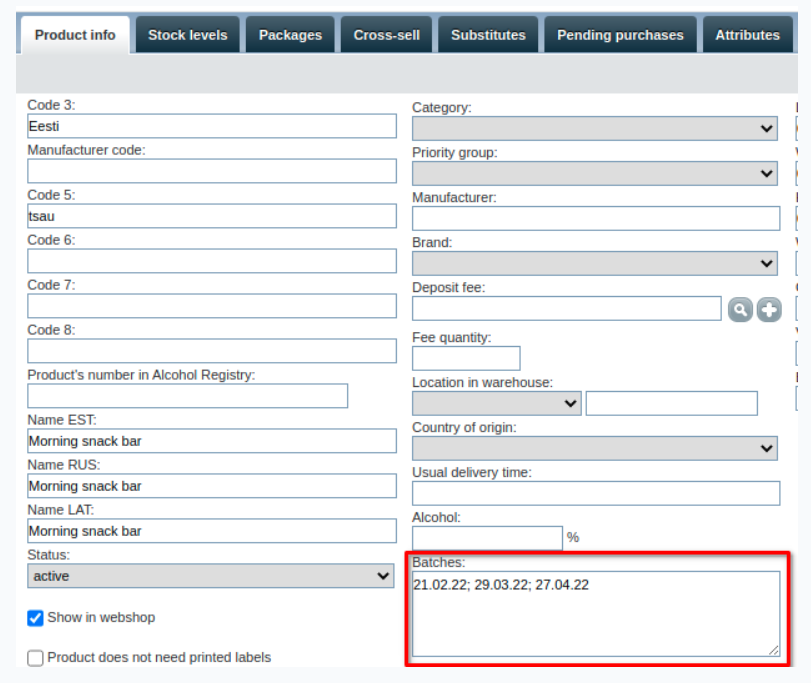
When a product with a value in the Batches field is added to a waybill, a dropdown appears next to the code. Select the right date, it is also sent to Docura.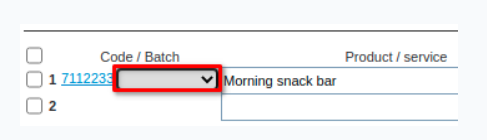
02 Option 2. SN in the product description
- If you do not want to activate the paid interface, add the SN directly to the product description.
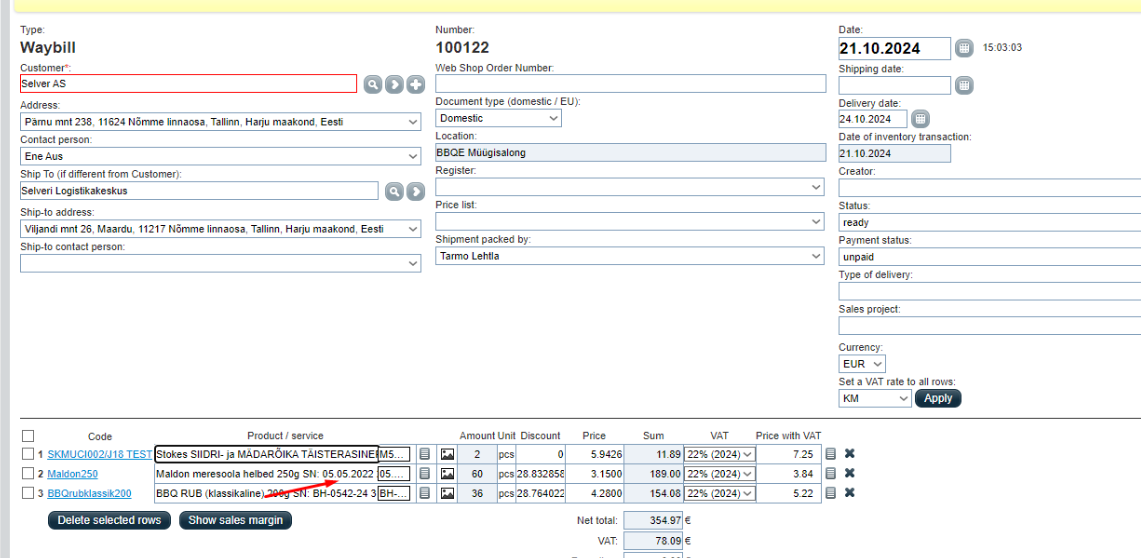
- Enter the batch number and the expiry date in the description in this format:
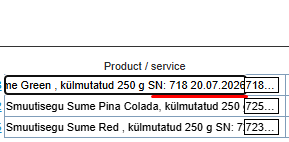
Docura reads the batch number and the expiry date out of the description, so the invoice itself needs no extra fields.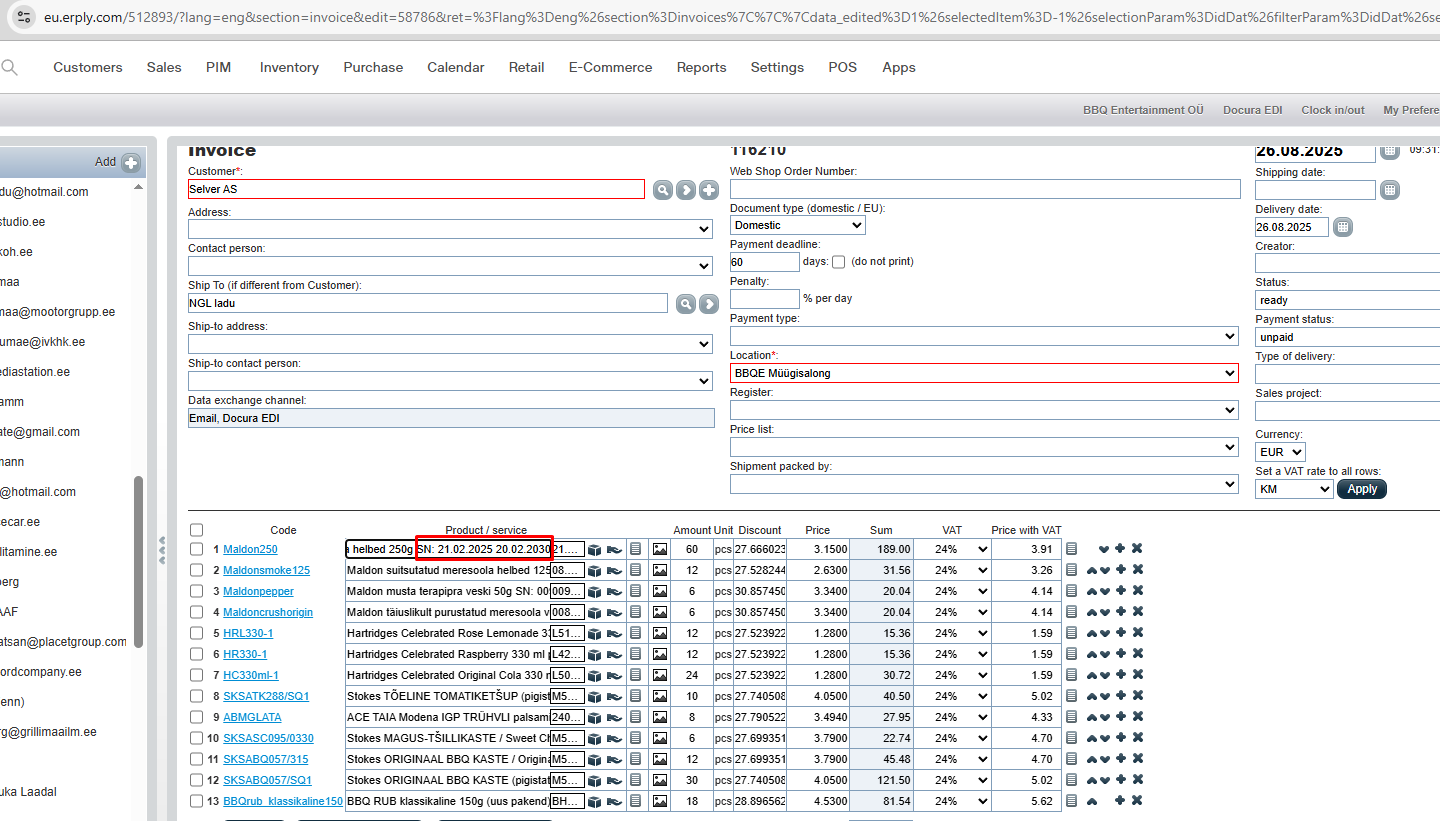
03 Option 3. Lot and Expiry date manager app
The lot and its expiry date can also be chosen in the invoice with Erply's Lot and Expiry date manager app – without the paid interface and without editing the product description.
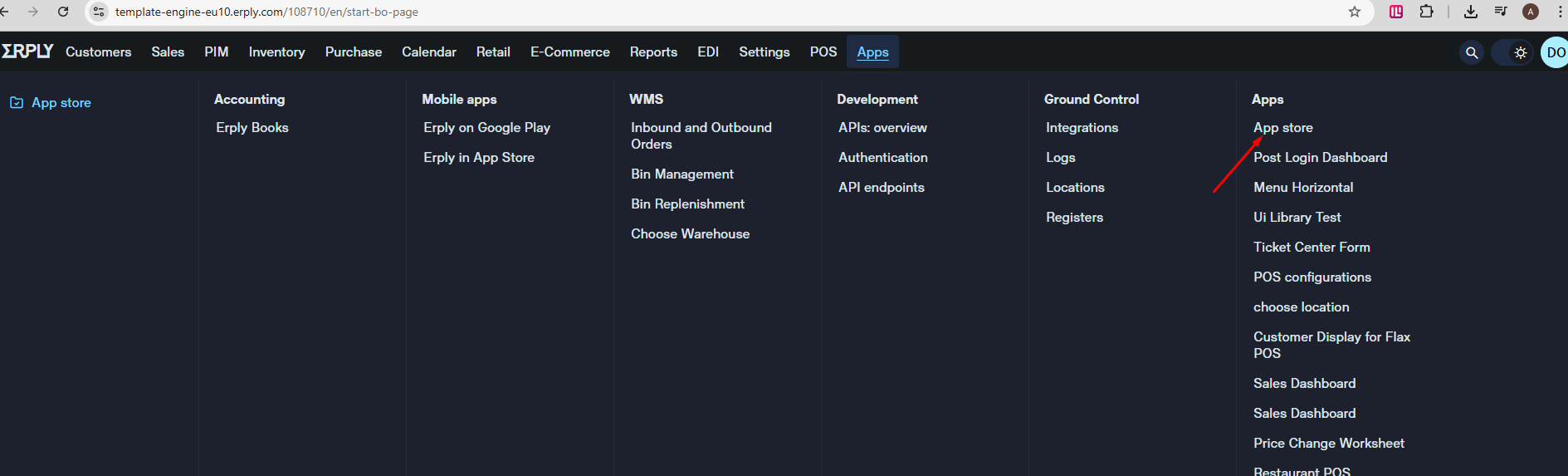
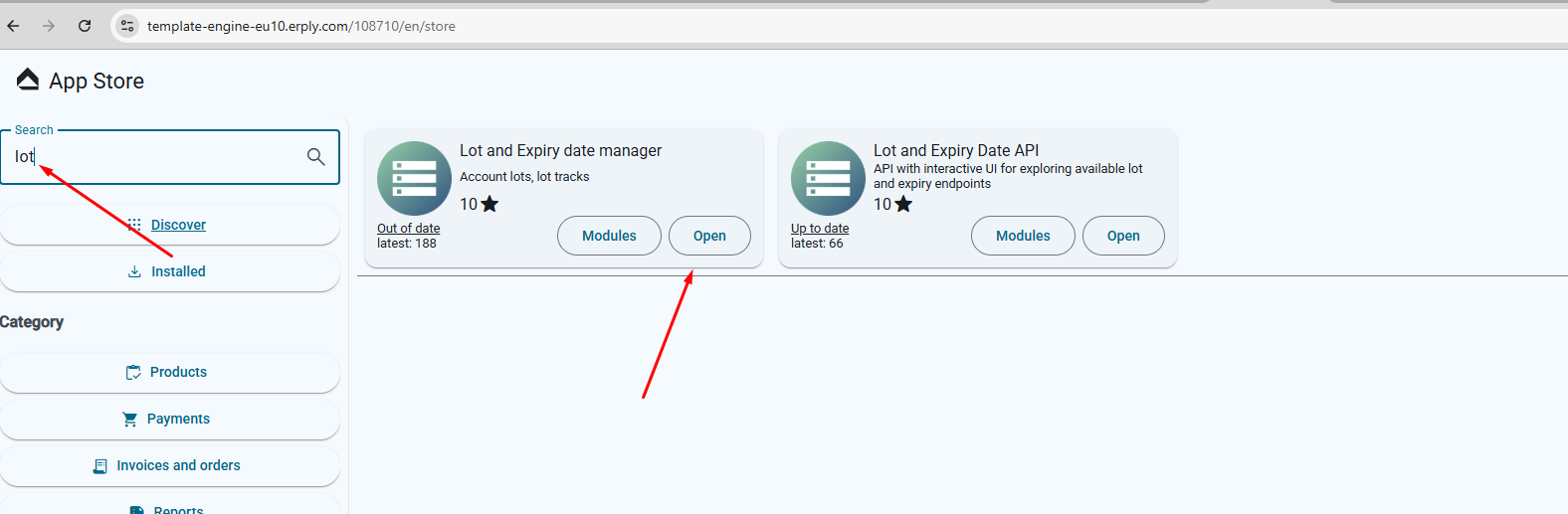
- Open Apps → App store and search for lot.
- In the Lot and Expiry date manager card click Open. If the app offers a newer version, update it first.
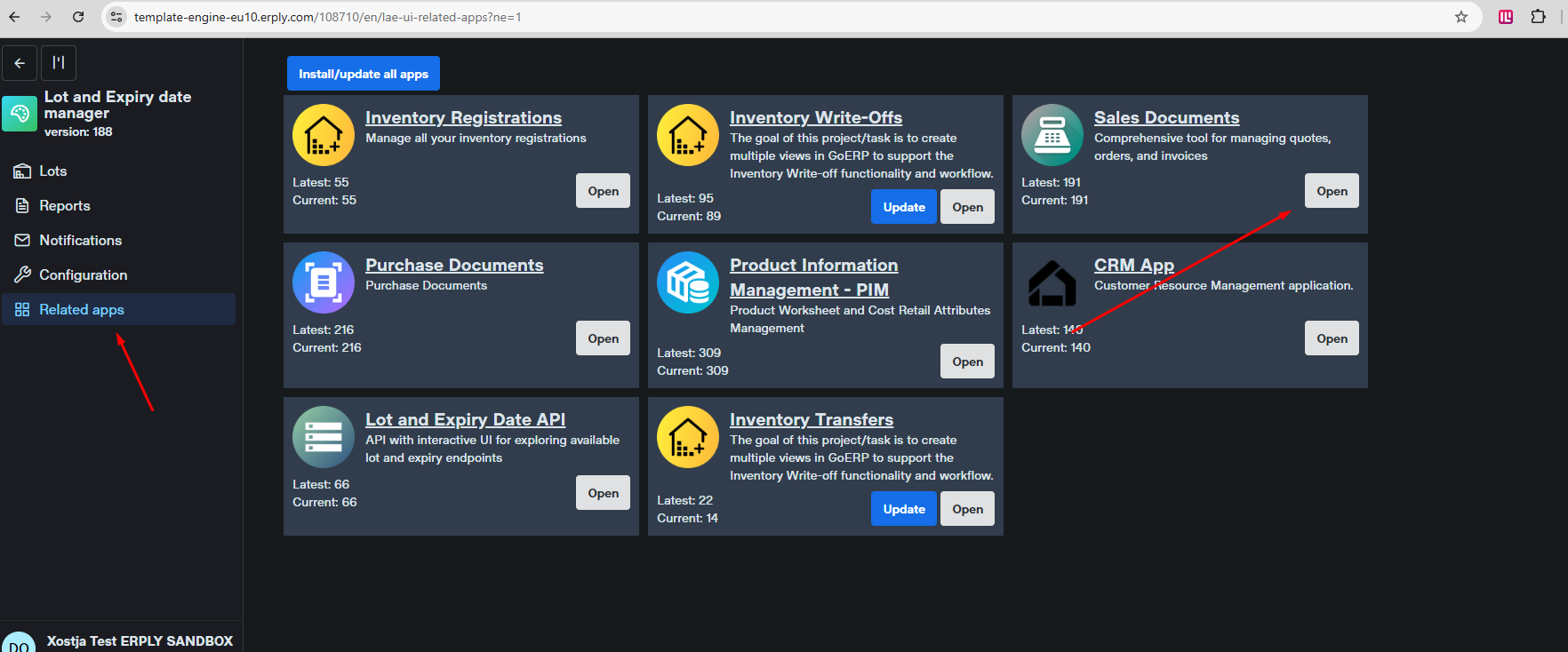
- In the app menu open Related apps and update the apps that show a newer version. Then open Sales Documents.
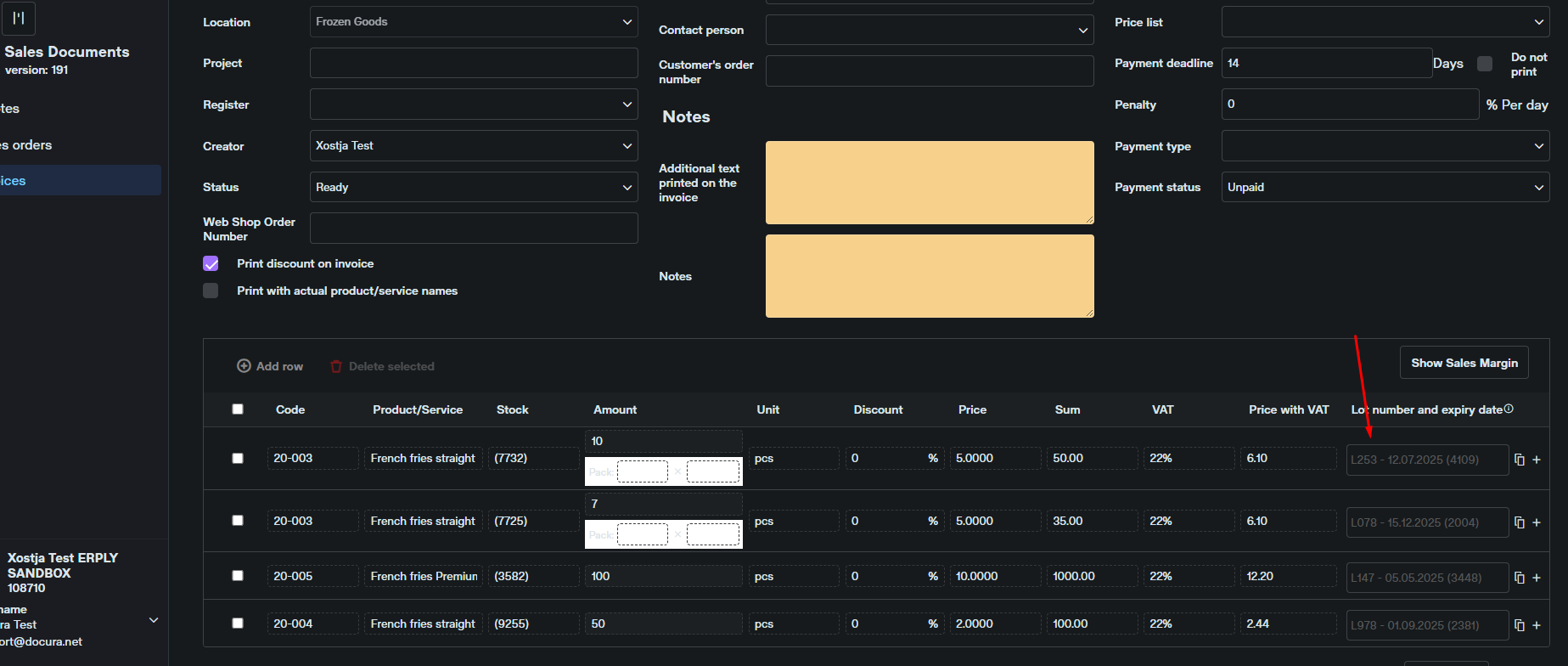
- Each product row in the invoice now has the column Lot number and expiry date, where the required lot is selected from a dropdown.
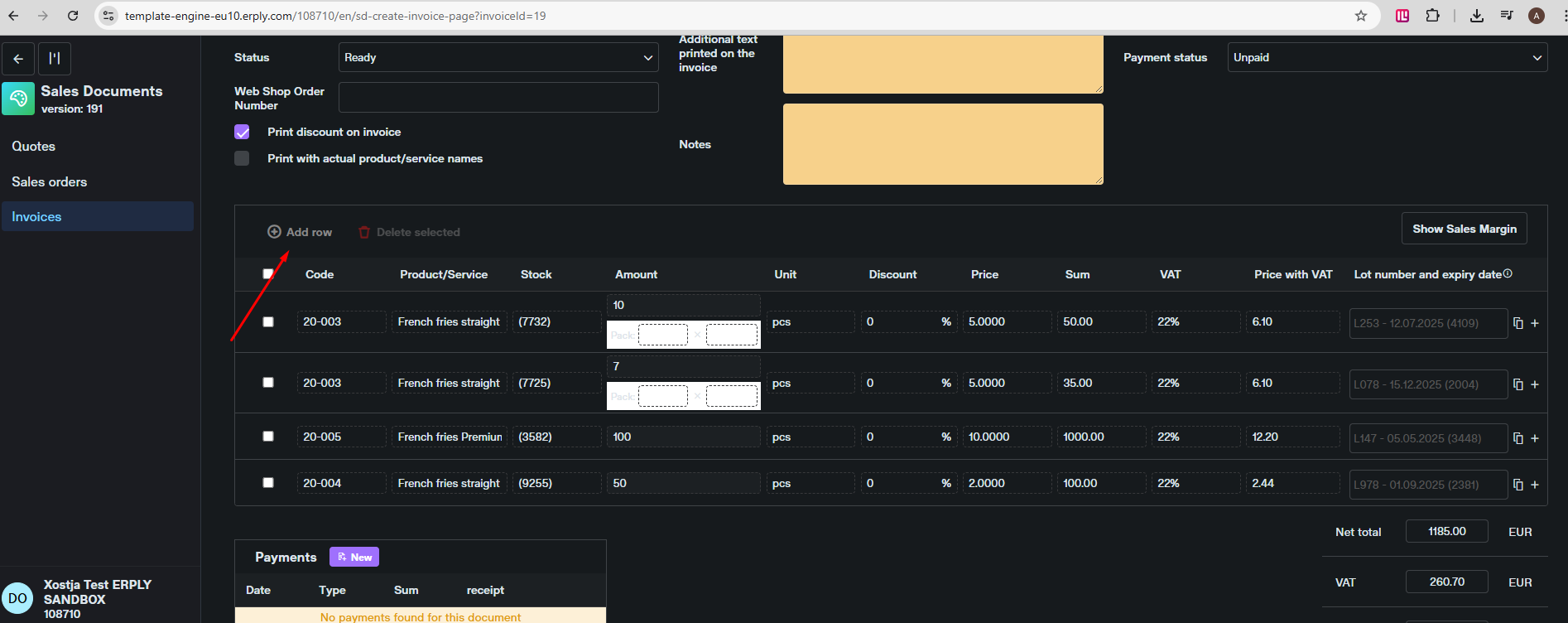
Erply's web interface is a little awkward here, so choosing your own lot needs a small workaround.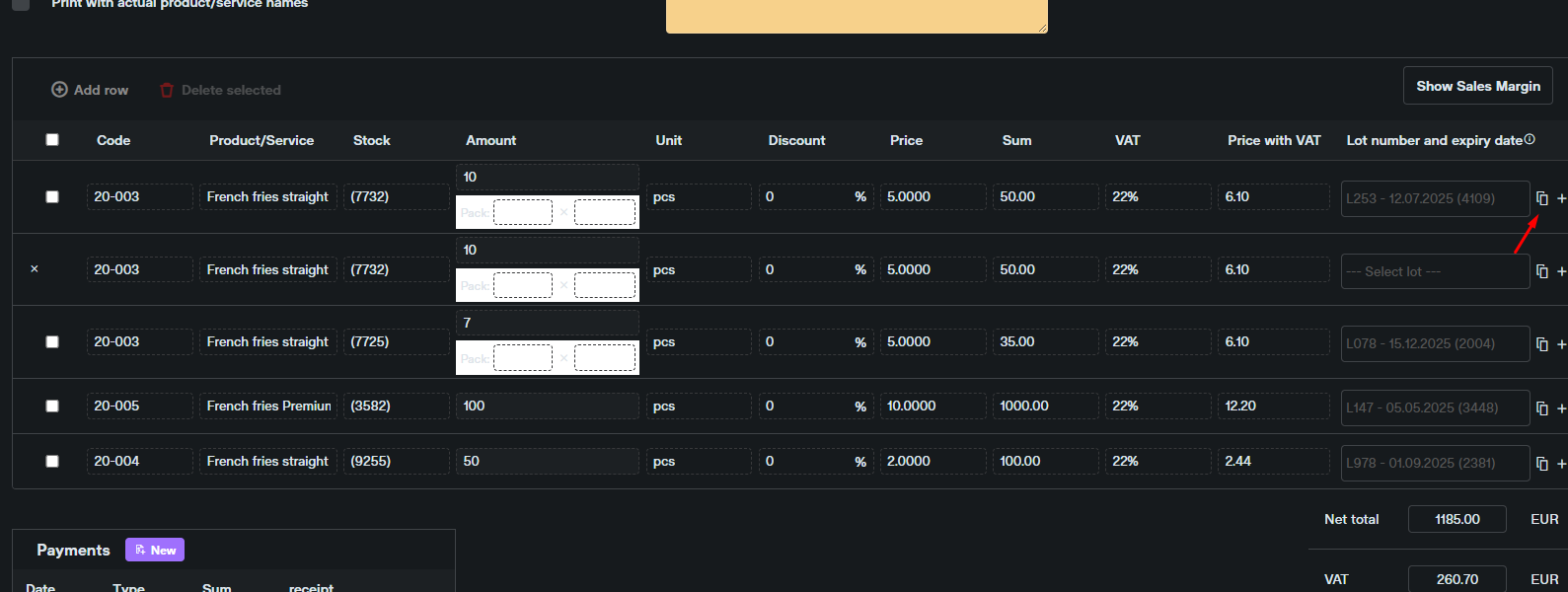
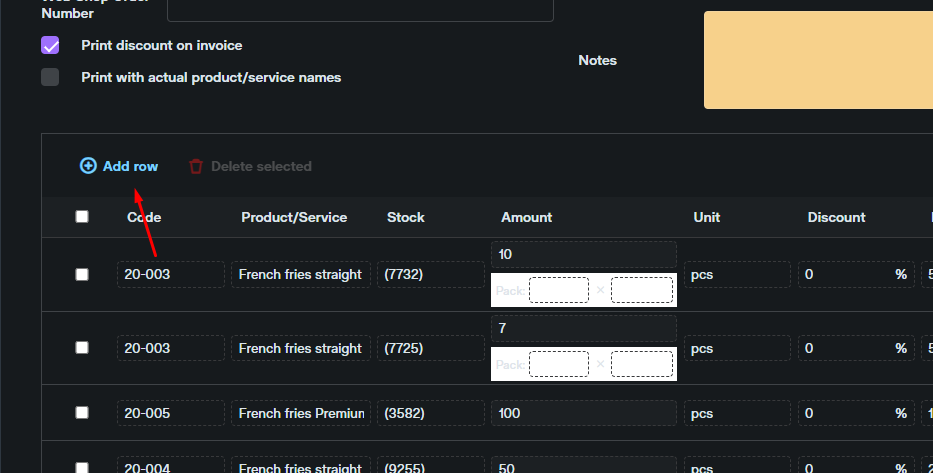
After the duplicated row is deleted, add a new row and select the required lot in the dropdown.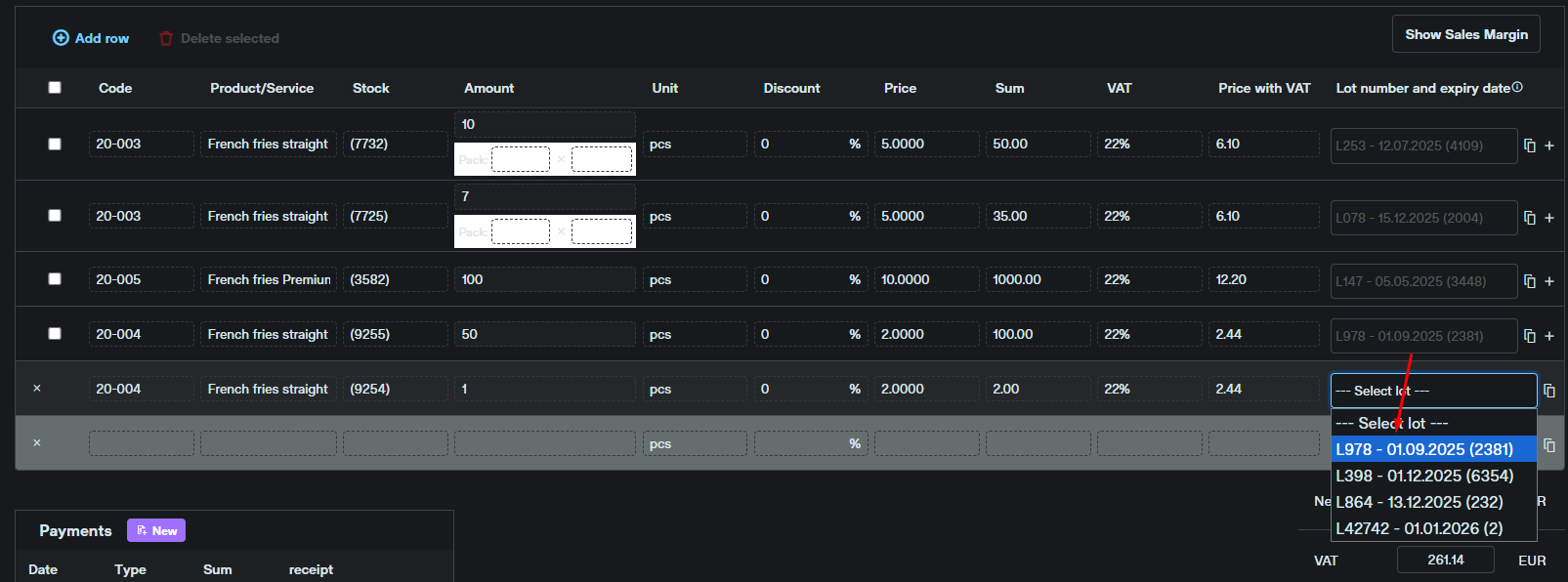
06 FAQ
01 Quantities in the sent despatch advice differ from the Erply waybill
In rare cases the product quantities in the sent despatch advice differ from the Erply waybill, and the recipient sees fewer products than on the original waybill. Erply currently has no fix for this. If it happens, compare the data in Erply with the sent document and report the case to Docura support.
02 Adding the order number to an existing waybill
If a waybill was created manually, not from an order:- Open the waybill.
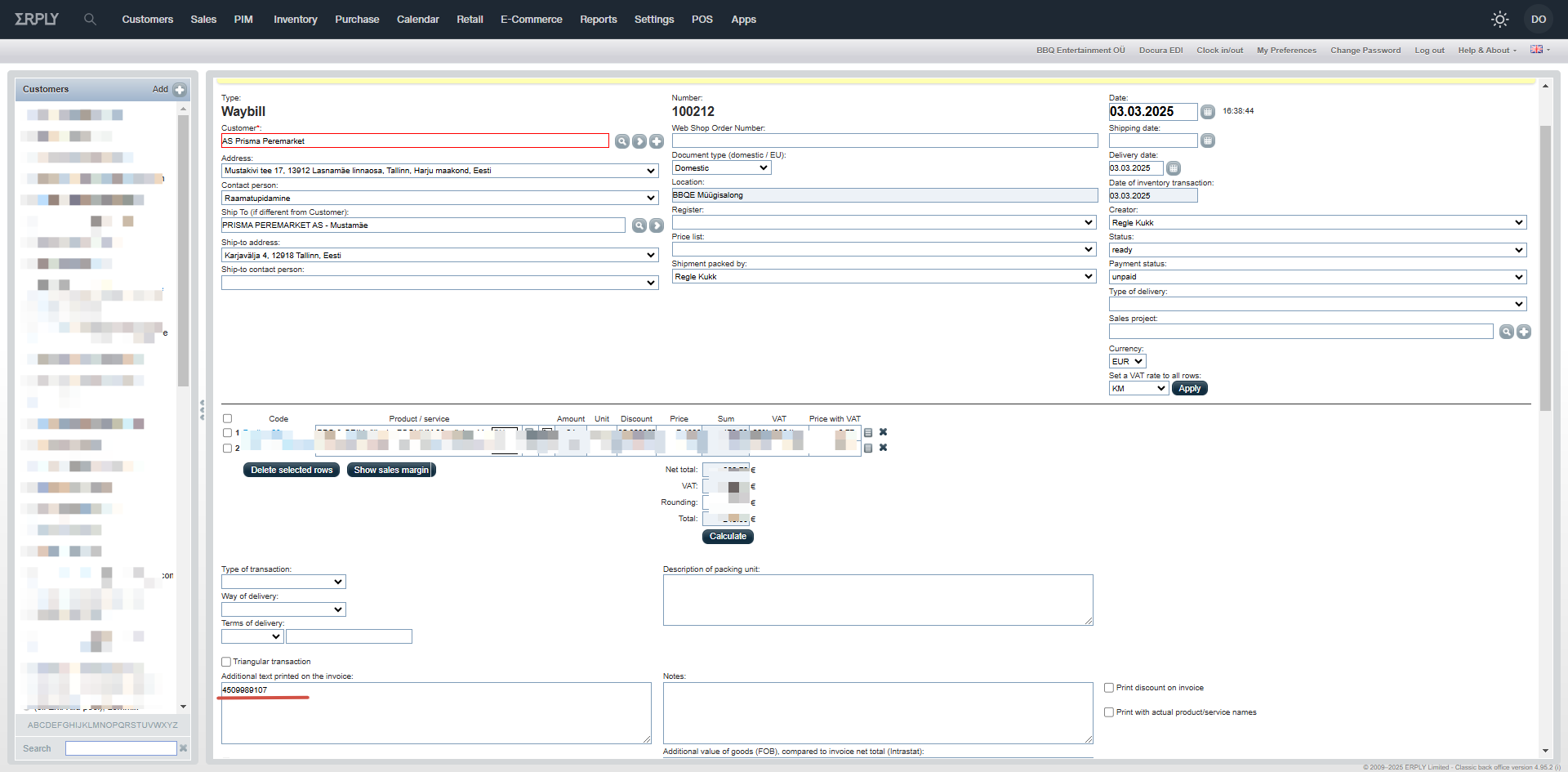
- Scroll down to Additional text printed on the invoice and enter the order number there.
- Save the document.
The order number is now linked to the waybill.