


01 Product catalog
- Table of contents
- 01 Product catalog
- 02 Adding products to the product catalog
- 03 Catalog for a specific buyer
01 Goals
Docura lets you store and use your product catalog. The goals are:
- Verification of product codes
- Price import from your own catalog
- Product code substitution (put the seller's code in place of the buyer's code)
- Order quantity conversion (the buyer orders in boxes, the seller receives the order in pieces)
- Using Docu-ORDER (the buyer can order in the docura.net web environment)
02 General product catalog and buyer catalog
- To verify your own product codes it is possible to set up automatic sending of the product catalog from your ERP. The procedure is the same as for the invoice export. More information here: https://redmine.docura.net/projects/docura-manual-en/wiki/01_EDI_quick_start
- Product code verification. If an ordered product is missing from the product catalog, then:
- An e-mail warning is sent
- It is possible to remove the product from the order
- Product code setting by EAN
- etc.
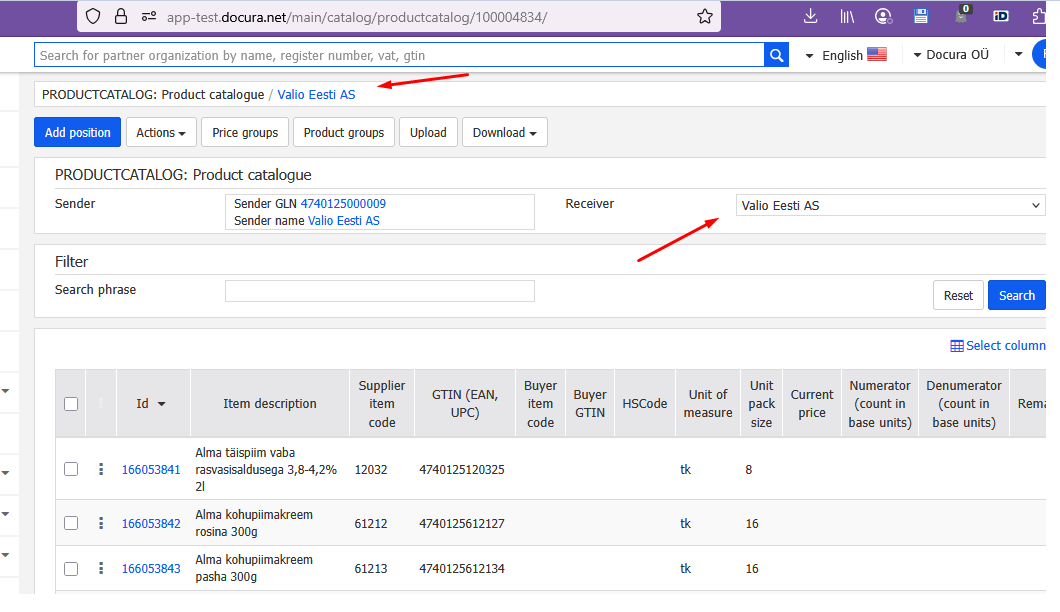
- Product code verification. If an ordered product is missing from the product catalog, then:
- A catalog for a specific buyer. For that a buyer is selected for whom the catalog is intended
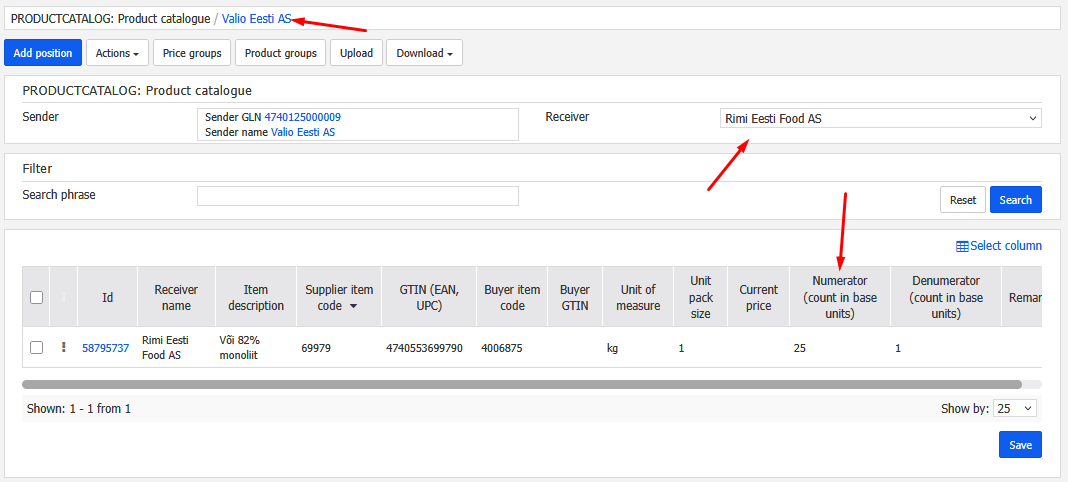
- For completing buyer-seller codes
- Order quantity conversion (the buyer orders in boxes, the seller receives the order in pieces)
- For using the buyer's special prices
02 Adding products to the product catalog
01 Important. Prices of products on orders/invoices
- The invoice price is formed on the basis of the order. The order price in turn is taken from your product catalog, if the person ordering does not enter a price
- If you use the product catalog for price formation, make sure that the prices in your product catalog are up to date and correspond to your agreements with customers, in order to avoid errors in documents.
02 To add a product to the product catalog:
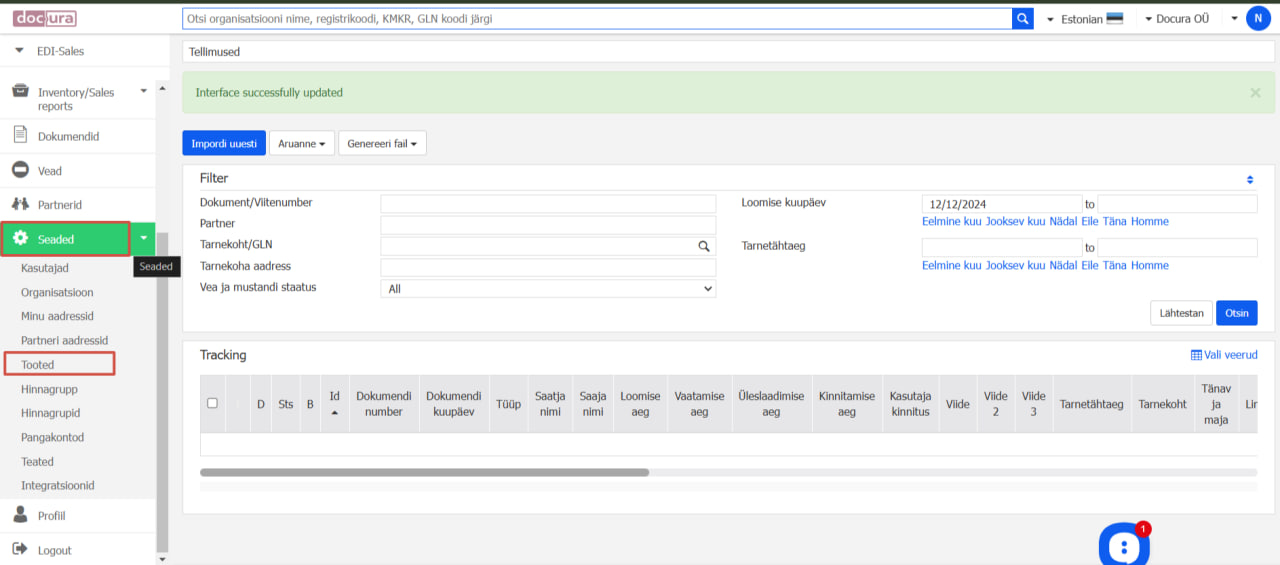
- Settings-Products. In the left menu click the Settings tab, then select Products from the list that opens.
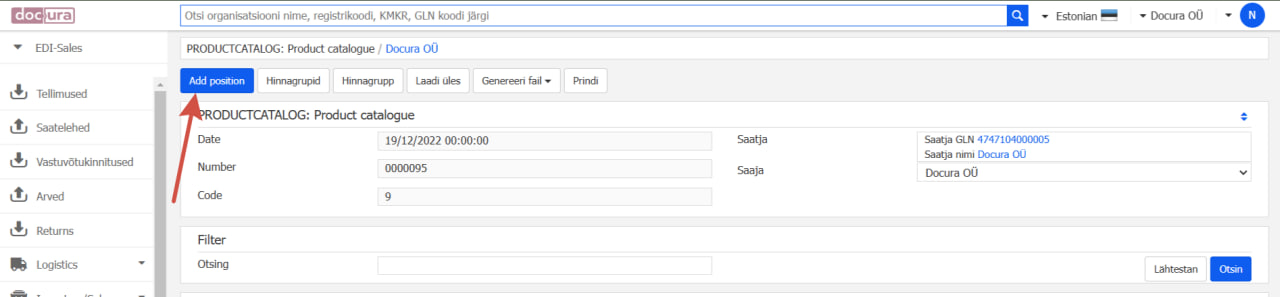
- In the top right corner click the Add product button.
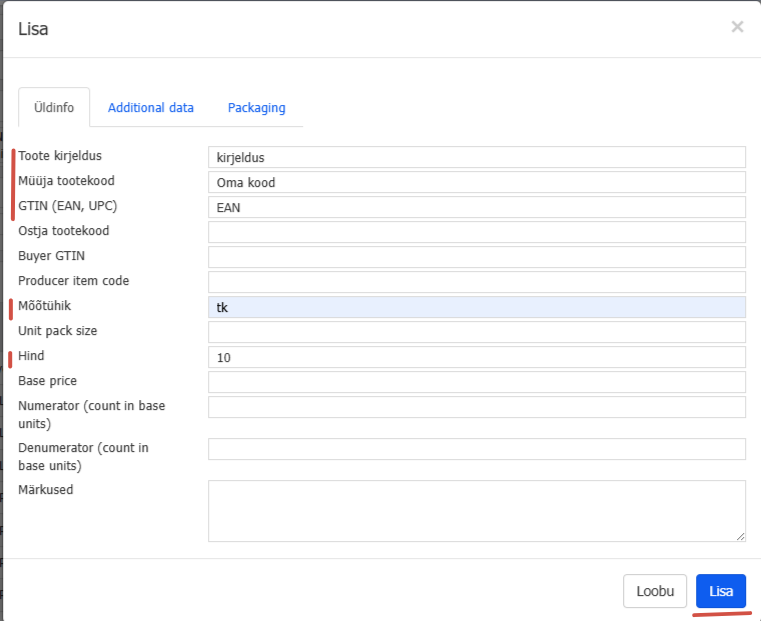
- Fill in the product data. On the product page that appears enter all the necessary data, such as the product name, description, product code, price and other attributes.
- Save the product page: click the Add button at the bottom of the product page.
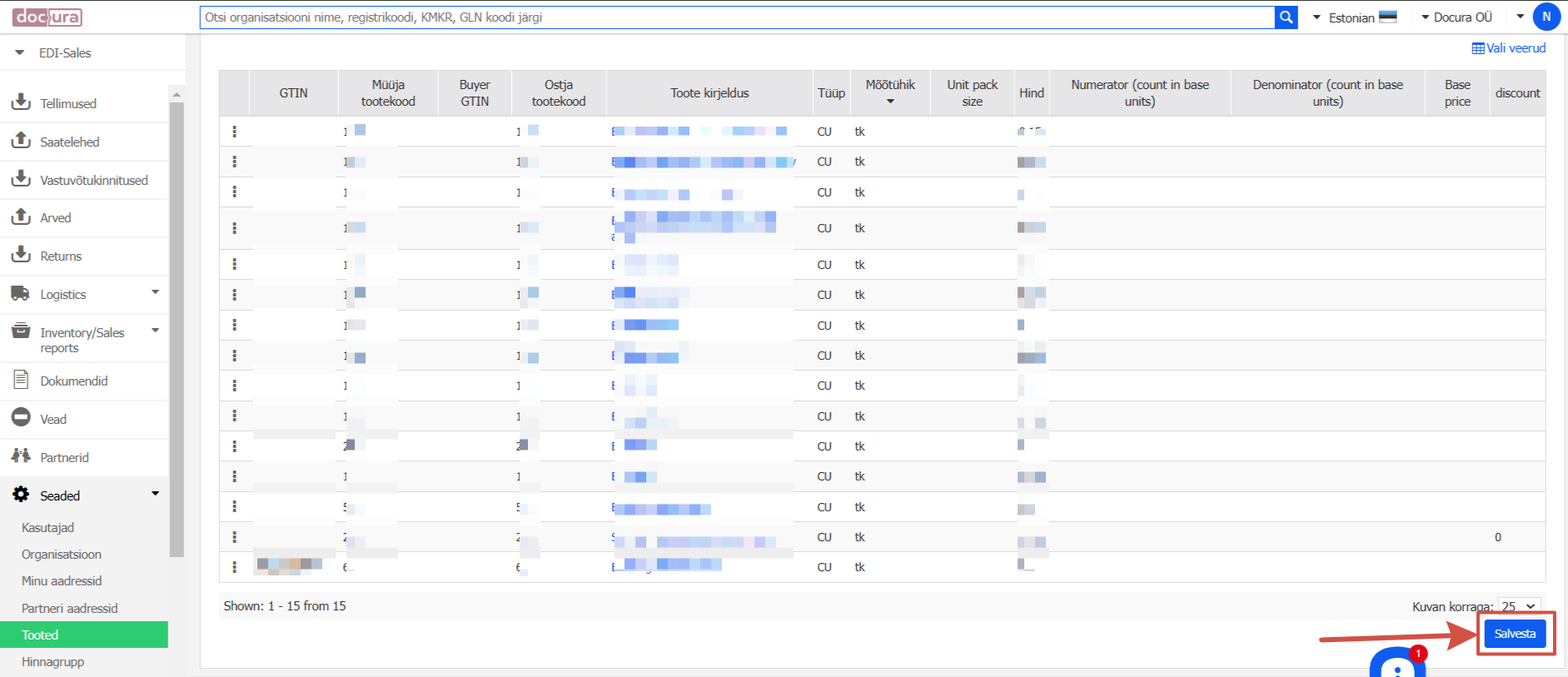
- Save the product data. After filling in and saving the data click the Save button in the bottom right corner of the page. NB! Without the final save the product catalog DOES NOT APPLY.
03 Catalog for a specific buyer
- In order to set up a product catalog for a specific buyer (prices, buyer-seller codes, quantity conversion) a buyer has to be selected
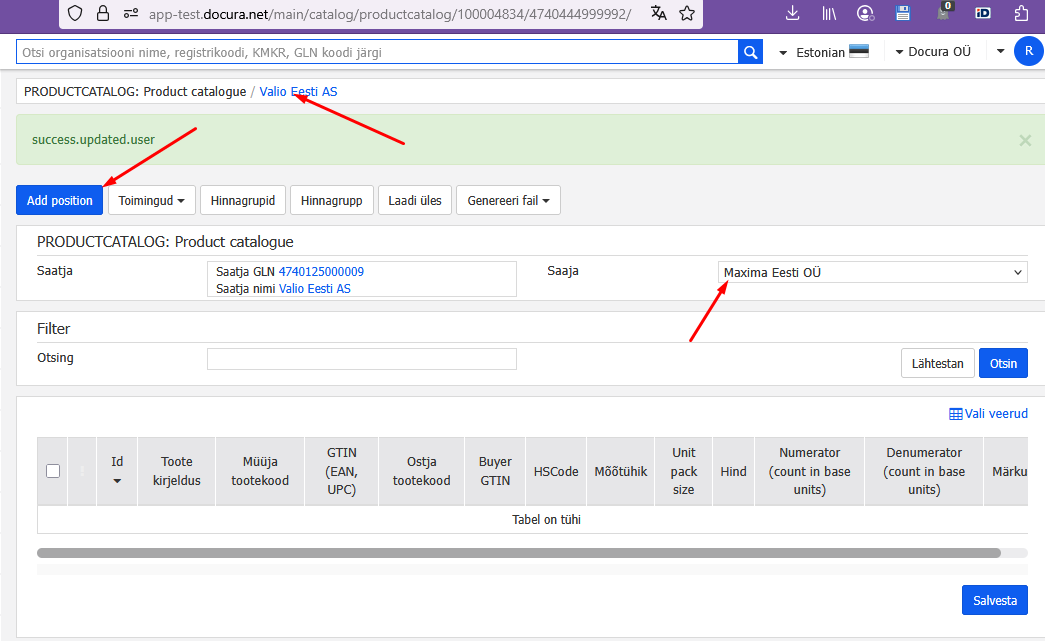
- Add the product
- It is possible to search the whole catalog
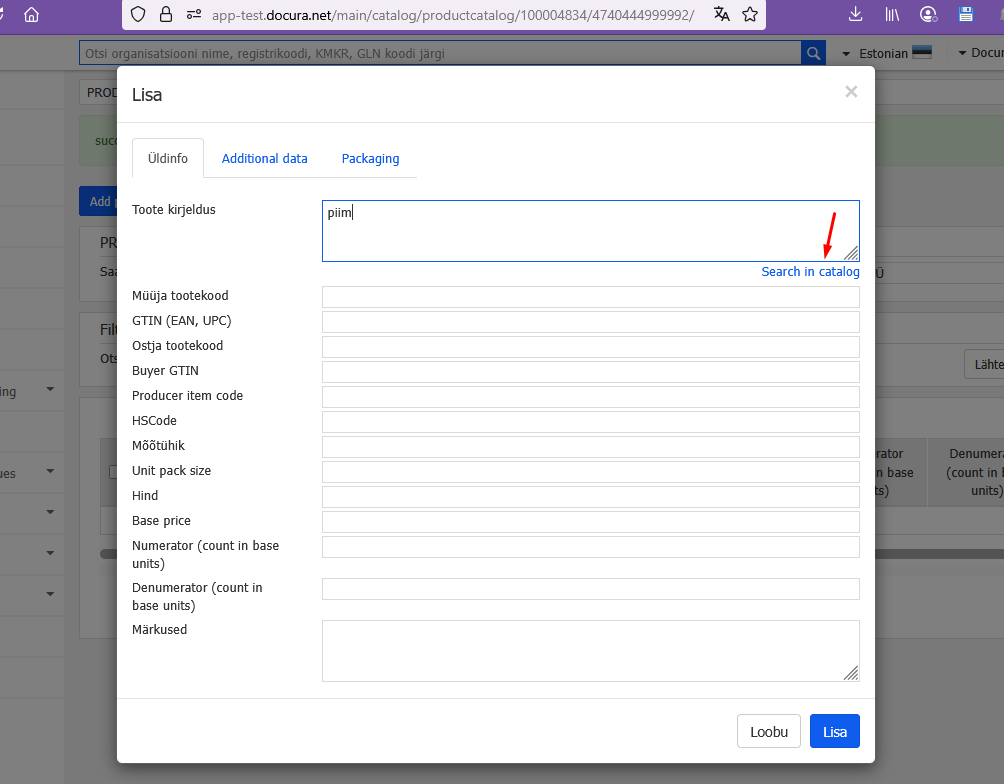
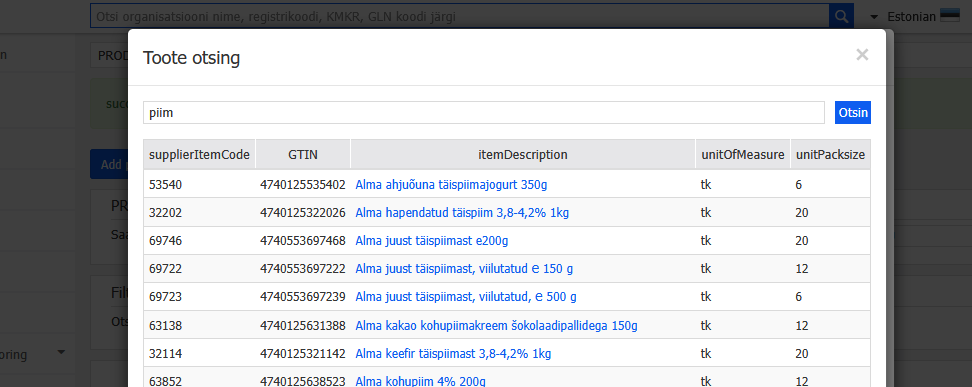
- The main data of the product has been added