- Table of contents
- Directo
- 01 General
- 02 Setup in Directo
- 03 Setup in Docura
- 04 Sales EDI process (EDI-Sales)
- 05 EDI-Logistics (External warehouse provider EDI process)
- 06 Questions/Answers
Directo
01 General
- Directo business software is a complete solution that includes accounting software, payroll and HR management, sales, warehouse and logistics modules, as well as project management, production, and work management software. Directo develops and implements its own business software, allowing for quick customization of solutions according to client needs.
- In Directo, the following document types can be used in the sales process: e-invoices, PEPPOL e-invoices, 2DOC (order, invoice) and 4DOC (order, delivery note, receipt confirmation, invoice) solutions.
- The activation of the Docura EDI module costs according to Directo's current price list (https://directo.ee/hinnad#Liidesed).
- Setup time is 4-5 working days.
- Original Directo guide: https://wiki.directo.ee/et/edi
02 Setup in Directo
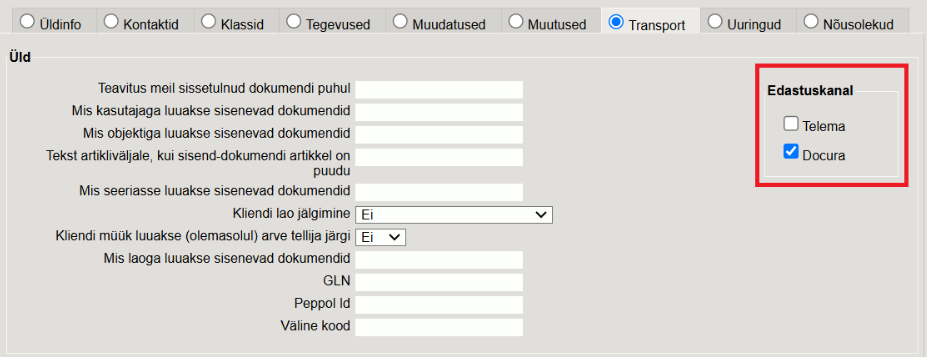
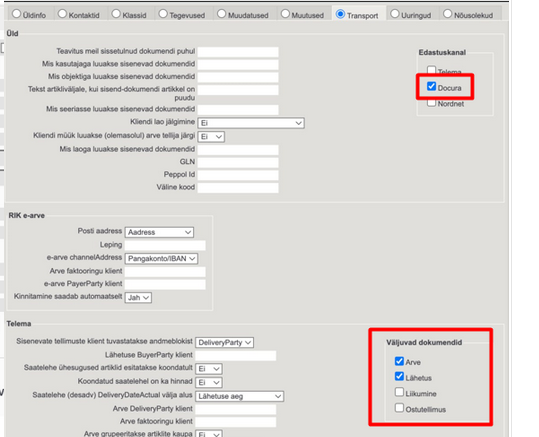
The initial setup of the Docura EDI interface is done by Directo - the user does not need to set up anything themselves. Contact your Directo consultant or send an email to info@directo.ee with a request to activate Docura EDI. To use Docura EDI, a unique client code must be created for each partner and entered into Directo (or existing codes can be used), and "Docura" must be selected as the EDI channel in the "Transport" section of each client's card (see screenshot "Delivery channel" below).
01 Client codes
Client codes for data exchange must be synchronized with the EDI partner, so when creating a new client in Directo, the EDI partner must also be informed of this code. If a document arrives with a client code that is missing either in Directo or at the EDI partner, further processing of that document will not occur. The easiest way to copy and send the codes to the EDI partner is as follows: in the Directo main menu, clicking on "Clients" in the "General" column opens a new window, and at the top of this window, there is a black bar with "Excel table" which, when clicked, downloads an Excel table with all clients and their codes to the computer.
02 Delivery channel
On the client card (all clients can be found in the main menu "General" by clicking on "Clients"), the Delivery channel must be set to Docura in the Transport tab for document movement.
03 Setup in Docura
The initial setup of the Docura account is done by Docura - the user does not need to set up anything themselves. Send an email to support@docura.net with a request to activate the Directo interface. The user enters client and store/warehouse codes for their partners.
01 Client codes
https://redmine.docura.net/projects/docura-manual-en/wiki/02_Partners_codes_and_GLNs
02 Location codes
04 Sales EDI process (EDI-Sales)
2DOC

4DOC

05 EDI-Logistics (External warehouse provider EDI process)
External warehouse providers integrated with Docura are Est-Trans Kaubaveod AS, Via 3L OÜ, Eugesta Eesti OÜ.
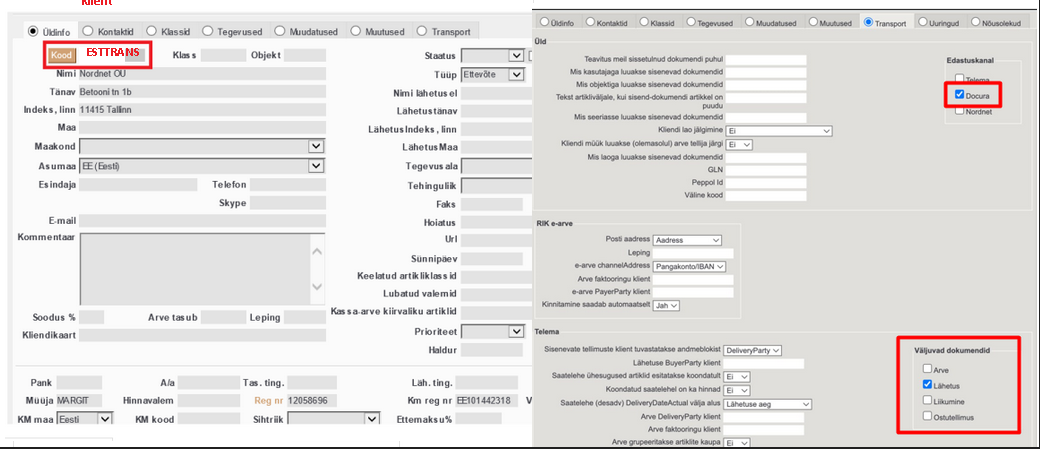
Setup in Directo: Est-Trans Kaubaveod AS
- Ensure that Est-Trans Kaubaveod AS is registered as a client in Directo.
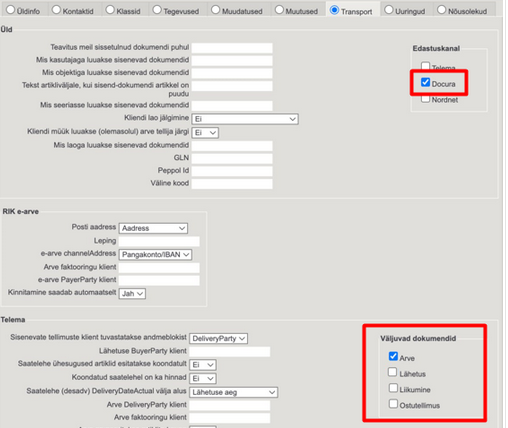
Under "Transport", the delivery channel should be: Docura and the outgoing documents should be set to: Shipment.
Est-Trans Kaubaveod AS card:
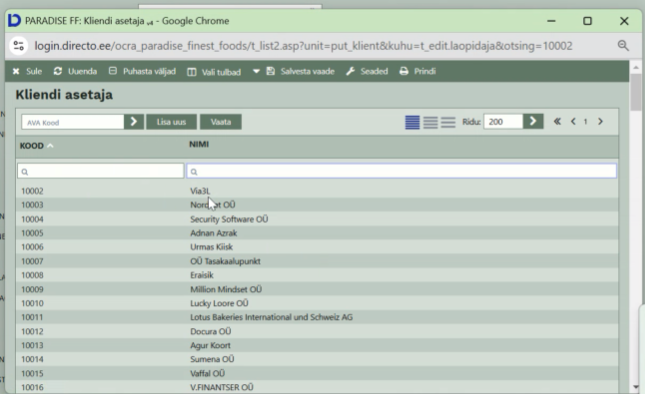
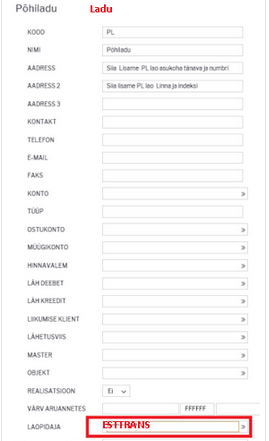
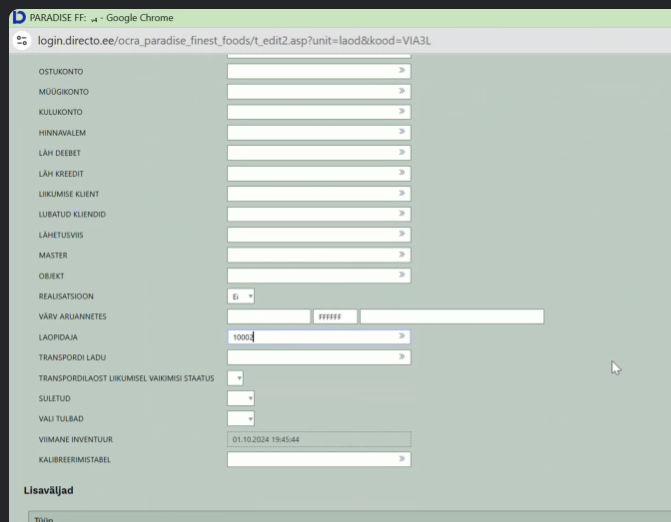
- Set up the warehouse in Directo where the External Warehouse Provider's warehouse is managed, and other settings. For warehouses associated with the External Warehouse Provider, the client code must be selected in the "Warehouse Provider" field.
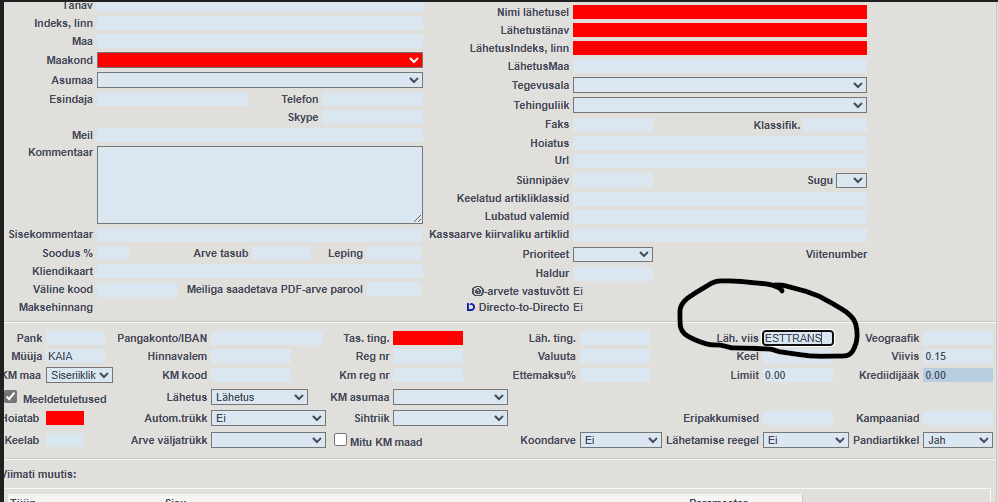
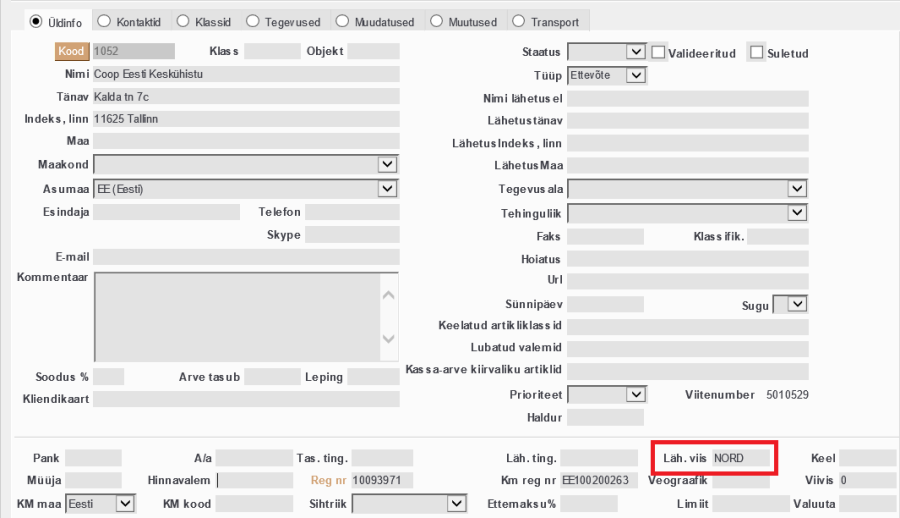
- Client card setup: Open the client card and set the "Shipment method" field to ESTTRANS (Est-Trans Kaubaveod AS code in Directo)
Shipping the order and creating an invoice: When the order is ready, change the order status to TO WAREHOUSE and save.
Then change the status to BACK FROM WAREHOUSE and press Shift + Enter.
As a result, an invoice will be automatically generated. A shipment document for Est-Trans will be automatically created in Docura.
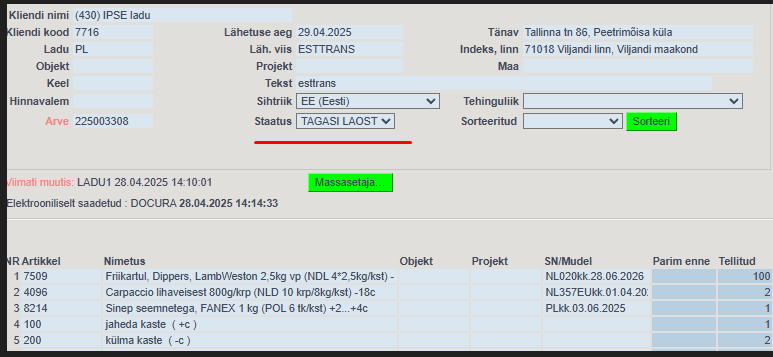
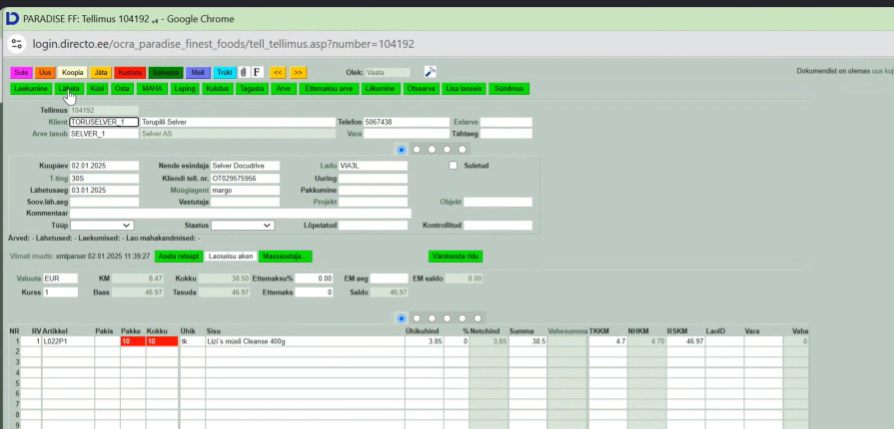
01 Delivery note/Waybill Via 3L.
03 Shipping goods to clients
- For clients to whom goods are delivered via a Warehouse Manager, a default shipment method should be assigned, which will automatically appear on sales documents when the client is selected. Alternatively, the shipment method can always be manually selected on the sales order.
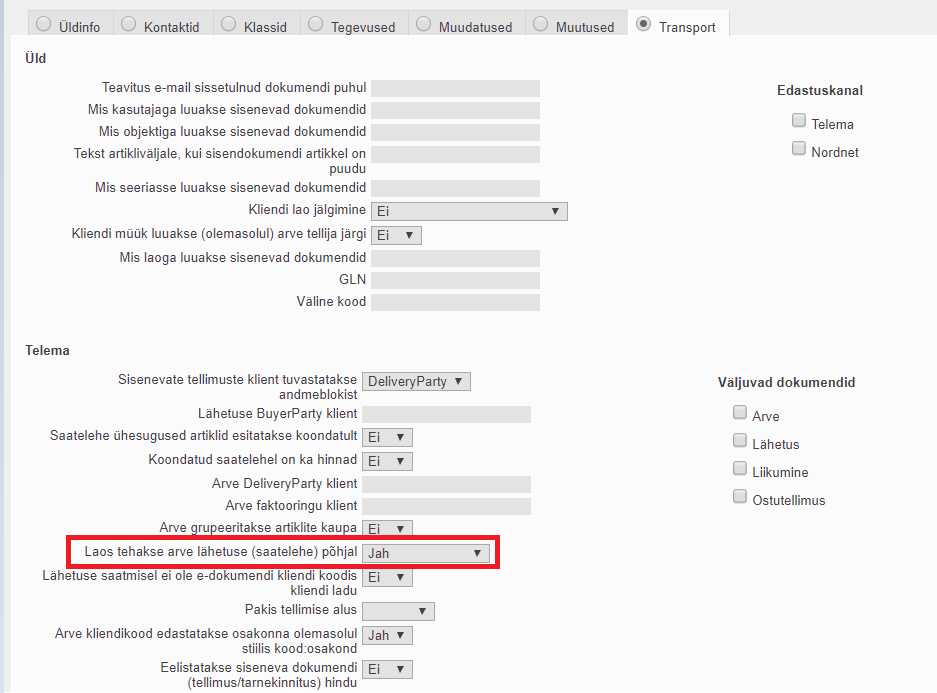
- In the "Transport" section of client cards, in the "Warehouse" field, an invoice is generated based on the shipment (delivery note). There are three options to choose from:
1. YES (default), in which case, when a delivery confirmation is sent to the warehouse manager, the warehouse manager issues an invoice to the client, and amounts are also transferred with this setting.
2. NO - with this setting, amounts are not transferred, and the Seller issues the invoice themselves.
3. NO (YES in Directo), meaning in this case the warehouse manager (Nordnet, Smarten, etc.) does not issue an invoice, amounts are not transferred, but upon receipt of delivery confirmation in Directo, Directo itself generates an invoice.
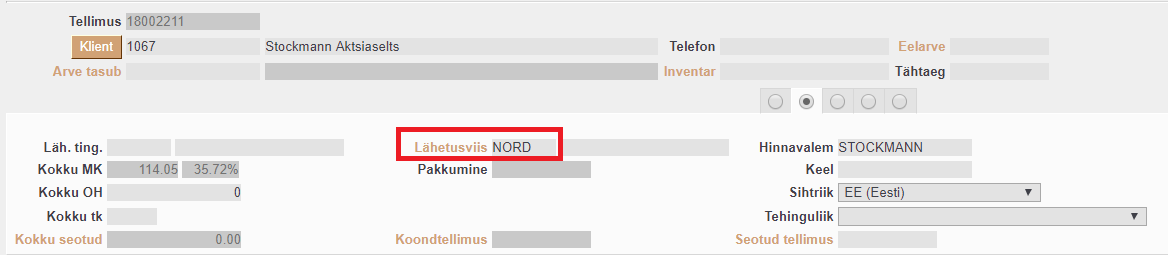
- To sell goods, an order must be entered for the client, and the order must have a shipment method attached.
- The order must be shipped. The shipment must have the shipment method filled in. If a specific SN/Model needs to be assigned immediately, it must be selected for the shipment. If the choice of SN/Model is left to the Warehouse Manager, the SN/Model fields on the shipment must be left blank. The status "TO WAREHOUSE" must be selected for the shipment. The shipment must be saved, but not confirmed. When a shipment with the status "TO WAREHOUSE" is saved, the shipment information moves to the Warehouse Manager, and a corresponding note is also created on the shipment.
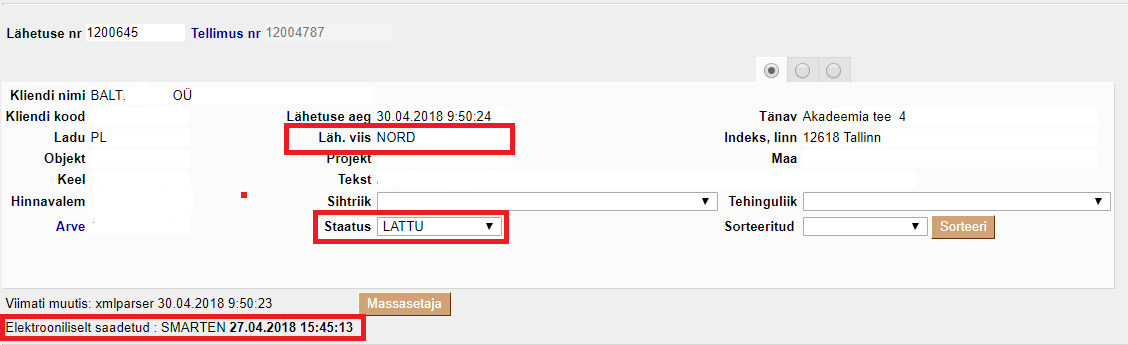
- When the Warehouse Manager sends a delivery confirmation for the shipment, the status of the related shipment in Directo changes to "BACK FROM WAREHOUSE". Now, this shipment must be confirmed.
04 Shipping goods to clients - printing labels
To print box labels, you need to do the following:
- In Docura, on the left, select EDI-Logistic Client
- In the left menu, select Shipment orders -> Report -> label.A4
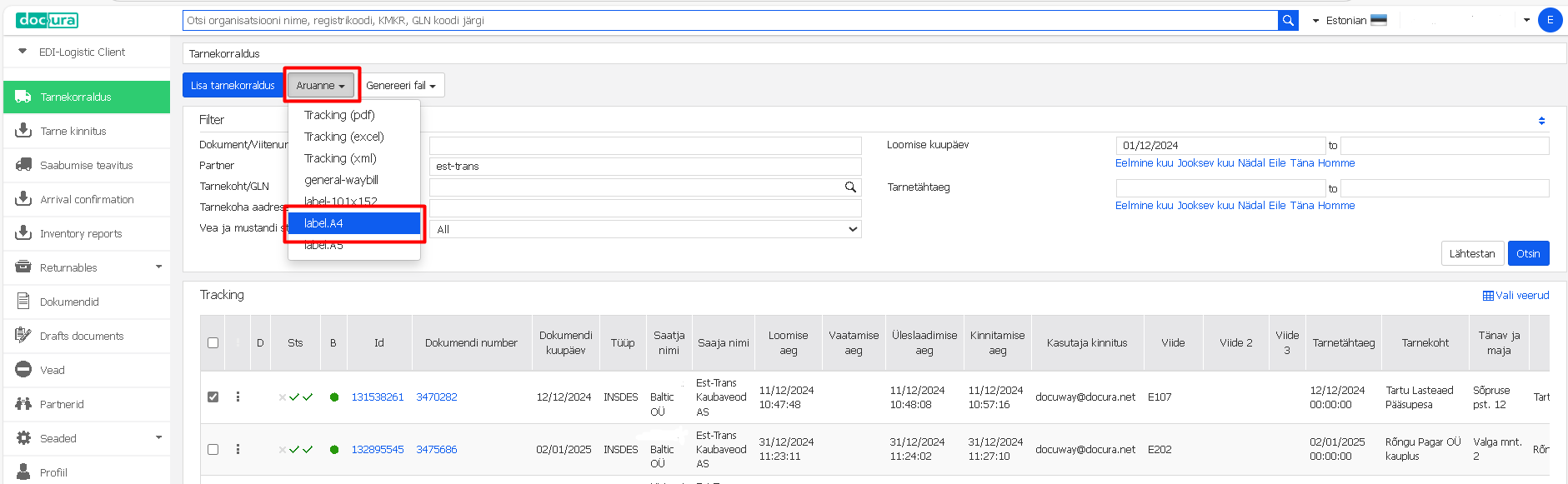
All labels selected with the filter will be displayed at once. You can print them out.
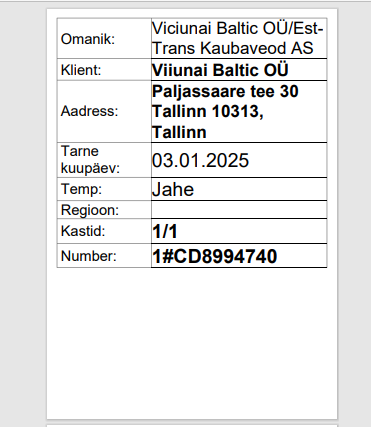
If the label is blank, check that the "Total boxes" data field in the Shipment Order is filled in.
06 Questions/Answers
01 Adding a PDF invoice to an EDI invoice
To ensure that the EDI invoice includes a PDF version, the "edi invoice also sends PDF" option must be activated in Directo's transport settings. After that, the EDI invoice will include a PDF version.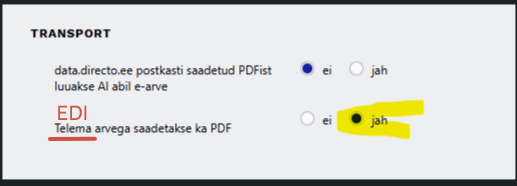
02 Best Before functionality in Directo
To correctly transmit "Best Before" information to the Docura system, the following rules must be followed:
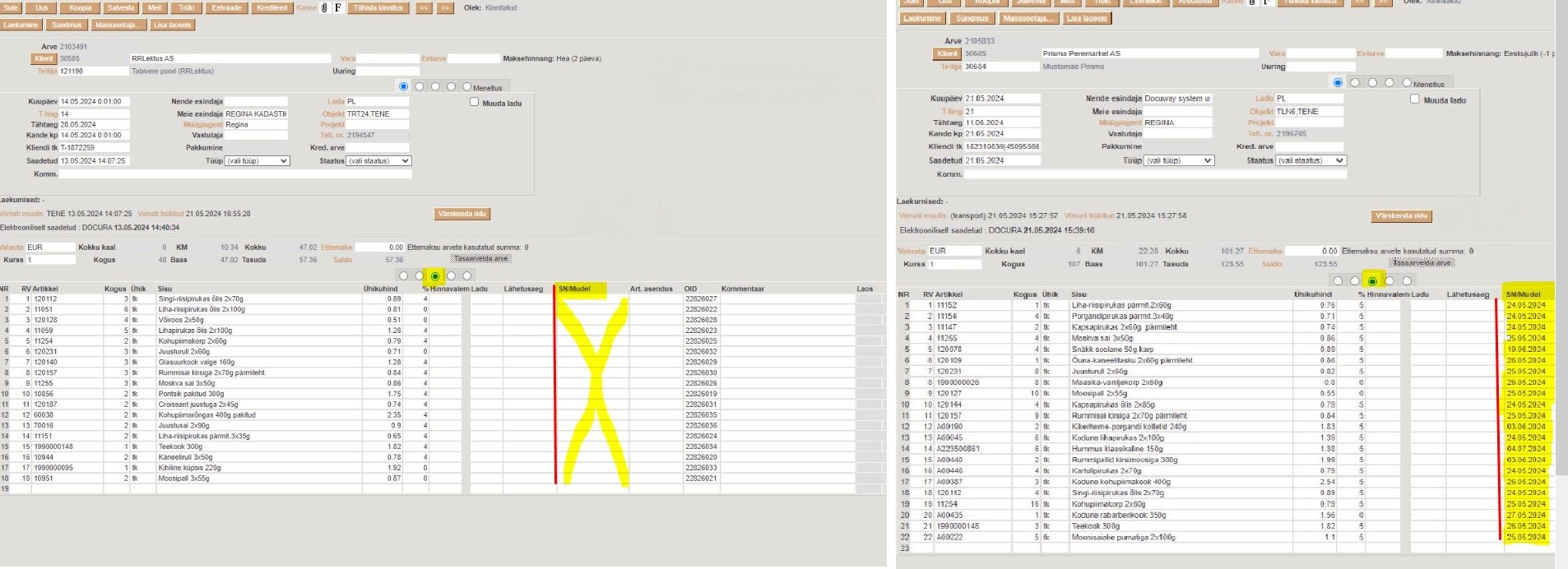
- The product's "best before" date must be entered in the SN/Model field and one of the following date formats must be used: DD.MM.YYYY or YYYYMMDD.
- If the mentioned field is not filled, "Best Before" information will not be sent to Docura.
Example
The screenshot below shows an example of how the data field should be filled:
Incorrectly filled: Best before data is missing.
Correctly filled: Data entered in the SN/Model field.
Activating SN/Model function.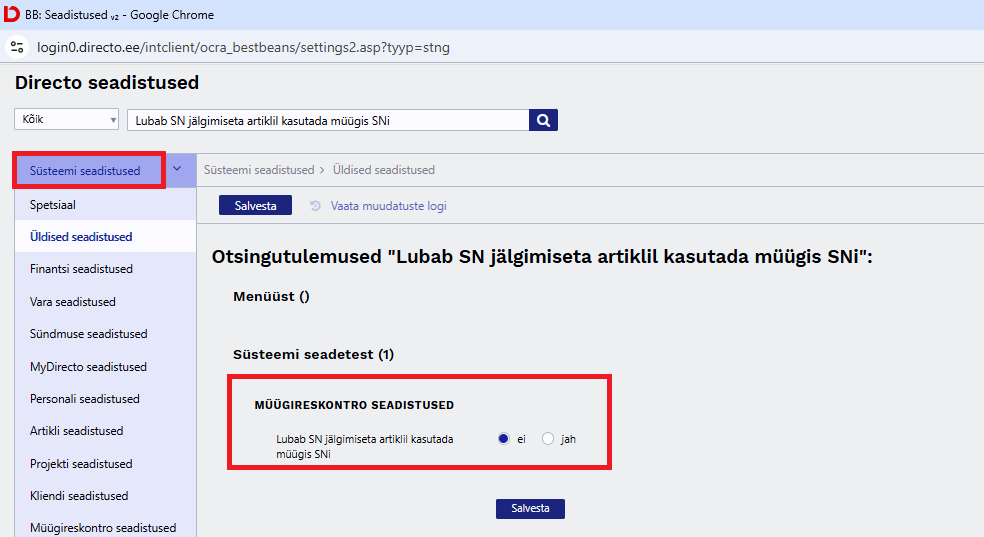
03 Differences in units of measure in incoming and outgoing documents
A situation may arise where a buyer places an order in one unit of measure (e.g., pieces), but the supplier sends a delivery note or invoice in another unit of measure (e.g., boxes). This can cause errors in the goods receipt process.
Example: A buyer places a purchase order in units, but receives a delivery note from the supplier where the quantity is indicated in boxes. The result is a discrepancy between the ordered quantity and the delivered quantity.
ORDER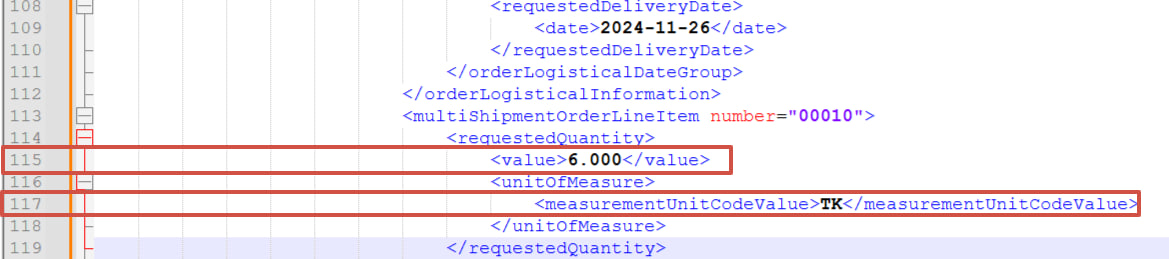
DESADV (delivery note)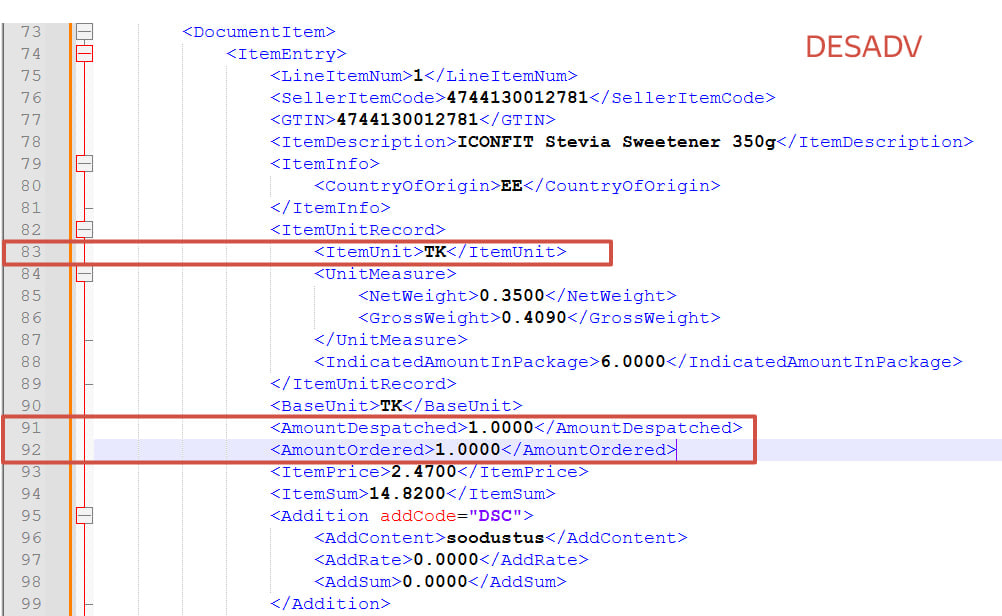
The solution is automatic unit of measure conversion. How to set it up:
1. Contact Directo support to set up unit of measure conversion.
2. Define the current unit of measure (e.g., box) and the target unit of measure (e.g., piece).
3. After setup, the system will automatically convert the data to meet the client's needs.
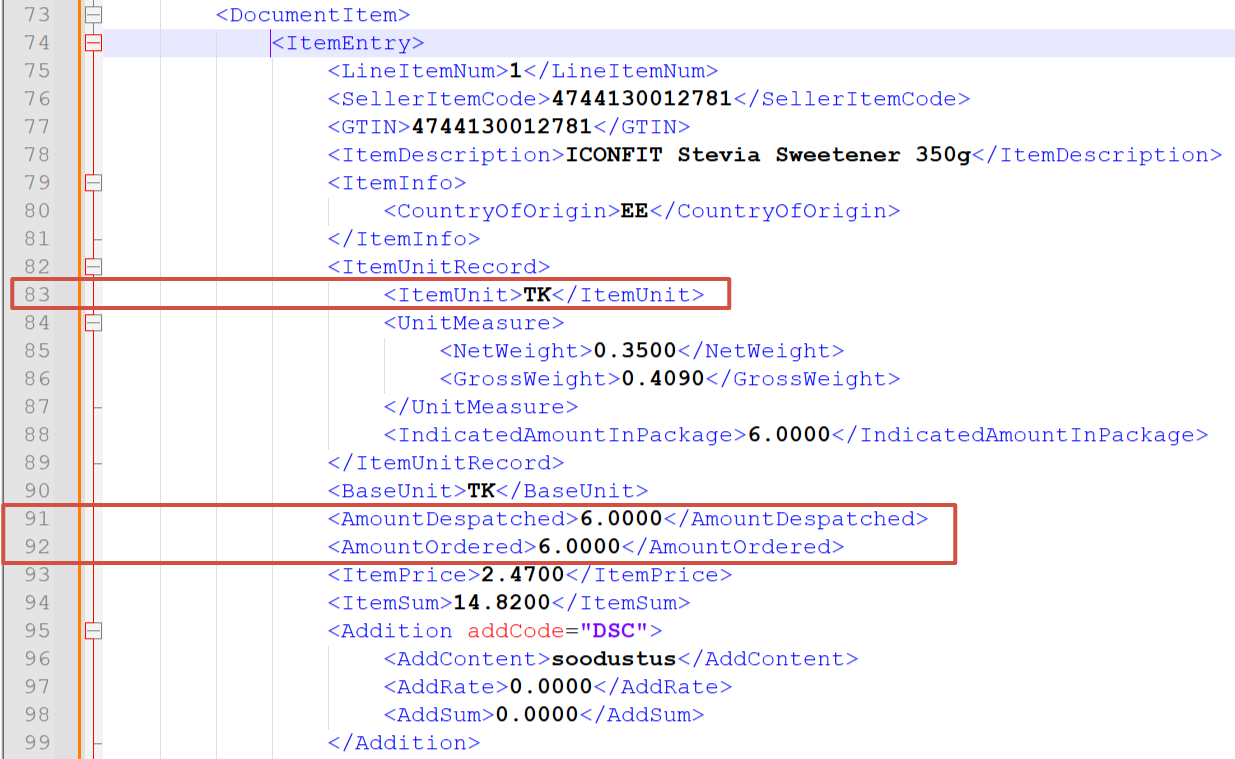
This setup helps avoid errors in the supply chain and improves communication between supplier and client.
Info:
Via 3l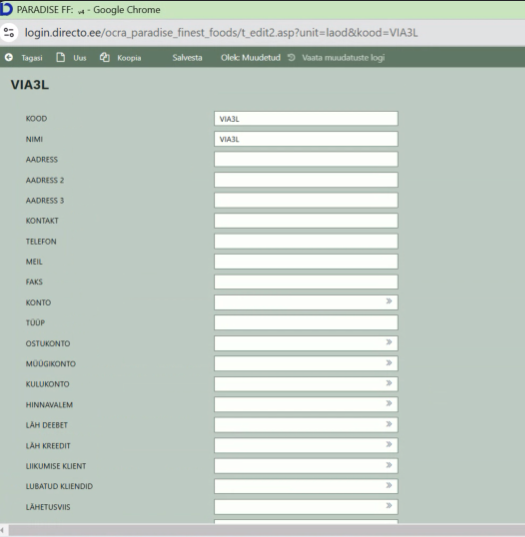
Order received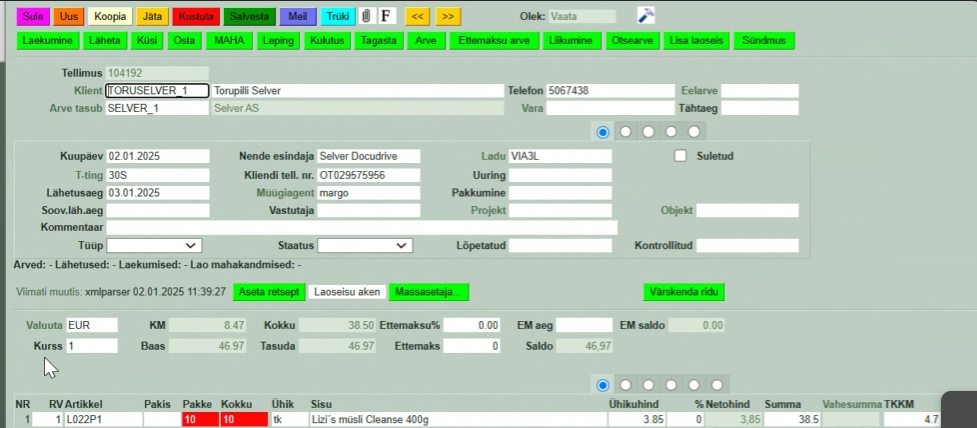
Click send