


Visma Horizon
- Table of contents
- Visma Horizon
- 01 Full original guide
- 02 What it covers
- 03 Setup on the Docura side
- 04 Setup in Horizon
- 05 Receiving documents (import from Docura)
- 06 Sending documents (export to Docura)
- 07 Automatic status updates
01 Full original guide
The complete original instructions (in Latvian, with screenshots) are published by Visma at:
community.visma.com — Docura integrācija preču kustības dokumentu apmaiņai
02 What it covers
Visma Horizon offers a direct integration with Docura for exchanging trade documents between suppliers and their customers running Horizon. The connection uses a direct REST API link to Docura — no local file folders or intermediary services are required.
The integration handles three flows:
- Import of incoming documents from Docura into Horizon (ORDER)
- Export of outgoing documents from Horizon to Docura (INVOICE)
- Automatic status updates for exported documents
03 Setup on the Docura side
Before connecting Horizon, make sure:
- The company is registered on Docura. Registration and the initial setup are described on the wiki page 01 General description of the Docu-WEB portal — sign up at app.docura.net, confirm your e-mail address, find or create your organisation, and take your ClientID and Client secret (API key) from your profile
- You have received the API address and API key — Docura support sends them on request (via chat or e-mail)
- Any trading partners not yet connected to Docura have been added to the exchange network
04 Setup in Horizon
- Go to System → Data exchange → EDI API connections
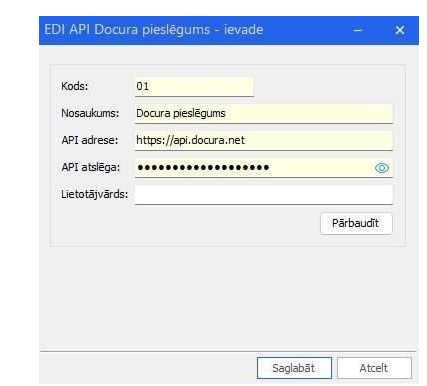
- Create a new EDI API Docura connection
- Enter the API address and API key (both required; Username is optional)
- Click Test — Horizon will verify the connection and report an error if the details are incorrect
01 Checklist before the first import
- Customer records have a registration number or ILN (GLN) filled in
- Product records have EAN barcodes registered
- Warehouse records have a delivery address with an ILN
- The EDI API Docura connection has been added and tested
05 Receiving documents (import from Docura)
Location: System → Data exchange → Document import
Horizon periodically requests new documents from Docura on its own — no manual file handling is required.
01 Manual import
System → Data exchange → Document import → New document
When creating an import record, specify:
- Connection — the Docura EDI API connection
- Document base type and Document type — determines which target document Horizon creates
| Situation | Result |
|---|---|
| A new import record is created | Only Docura documents not yet marked as received are imported |
| The target document is already completed | Re-creating it is not possible |
02 Automatic import (scheduled job)
Location: System → Settings → Automated jobs → EDI document import from middle layer
| Field | Required | Values |
|---|---|---|
| Connection | Yes | A previously created EDI API Docura connection |
| Document type | Yes | ORDER |
| Target document | Yes | The specific document type to be created |
03 After import
- Horizon automatically creates the target document
- The original XML file is stored against both the import record and the target document
- Docura marks the document as received (READ=Y) — it will not appear again in a later import
04 Notes
- If the target document is already completed, it cannot be re-created from the import record
- To re-import, open the document on the Docura portal (via the EDI portal link) and choose Receive again
- Before re-creating, make sure the original error cause (customer, warehouse, or product data) has been fixed in Horizon
06 Sending documents (export to Docura)
Outgoing documents (INVOICE) can be sent to Docura directly from Horizon lists in a single action — no manual XML preparation is needed.
Location:
- Documents → Logistics → Orders → Actions → List export → EDI API connection
- Documents → Warehouse → Invoice list → Actions → List export → EDI API connection
This action only appears in the menu once at least one EDI API connection has been configured.
01 Export steps
| Step | Description |
|---|---|
| 1. Document selection | If nothing is selected in the list, the document under the cursor is exported. If multiple rows are selected, all documents not yet exported are sent. |
| 2. Connection selection | With a single connection, it is used automatically. With several, a dialog opens; Horizon remembers the last choice. |
| 3. Authentication check | The API connection is validated before sending. If it is invalid, no documents are sent. |
| 4. XML preparation | Horizon prepares an XML file for each document with header info, line items, and attachments. |
| 5. Sending | The XML is sent to the Docura API. A confirmation ID or error message is returned; progress is shown in real time. |
| 6. Document update | Horizon stores the connection, operator ID, export time, and status Sent. This is logged as an EDI API export event. |
02 Fields shown after export
| Field | Description |
|---|---|
| EDI API connection | Which connection was used for the export |
| EDI export status | Sent at export time, later updated to Processed or Error |
| EDI error code | Message identifier assigned by Docura |
| EDI error message | Error or warning text from Docura |
| EDI portal link | Direct link to the document on the Docura portal |
03 Notes
- Already exported documents are skipped automatically when selecting rows — this prevents duplicates
- Do not send the same document twice within a short time — Docura processes documents asynchronously and may not detect a duplicate
- The EDI export status fields are filled in automatically and are not meant to be edited manually
07 Automatic status updates
After export, Horizon automatically queries Docura and updates document statuses — no manual check on the portal is needed.
Location: System → Settings → Automated jobs → EDI API export document status retrieval
01 Configuration
| Field | Required | Values |
|---|---|---|
| Connection | Yes | A previously created EDI API connection |
| Document type | No | All types, INVOICE, or Order |
02 Recommended interval
Horizon queries Docura for changes over the last 24 hours each time the job runs.
- Minimum: every 10 minutes (more frequent checks add unnecessary load)
- Optimal: once an hour
- Maximum: at least once every 24 hours
Warning: if the job does not run for more than 24 hours, any Docura changes from that period will not be picked up by Horizon.
03 How the status update works
| Docura result | Horizon status | Explanation |
|---|---|---|
| No error | Processed | The document was successfully delivered to the recipient. If there is a warning, it is stored in the EDI error message field. |
| Error flag present | Error | The document did not reach the recipient. |
The job only updates a document when something has actually changed — no unnecessary events are logged. Each real change is recorded as an EDI API status change event with the exact list of updated fields.