


- Table of contents
- Maxima Eesti OÜ-10765896
Maxima Eesti OÜ-10765896
DOCURA SALES PORTAL
(EDI-Sales / 2DOC / 3DOC)
User Manual – End User Role
The Docura B2B EDI-Sales Portal makes it easy for suppliers to receive orders and send invoices electronically. It covers the entire sales process from order to delivery, helping to reduce mistakes, speed up processing, and cut down on administrative work for everyone involved.
1. Login
Access the portal at: https://docuid.docura.net/login
First-Time Access
- Docura will send an invitation email automatically.
- Click the link in the email to set your password.
- Password requirements:
a) Minimum 8 characters
b) At least 1 uppercase letter
c) At least 1 number
d) At least 1 special character (e.g., comma, period, exclamation mark)
If the Link Does Not Work
1. Go to https://docuid.docura.net/login manually
2. Click “Password reset”
3. Check your email for a new link to reset your password
Enter your username and password and click “Log in”.
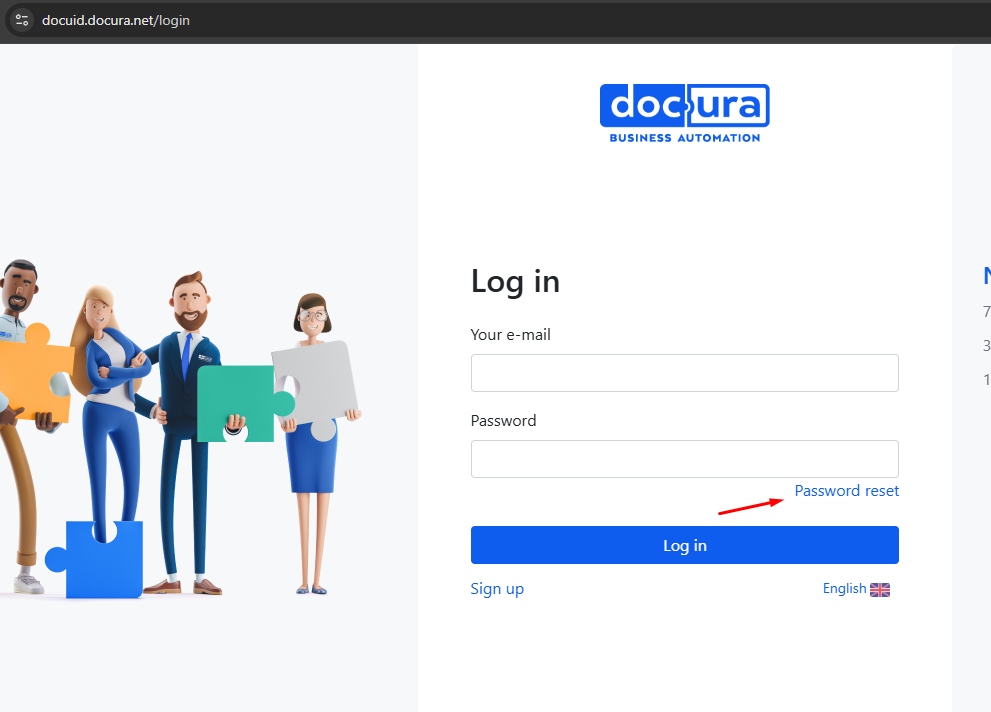
If you have forgotten your password, you can reset it on the login page.
2. Receiving and Managing Sales Orders
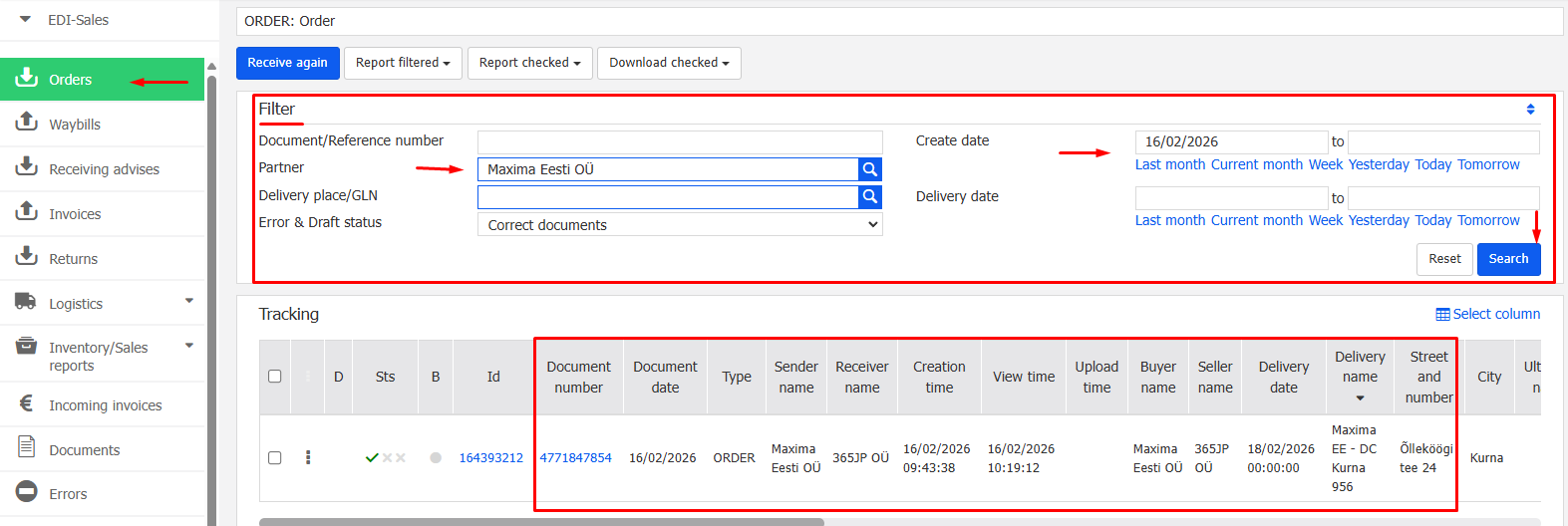
- Open the Orders Module.
From the left-hand menu, select “EDI-Sales” → “Orders”
Note: Each time Maxima Eesti OÜ sends you an order, you will receive an email notification. - Find and Open a New Order
a) Orders from the last 2 days are displayed automatically
b) To find older orders, use the Filter option
c) Click “Document Number” to open the order
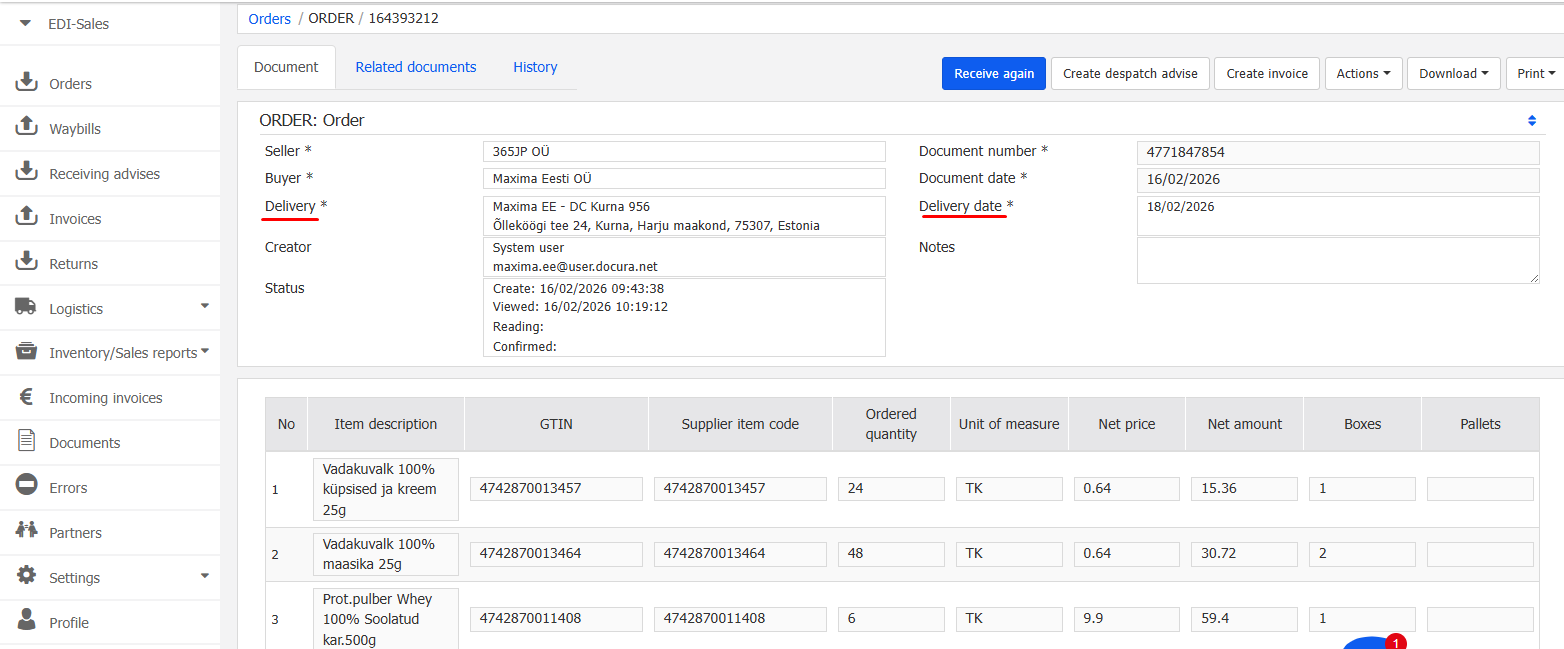
Order Details
Each order includes: Delivery location, Delivery date, Item list with EAN and supplier item codes, Ordered quantities and units of measure, Box count.
You can:
- Download the order in Excel or XML format
- Print the order if needed
3. Creating an Invoice
When the supplier is ready to deliver the goods, the invoice must be prepared.
- Open the relevant Order and select “Create Invoice” from the menu.
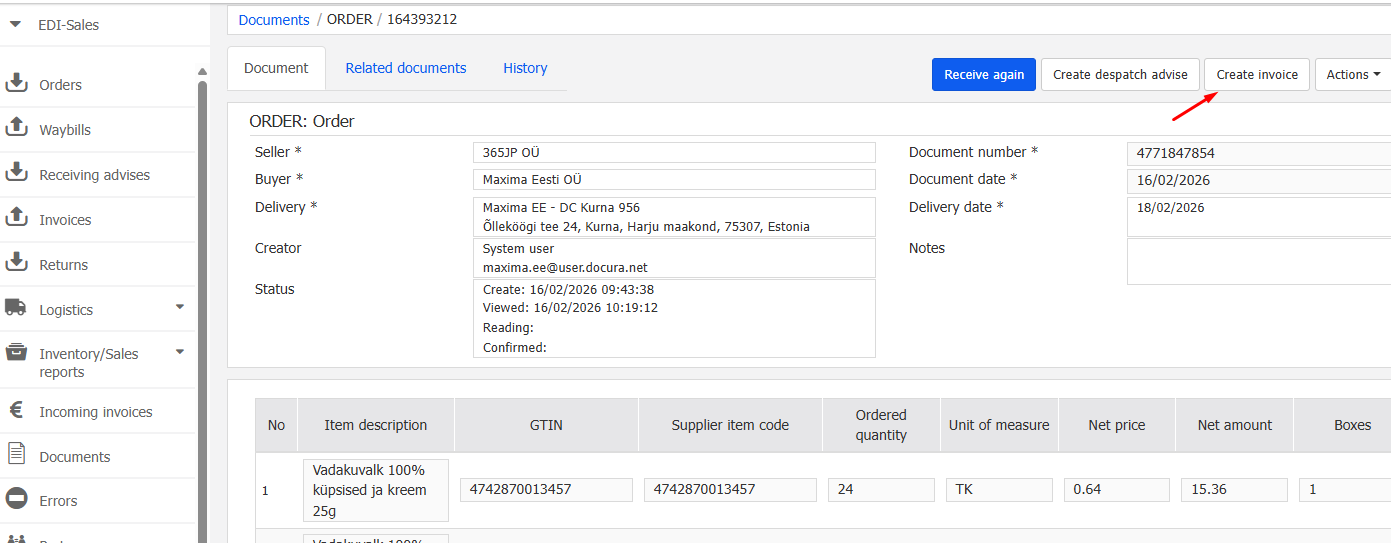
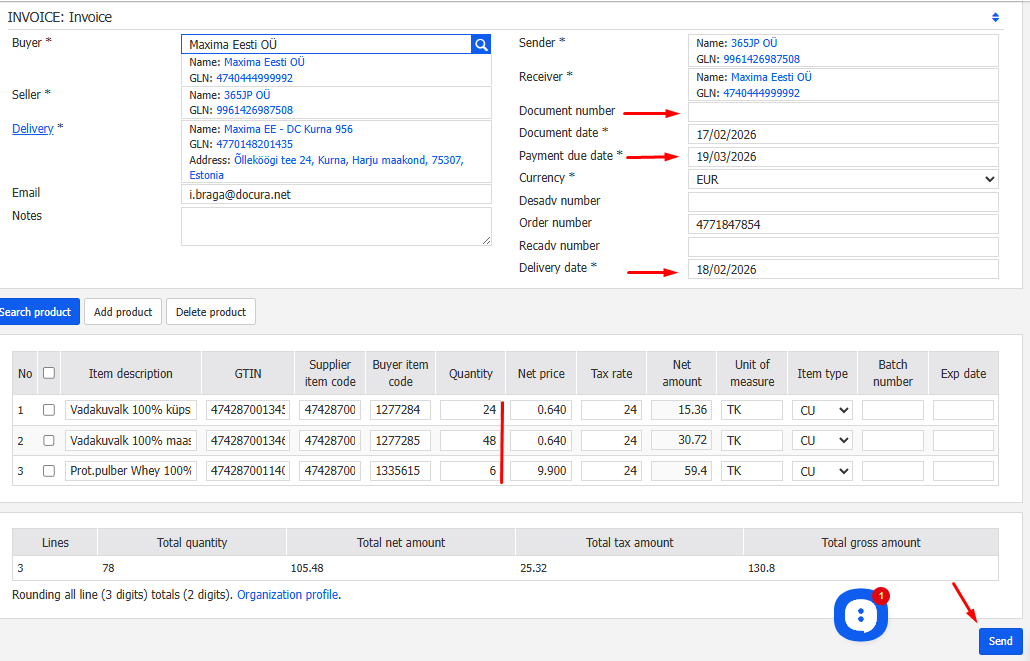
- All invoice data from the Order will be displayed automatically.
- Please review the information carefully and complete or confirm the following details:
a) Document number
b) Payment due date
c) Delivery date
d) Products and quantities (prices can be added or adjusted if necessary) - Once all information has been checked, click the “SEND” button.
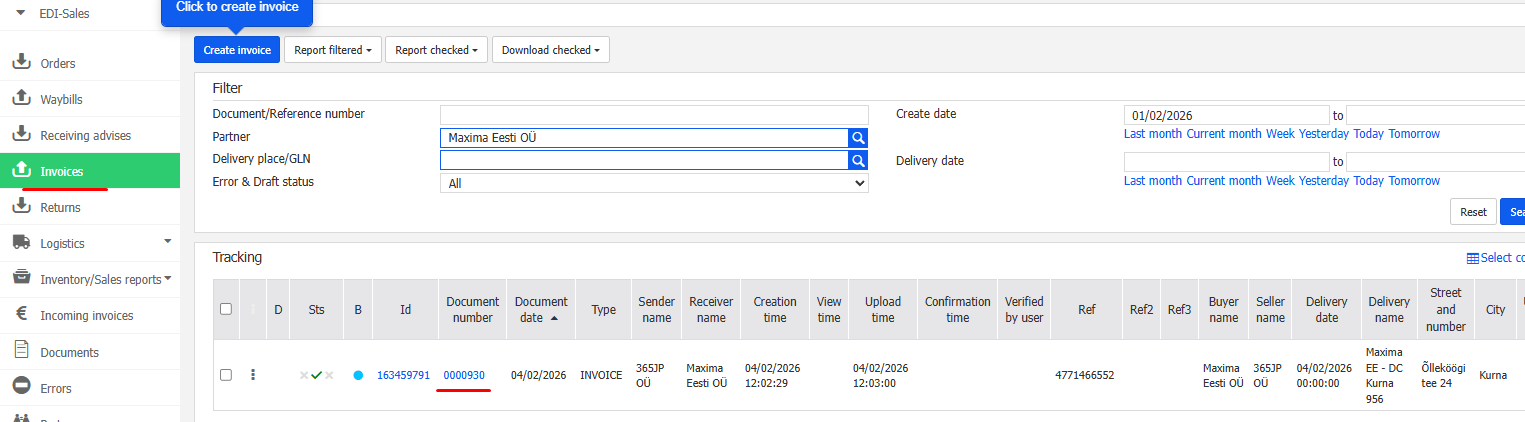
- The invoice is automatically sent to Maxima Eesti OÜ and appears in the Invoices menu
4. Creating DESADV (Dispatch Advice)
A DESADV document is automatically generated and sent to Maxima Eesti OÜ when the invoice is created.
Desadv appears in the Waybills menu, and can be printed or sent together with the delivery without any manual action required.
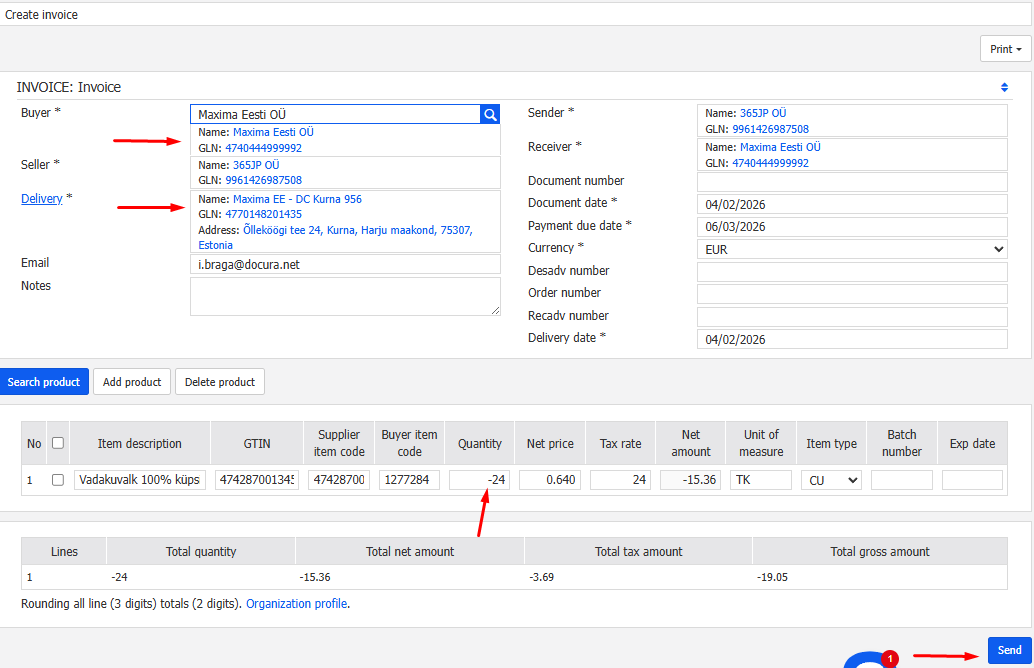
5. Creating a Credit Invoice
Credit invoices can be created in multiple ways:- New Invoice: Menu → Invoices → Create Invoice
- Based on Existing Invoice: Open the invoice → Select “Create Invoice”
- Based on Order: Open the order → Create invoice using prefilled data
All credit invoices appear in the Invoices menu.
6. Documents search
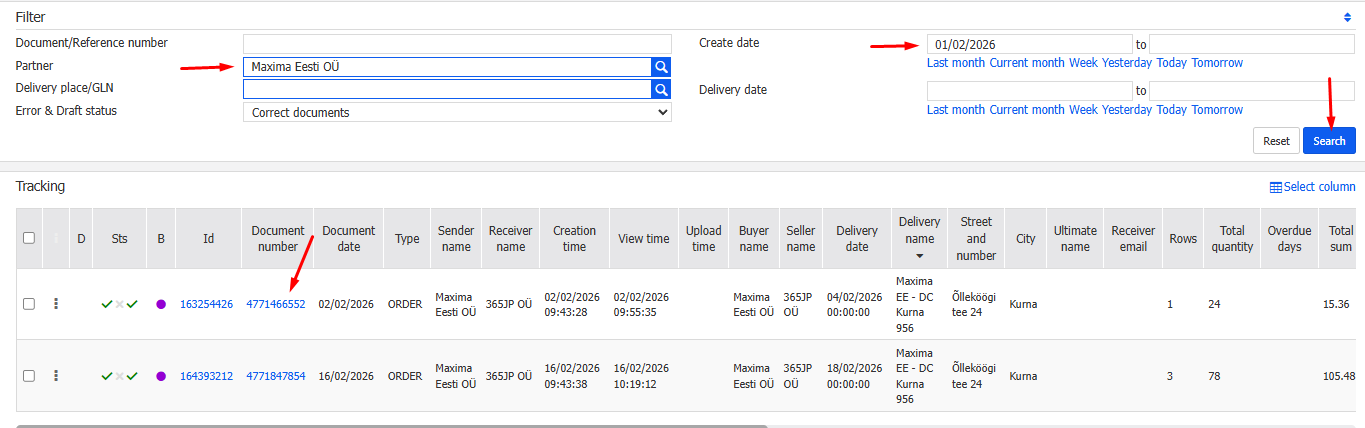
Use the Filter option to search for documents by:
a) Creation date
b) Document number
c) Partner
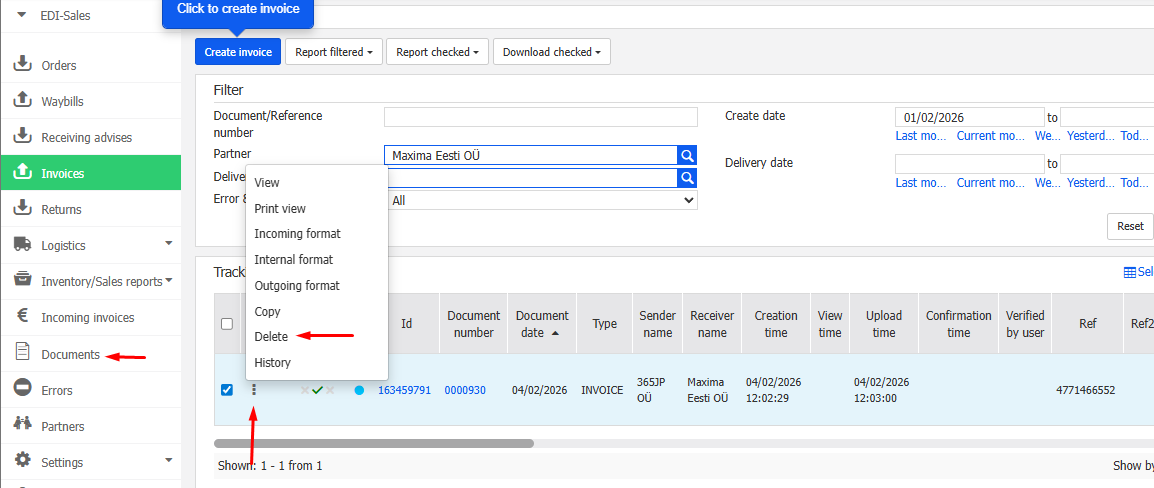
All documents, including deleted ones, are retained for 90 days in the Documents menu
Users can delete documents, but they remain visible in the Documents menu.
7. Adding a User
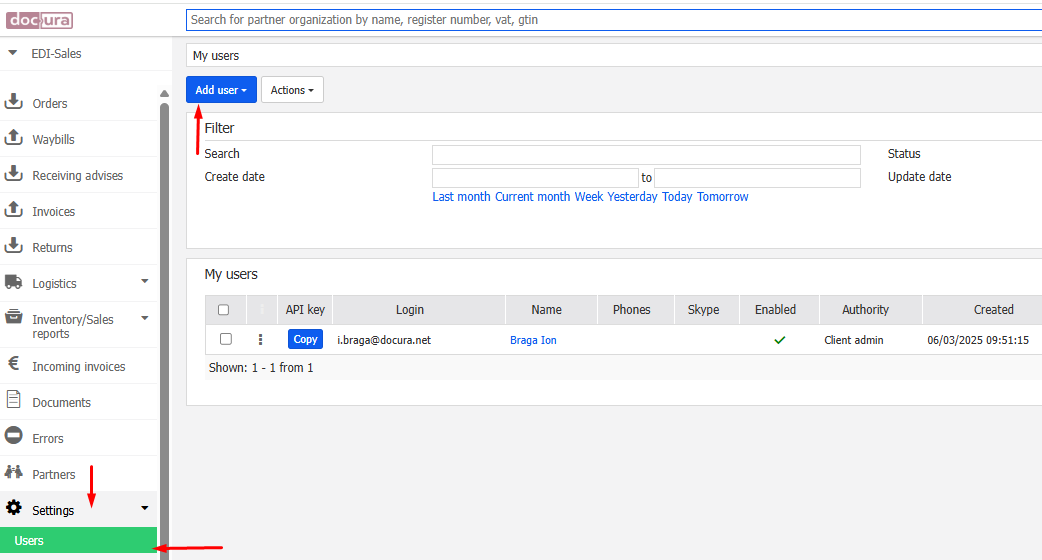
If you have portal access, you can add users:- Go to Settings → Users
- Click “Add User”
- Enter user details, select language, and ensure the Menu Interface is set to “EDI-Sales”
- Click “Save”
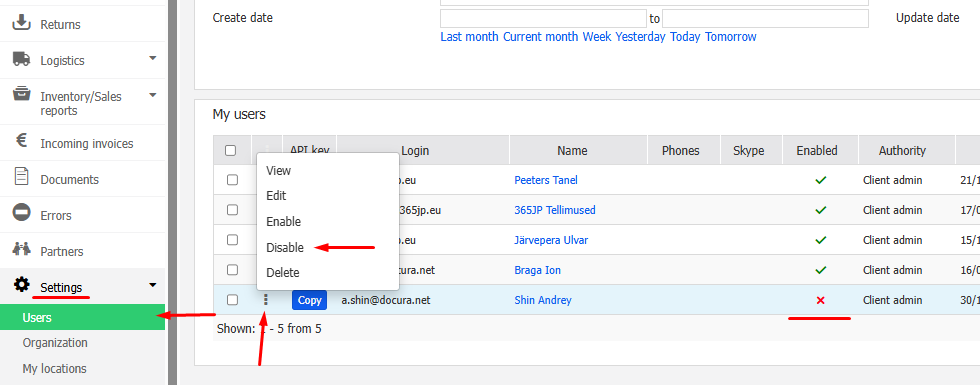
The new user will receive an invitation email automatically. Users can later be deactivated or deleted from the same view the user.

8. Support / Help
If you have any questions or need assistance, please contact us:
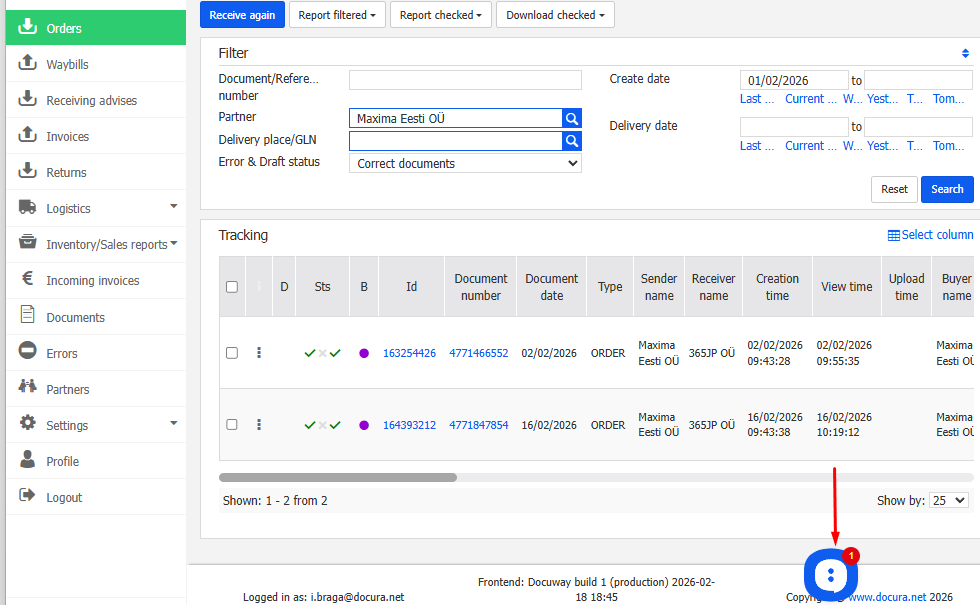
a) Use the Docura chat available on the platform
b) Email us at support@docura.net
c) Or call +372 56 40 620
We will be happy to assist you.
Optional Development
Contact Docura if you need:
a) Product code matching
b) Sending orders to logistics providers
c) Integration with your ERP system
d) Other automation to streamline the sales process.
Our team can assist with further automating and optimizing your workflow.